
1. How to show list of salary scales in dotBizX.Com?
To do it, you click on HR & Payroll (1) menu => Next you click on Salary Pay Scale (2) option => Then you can see the list of salary scales like Illustration 01 bellows.
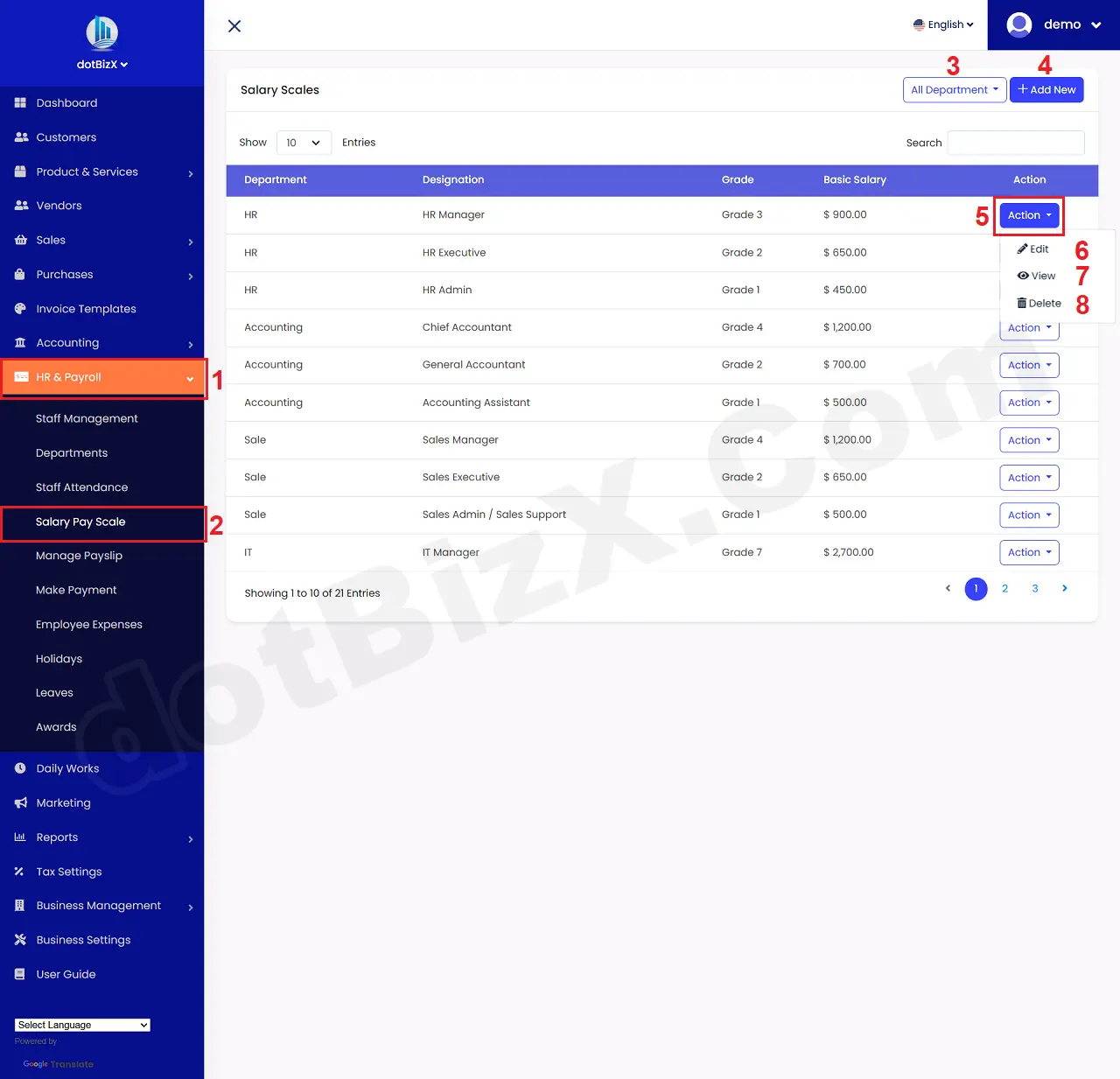
Illustration 01: List of Salary Scales
* Notes:
+ All Departments (3) button: It's used to filter Salary Scales via Departments.
+ Add New (4) button: It's used to create a new salary scale.
+ Action (5) button: When you click it so you can see 6th - 8th options.
+ Edit (6) button: It's used to modify an existing Salary Scale.
+ View (7) button: It's used to show an existing Salary Scale.
+ Delete (8) button: It's used to delete an existing Salary Scale.
2. How to add a new salary scale?
In list of salary scales like Illustration 01 above, you click on Add New (4) button => In Add Salary Scale Form, you need input all things for it => Final, you click on Save () button to finish.
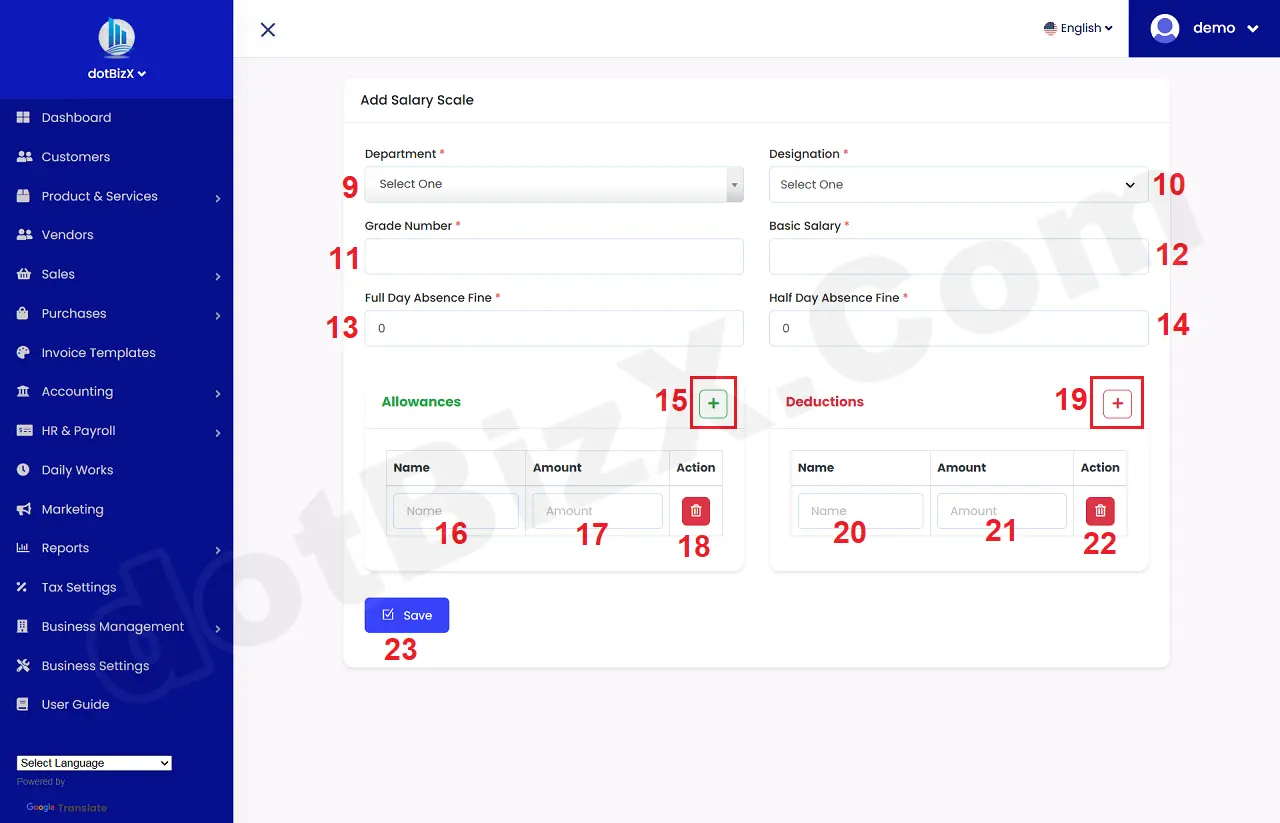
Illustration 02: Add Salary Scale Form
* Notes:
+ Cells marked with a red asterisk (*) are mandatory.
+ Department (9) and Designations (10) box: It's values has to create before. If you don't create any things so you need do it via 8.1.1. Departments Management and 8.1.2. Designations Management in the user guide of dotBizX.com.
+ 15th button: It's used to add a new row for Allowances.
- Name (16) box: You need input the suitable Allowance name.
- Amount (17) box: You need input Its Amount there.
- 18th icon: It's used to delete a row.
+ 19th button: It's used to add a new row for Deduction.
- Name (16) box: You need input the suitable Deductionname.
- Amount (17) box: You need input Its Amount there.
- 22th icon: It's used to delete a row.