
After you login into dotBizX.Com finish, so you can see this interface:
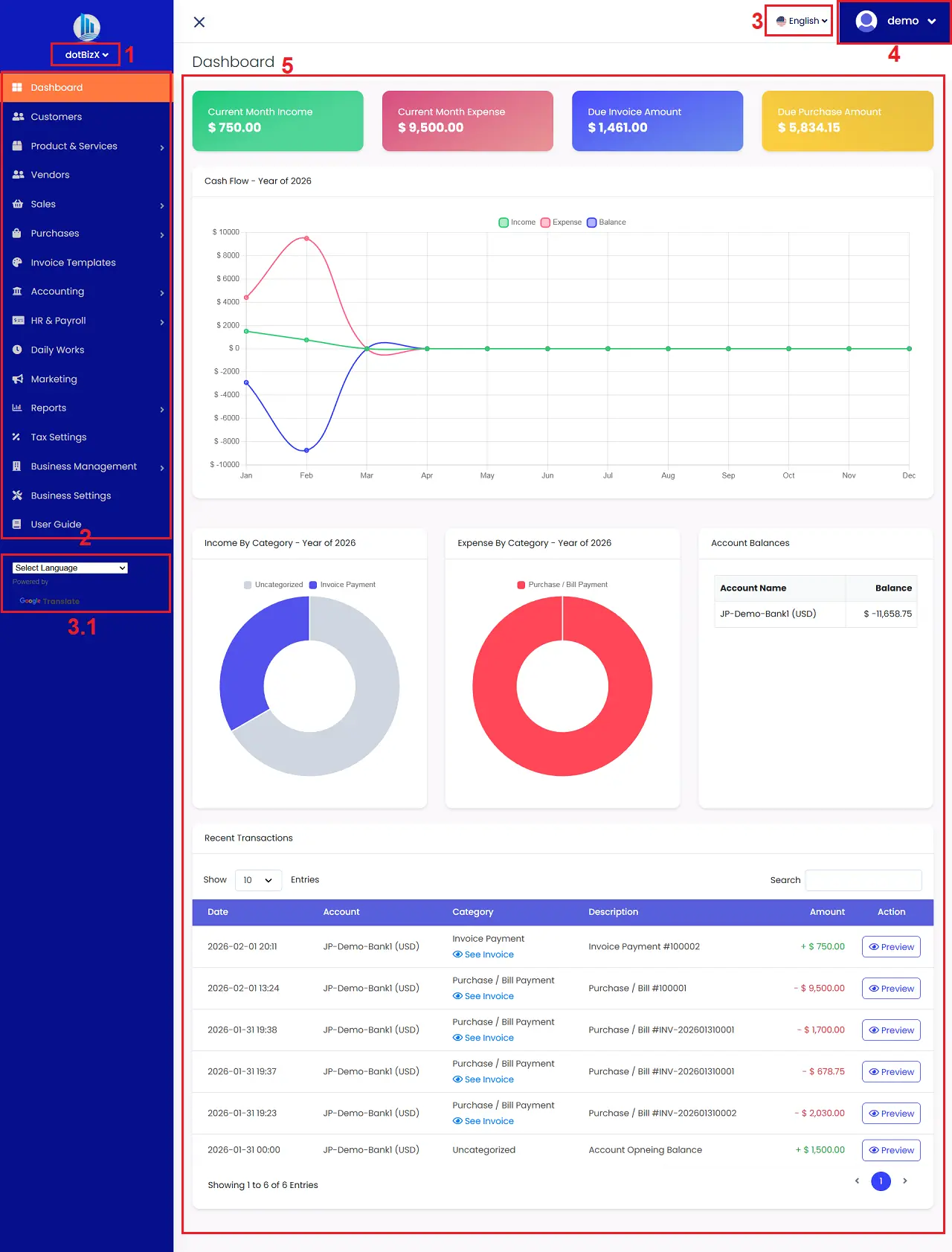
Illustration 01: The user interface of dotBizX.com
* Notes:
+ 1st box: You click on this option to choose your business that you want to work.
+ 3rd or 3.1 box: You can click on this button to choose the language that you want.
+ 4th box: You click on this option to change your account informtion or change your password or change your package service or Logout of dotBizX.Com.
+ 5th area: It displays an overview of your ERP management performance.
+ 2nd box: It includes all functions of this ERP tool, specifically:
- Customers menu: It shows list of your customers. You can create, edit, delete and contact with your customers there.
- Products & Services menu: It shows list of your products and services. You can create, edit, delete and contact with your products and services there.
- Vendors menu: It shows list of your vendors. You can create, edit, delete and contact with your vendors there.
- Sales menu: Here, you can create quotes, generate invoices, and process invoice payments. You can also obtain the invoice link to send to customers. Customers can pay directly from the invoice via online payment gateways such as PayPal, Stripe, etc.
- Purchases menu: Here, you can perform purchasing management operations with suppliers such as: displaying a list of purchase orders, creating new purchase orders, editing or deleting existing orders.
- Invoice Templates menu: You can use this function to manage invoice templates, such as displaying a list of invoice templates, creating new invoice templates, or editing or deleting existing invoice templates. These invoice templates will be used in sales or to create quotations to send to customers.
- Accounting menu: Here, you can manage accounting operations such as: Bank & Cash Accounts, Transactions, Transaction Categories, and Transaction Methods.
- HR & Payroll menu: This function will help you manage personnel, track attendance, calculate salaries, and more for your employees.
- Daily Works menu: This function will help you manage daily tasks such as: work planning, assigning tasks to employees, managing contracts, managing documents, managing notes, managing social media information, managing social media content, managing events, etc.
- Marketing menu: Here, you can manage and execute bulk SMS campaigns, send bulk WhatsApp chat messages to customers, suppliers, employees, etc., to send them quotes, invoices, payrolls, internal announcements, and more. Additionally, it also supports sending emails to suppliers, customers, and employees...
- Reports menu: This function helps generate reports on sales, purchases, accounting transactions, payroll, taxes, and other reports related to your business operations.
- Tax Settings menu: Here, you can manage the taxes applicable to your business, from displaying a list of taxes to creating new taxes, editing, or deleting existing taxes.
- Business Management menu: This function helps you manage your business by: displaying a list of businesses you want to manage using this streamlined ERP software, creating new businesses, and editing or deleting existing businesses.
Here, you can also create access rights/roles to the software and use features appropriate to the responsibilities and authority of each department or group of personnel within the business.
Here, you can also invite personnel, customers, and partners to access the software to monitor and use its features according to the rights/roles you assign them.
- Business Settings menu: This function will help you set up information for your business such as:
+ General information: Time zone, language used, language display style, date and time style...
+ Currency setting: Choose the currency your business uses, the display style of the amount on invoices, quotations, payroll slips...
+ Invoice setting: Here, you can set up the information, format and style of the Sales Invoice, Quotation, Purchase Invoice...
+ Payment gateway setting: Here, you will declare and define the payment methods your business will use such as: Bank account information (Offline payment), Online payment information such as: Paypal, Stripe...
+ Mail server setting: Set up the parameters of the mail server to serve the tasks of sending emails to suppliers, customers, employees...
- User Guide menu: You click on this menu to get the user guide for dotBizX.com.