
1. How to show list of departments in dotBizX.Com?
To do it, you click on HR & Payroll (1) menu => Next you click on Departments (2) option => then you can see list of departments like Illustration 01 bellows.
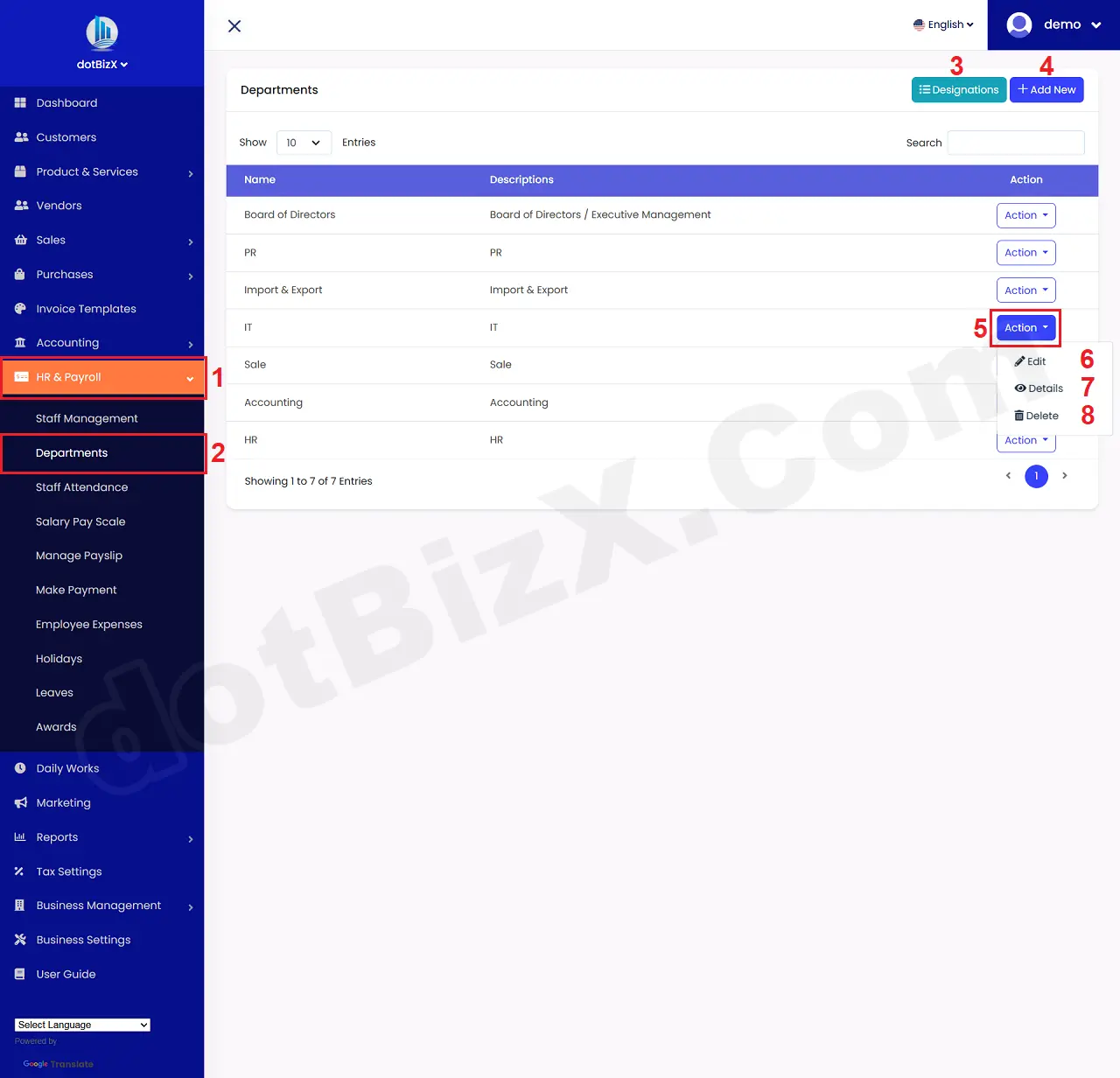
Illustration 01: List of Departments
* Notes:
+ Cells marked with a red asterisk (*) are mandatory.
+ Designations (3) button: It's used to manage all designations like create a new Designation or modify an existing Designation via Departments.
+ Add New (4) button: It's used to create a new Department.
+ Action (5) button: When you click on this button so you can see 6th - 8th options.
+ Edit (6) button: It's used to modify an existing Department.
+ Details (7) button: It's used to show an existing Department.
+ Delete (8) button: It's used to delete an existing Department.
2. How to add a new department?
In list of departments like Illustration 01 above, you click on Add New (4) button => In Add Department Form, you need input all things for your new department => Final, you click on Save (11) button to finish.
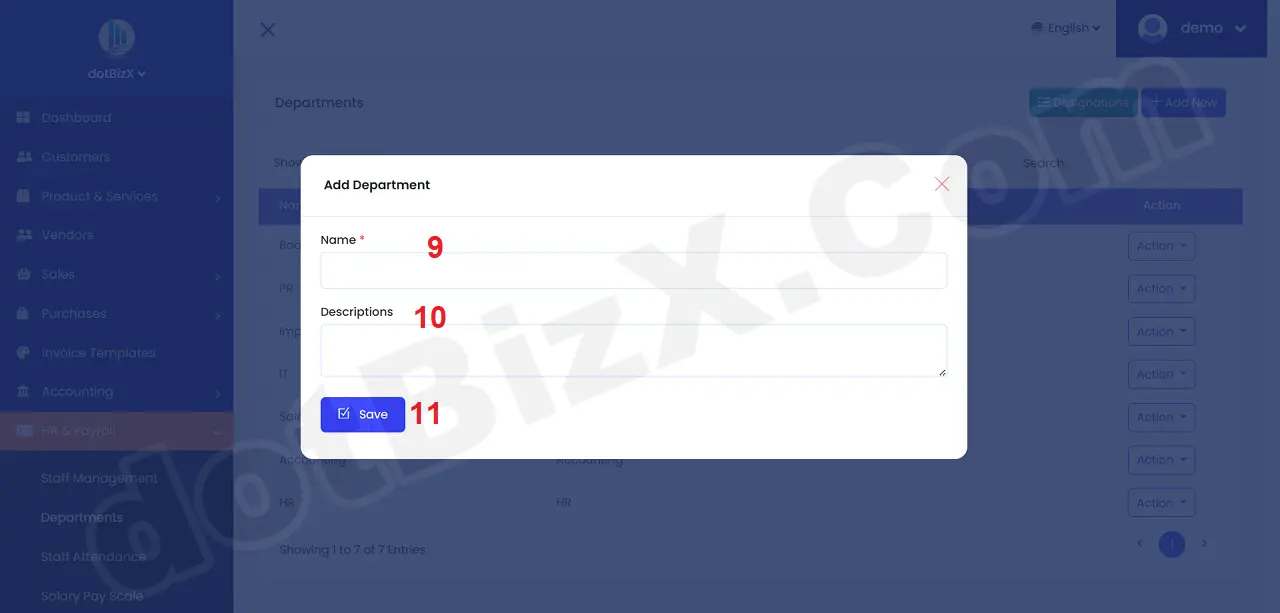
Illustration 02: Add Department Form
3. How to show list of Designations?
In list of departments like Illustration 01 above, you click on Designations (3) button => then you can see list of designations like Illustration 03 bellows.
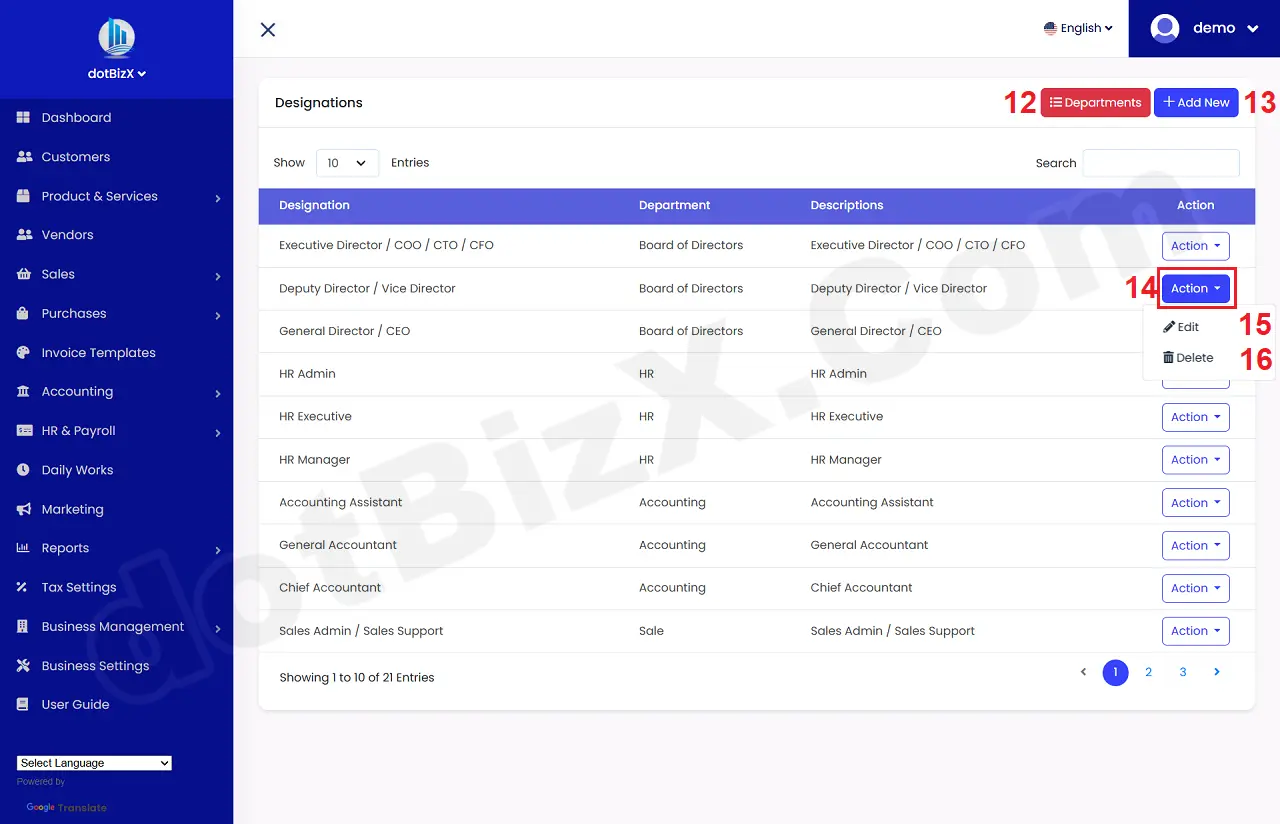
Illustration 03: List of Designations
* Notes:
+ Departments (12) button: It's used to manage all departments like create a new department or modify an existing department.
+ Add New (13) button: It's used to create a new designation.
+ Action (14) button: When you click on this button so you can see 15th - 16th options.
+ Edit (15) button: It's used to modify an existing designation.
+ Delete (16) button: It's used to delete an existing designation.
4. How to create a new designation?
In list of designations like Illustration 03 above, you click on Add New (13) button => In Add Designation Form, you need input all things for it => Final, you click on Save (20) button to finish.
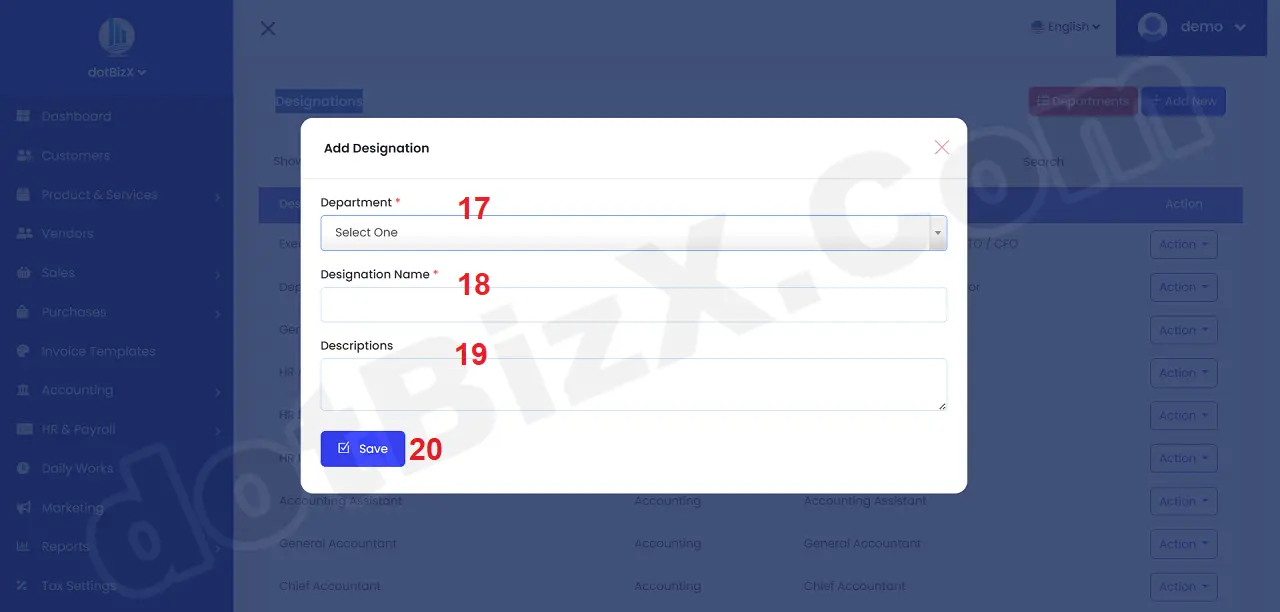
Illustration 04: Add Designation Form
* Notes:
+ Cells marked with a red asterisk (*) are mandatory.
+ You should have already created a list of departments within your company. If you haven't created one yet, you need to follow the instructions in Section 1.2 above.