1. How to show list of WhatsApp Marketing Campaigns With Invoices in dotBizX.Com?
1.1. Step 1: Open the Dashboard Marketing
To do it, you click on Marketing (1) menu => Then you can see the Dashboard Marketing like Illustration 01 bellows.
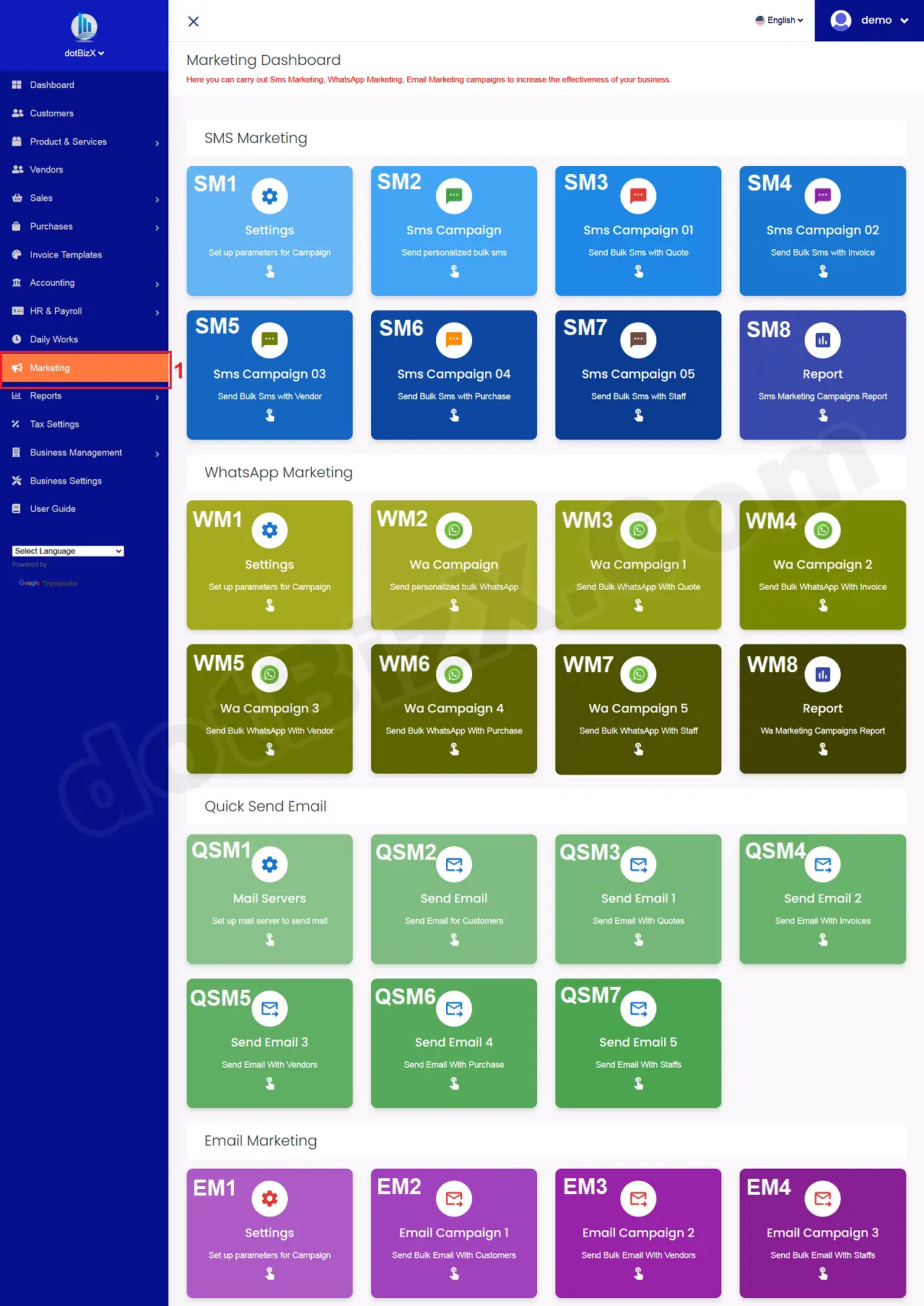
Illustration 01: Interface of Dashboard Marketing
1.2. Open list of WhatsApp Marketing Campaigns With Invoices
In Dashboard Marketing Form like Illustration 01 above, you click on Wa Campaign 02 (WM4) button => Now you can see list of WhatsApp Marketing Campaigns With Invoices like Illustration 02 bellows.
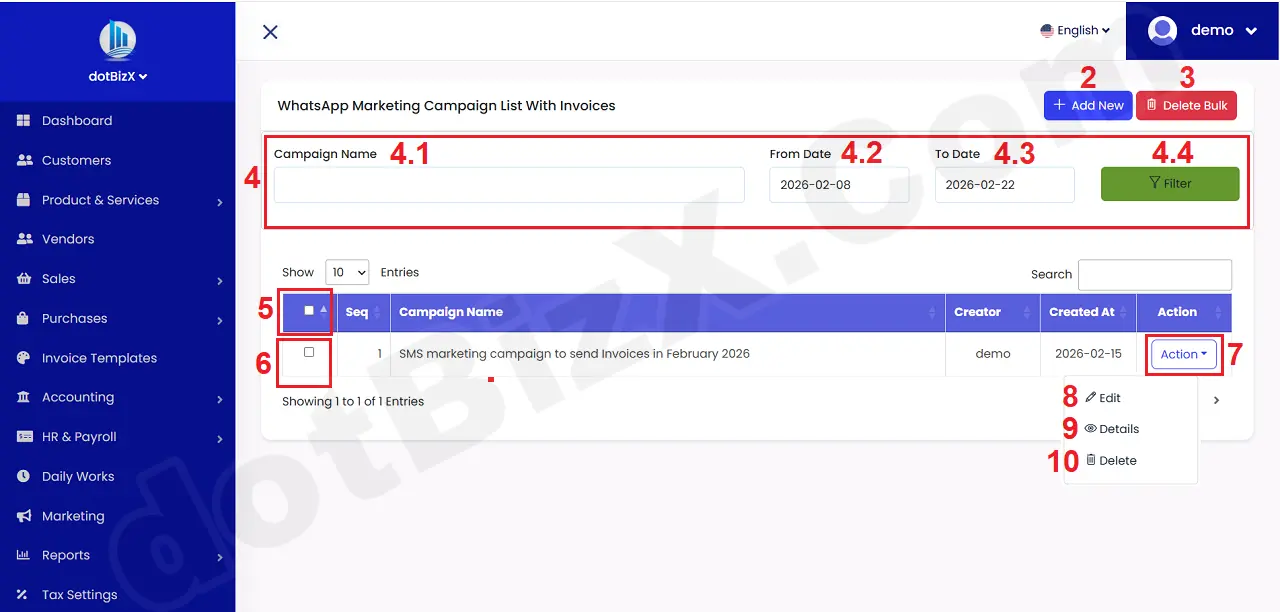
Illustration 02: List of WhatsApp Marketing Campaigns with Invoices
* Notes:
+ Add New (2) button: It's used to create a WhatsApp marketing campaign from List of Invoices.
+ Delete Bulk (3) button: It's used to delete all rows that's selected from the table bellows.
+ 4th red area: It's used filter data about customers with their Invoices. This data show in the table bellows. This data's used to send Chat in bulk to these customers.
+ 5th check box: It's used selected or unselected all rows.
+ 6th check box: It's used selected or unselected the suitable rows.
+ Action (7) button: When you click this button so you can see 8th - 10th options.
+ Edit (8) option: It's used to modify an existing WhatsApp marketing campaign with Invoices.
+ Details (9) option: It's used to show an existing WhatsApp marketing campaign with Invoices.
+ Delete (10) option: It's used to delete an existing WhatsApp marketing campaign with Invoices.
2. How to create a new WhatsApp Marketing Campaign that allows you to send bulk Chats to your customers with custom content based on their Invoices?
2.1. Step 1: Open Add New WhatsApp Marketing Campaign With Invoices Form
In list of WhatsApp marketing campaigns with quotes like Illustration 02, you click on Add New (2) button => Now you can see the Add New WhatsApp Marketing Campaign With Invoices Form like Illustration 03 bellows.
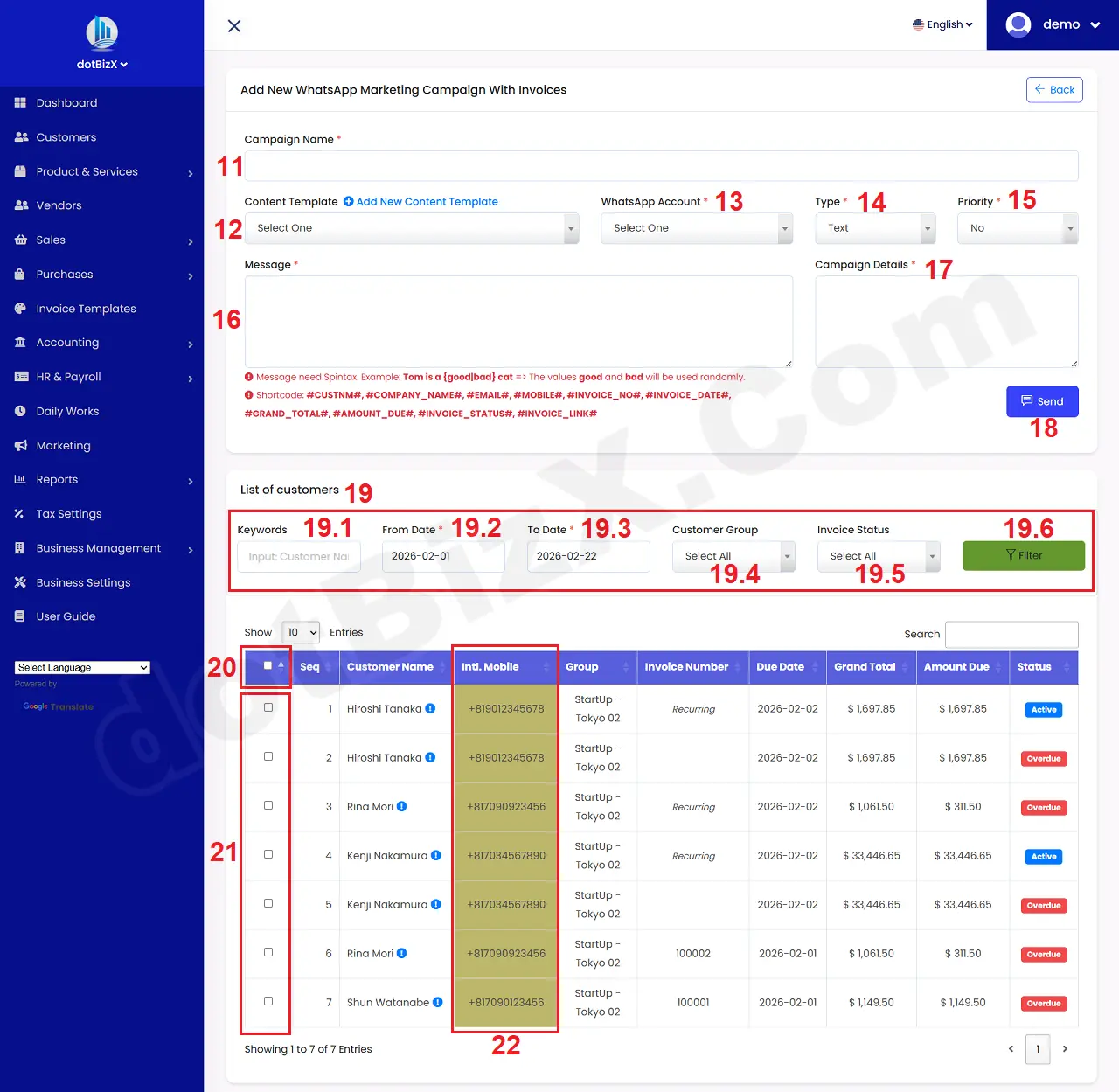
Illustration 04: Add New WhatsApp Marketing Campaign With Invoices Form
2.2. Step 2: Choose your customers who you want to send bulk Chats with their Invoices
You can use all control in 19th red area to filter your customers. The filter result shows in table bellows.
=> Next you need choose your customers who you want to send bulk Chats with their Invoices via check or un check 20th check box (Select All) or 21th check box.
2.3. Step 3: Set the parameters for your WhatsApp marketing campaign with Invoices
+ Campaign Name (11) box: You need input your campaign name here. It is used to differentiate it from other WhatsApp marketing campaigns with quotes.
+ Content Template (12) box: You need choose a suitble value. It hasn't any values so you can create it by click on Add New Content Template option near this box. Or you can do it via 9.7. Seeding Contents Management of the user guide of dotBizX.Com.
👉 One you finish to choose the suitable content template so its content's auto filled to Message (16) box.
+ WhatsApp Account (13) box: You need choose the suitable wa account. If you haven't done so yet, you need to follow the instructions in SECTION 4 of article 10.21. WhatsApp Marketing Settings to complete it.
+ Type (14) box: You need choose the text value.
+ Priority (15) box: It has two values:
- No: All Chats's sending after other campaigns that's finished.
- Yes: All Chats's sending as soon as.
+ Message (16) box: You need input your content here if Content Template (12) box hasn't values.
+ Campaign Details (17) box: You need input your Campaign Details here.
=> Final, you click Send (18) button to finish.
👉 Now dobizX.Com's sending chats in bulk for you.
* Notes:
+ Cells marked with a red asterisk (*) are mandatory.
+ Intl. Mobile (22) column: This column must contain data in order to send bulk chats to selected customers. If this column is empty, you must follow the instructions in SECTION 4 of article 10.11. SMS Marketing Settings to create it.
3. How to show the WhatsApp marketing campaign details?
In list of WhatsApp marketing campaign like Illustration 02, you click on Action (7) button => Next you click on Details (9) option => Now you can see the WhatsApp Marketing Campaign Details Form like Illustration 07 bellows.
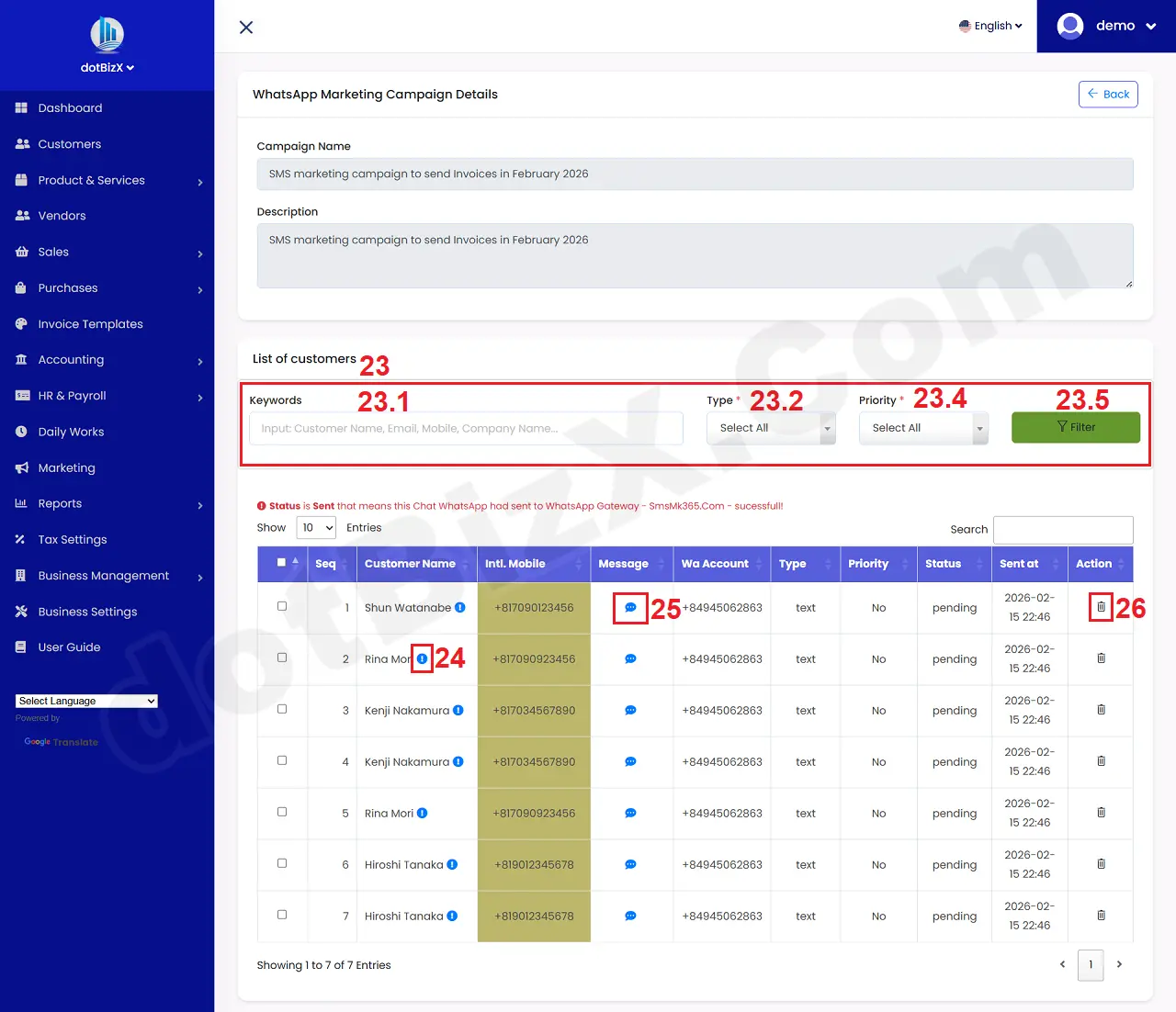
Illustration 07: WhatsApp Marketing Campaign Details Form
* Notes:
+ 23th red box: It's used to filter data for the table bellows.
+ 24th icon: You click on it to see the response of dotBizX.Com after it send Chats to this customer.
+ 25th icon: You click on it to see the Chat content that dotBizX.com send it to your customer.
+ 26th Icon: It's used to delete that row.
+ Status column: It shows the status of sending Chats to customers.
4. How to delete the WhatsApp marketing campaign?
In list of WhatsApp marketing campaign like Illustration 02, You need select your campaigns that you want to delete. You can use 5th check box to selecte all your customers or use 6th check box to choose your customer who you want to delete.
=> Final, you click on Delete Bulk (3) button to finish.