This is an essential configuration step for the SMS Marketing sub-module to ensure automated bulk SMS delivery from dotBizX.com. The following guide covers:
ARTICLE CONTENTS
1. How to open the Dashboard Marketing in dotBizX.Com?
2. How to open Sms Marketing Settings Dashboard in dotBizX.Com?
3. How to setup the SMS GateWay API for dotBizX.Com?
4. How can I standardize customer information for SMS marketing sub-module?
5. How can I standardize vendor information for SMS marketing sub-module?
6. How can I standardize staff information for SMS marketing sub-module?
7. How do I convert a list of phone numbers into an Intl.Mobile list?
DETAILED CONTENT
1. How to open the Dashboard Marketing in dotBizX.Com?
To do it, you click on Marketing (1) menu => Then you can see the Dashboard Marketing like Illustration 01 bellows.
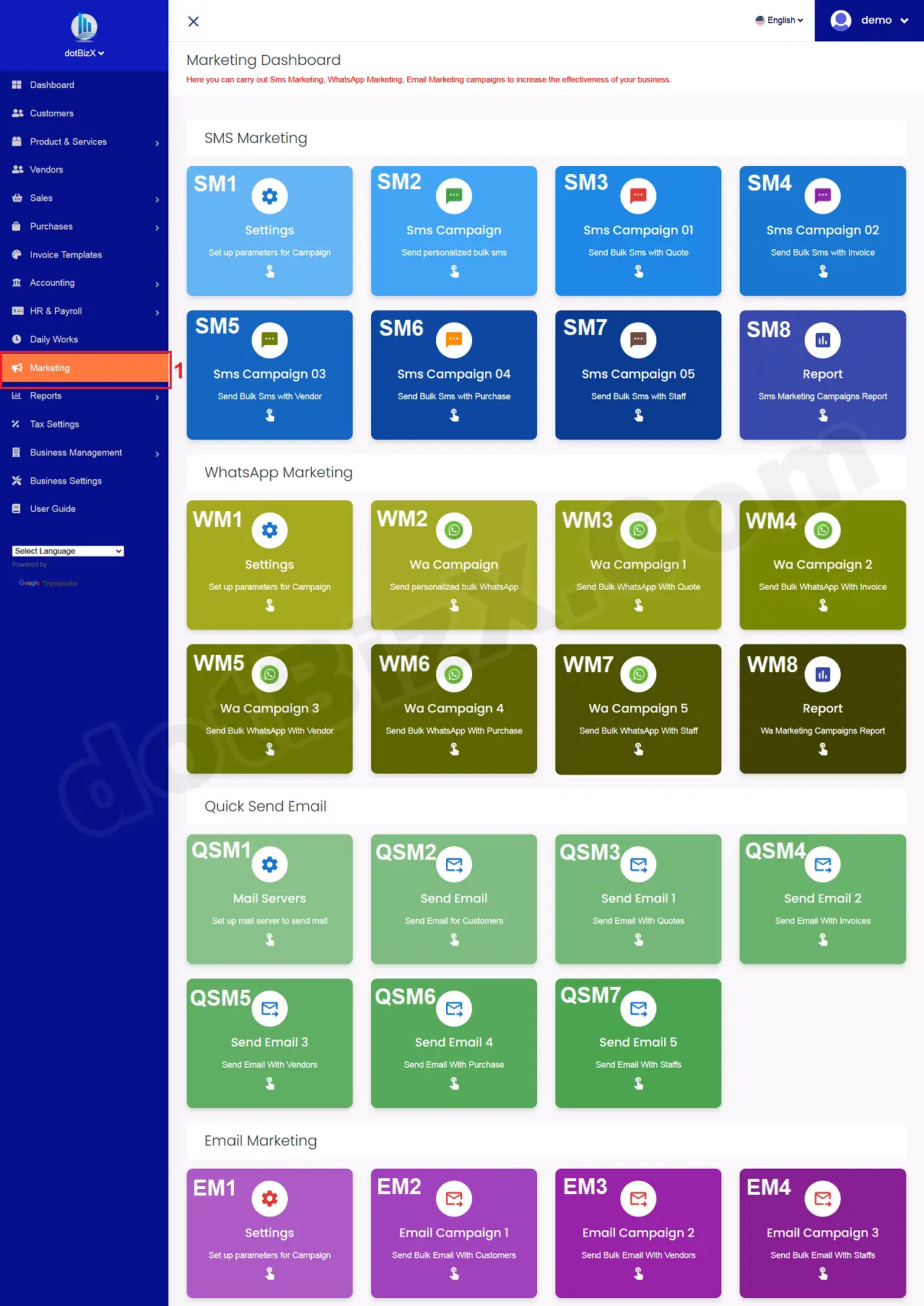
Illustration 01: Interface of Dashboard Marketing
2. How to open Sms Marketing Settings Dashboard in dotBizX.Com?
In Sms Marketing area of the Marketing Dashboard like Illustration 01 above, you click on Settings (SM1) button => Then you can see the Sms Marketing Settings Dashboard like Illustration 02 bellows.
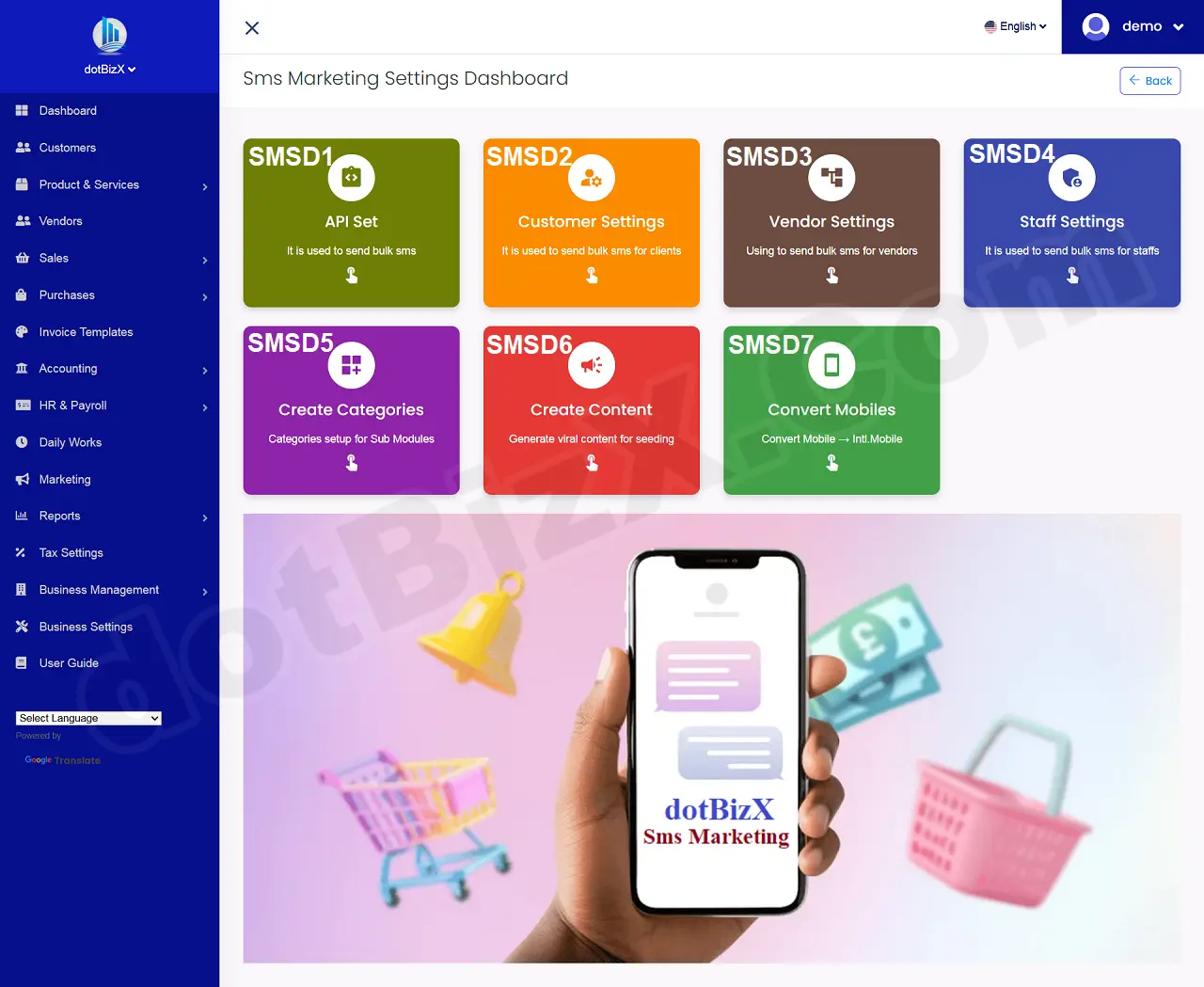
Illustration 02: Interface of Sms Marketing Settings Dashboard
3. How to setup the SMS GateWay API for dotBizX.Com?
In the Sms Marketing Settings Dashboard like Illustration 02 above, you click on API Set (SMSD1) button => Then you can see SMS GateWay API Setting Form like Illustration 03 bellows.
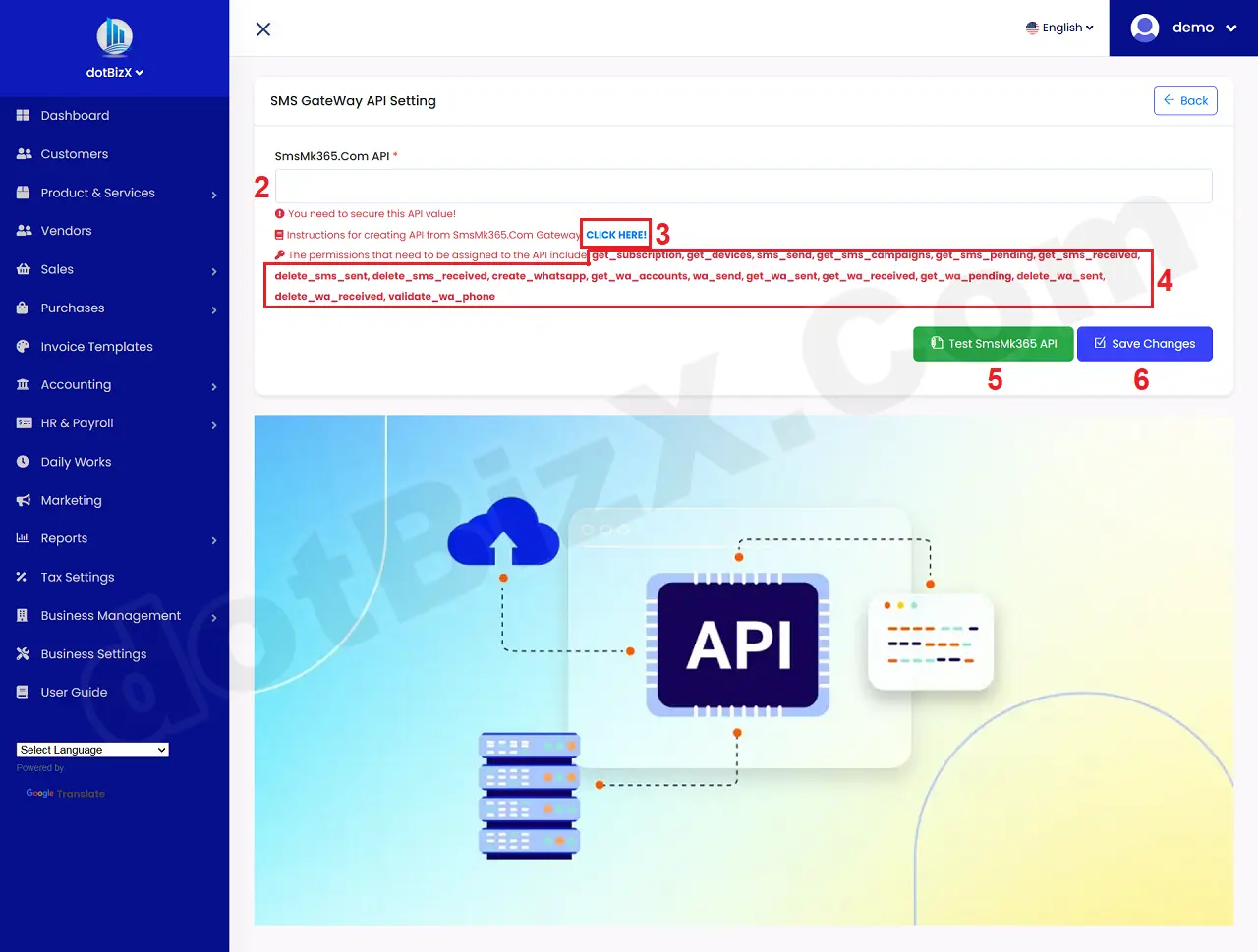
Illustration 03: SMS GateWay API Setting Form
Next you click on CLICK HERE! (3) option to open the instructions on how to obtain the SmsMk365.Com provider's API to support sending mass marketing SMS messages from your phone.
Once you have obtained the API from SmsMk365.Com, paste it into the SmsMk365.Com API (2) box => next you click on Test SmsMk365 API (5) button => One It's Ok (It shows: API works fine!) so you need click on Save Changes (6) button to finish.
* Notes:
+ When creating an API on SmsMk365.com, you must enable all permissions highlighted in red (4th Area) in Illustration 03 in order to send bulk SMS messages from dotBizX.com.
+ To create an API on SmsMk365.com, you need a registered account and the mobile app installed on your Android phone. If you haven’t completed these steps yet, please follow:
- 1.1. How to create a free membership account in SmsMk365.com?
- 1.2. How to download, install the free phone App and setup the Android server?
4. How can I standardize customer information for SMS marketing sub-module?
4.1. Step 1: Open Sms Marketing - Customer Settings Form
In the Sms Marketing Settings Dashboard like Illustration 02 above, you click on Customer Settings (SMSD2) button => Then you can see Sms Marketing - Customer Settings Form like Illustration 04 bellows.
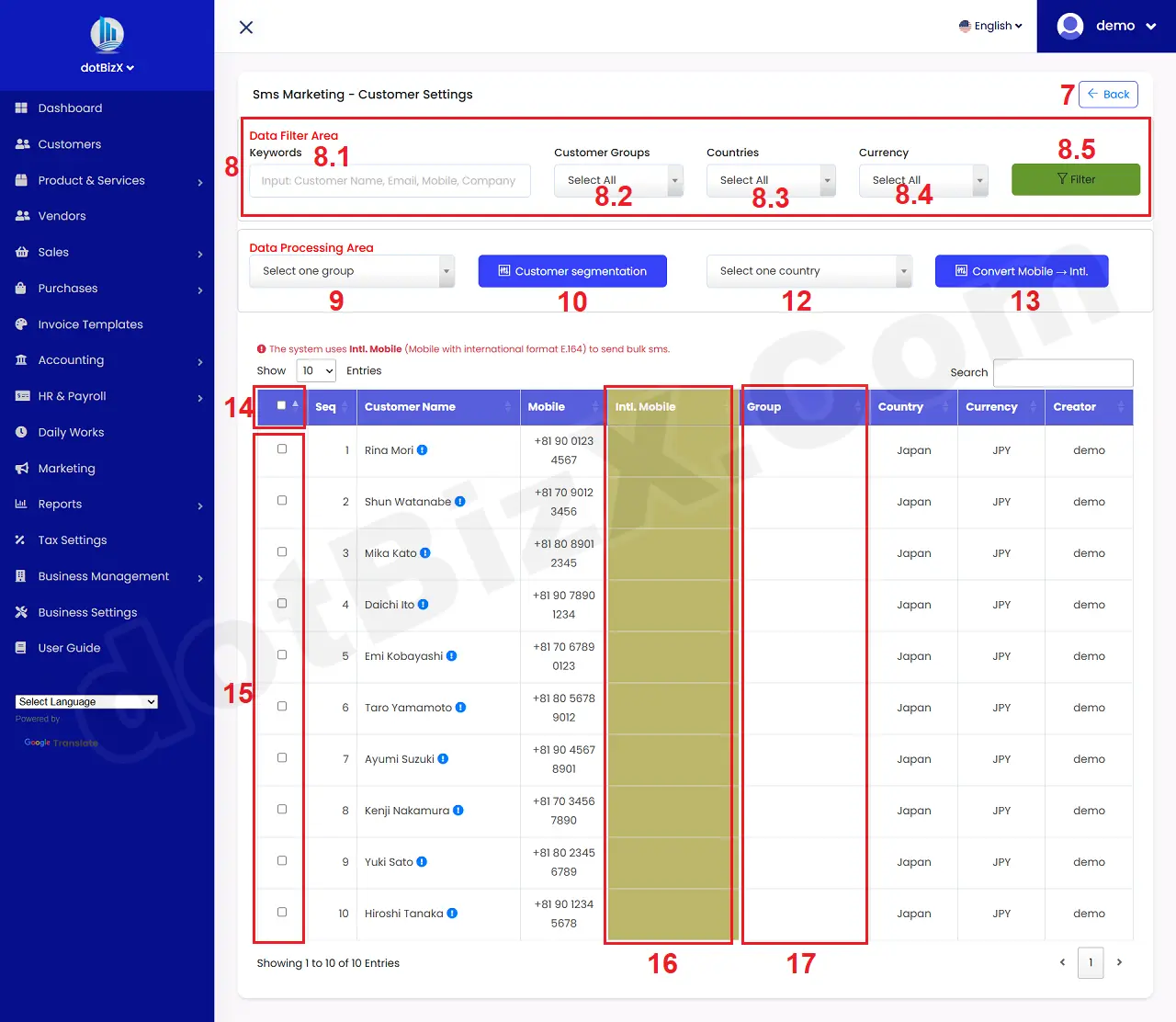
Illustration 04: Sms Marketing - Customer Settings Form
* Notes:
+ Filter Data Area (8): It's used to filter data to the table bellows.
4.2. Step 2: Customer segmentation
In Sms Marketing - Customer Settings Form like Illustration 04, you need click on 14th check box to check all customers that you want to segmentation or you also use check boxs in 15th red area to choose the suitable customers who is same segmentation => next you click on Select One Group(9) box to choose the suitable group/segmentation => Final, you click on Customer segmentation (10) button to finish.
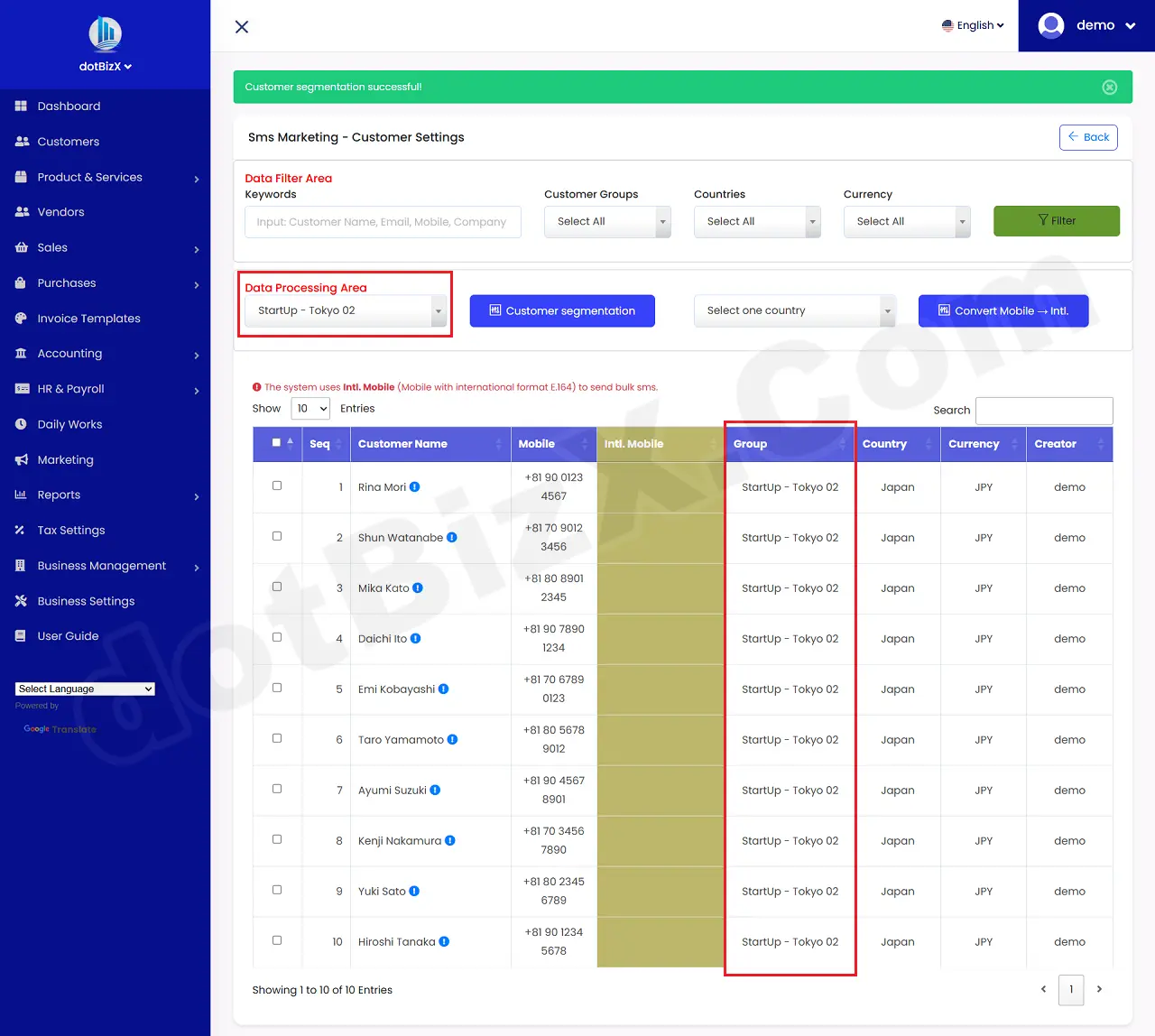
Illustration 05: Result of Customer segmentation
* Notes:
+ If you haven't previously created a Customer Group Name/Customer Segment Name for the Select One Group(9) box, you need to follow these instructions: 9.1 Categories Management.
4.3. Step 3: Convert mobile to Intl. Mobile
In Sms Marketing - Customer Settings Form like Illustration 04, you need click on 14th check box to check all customers that you want to convert their mobile to Intl. Mobile or you also use check boxs in 15th red area to choose the suitable customers => next you click on Select One Country (12) box to choose the suitable country with your customers => Final, you click on Convert Mobile -> Intl. Mobile (13) button to finish.
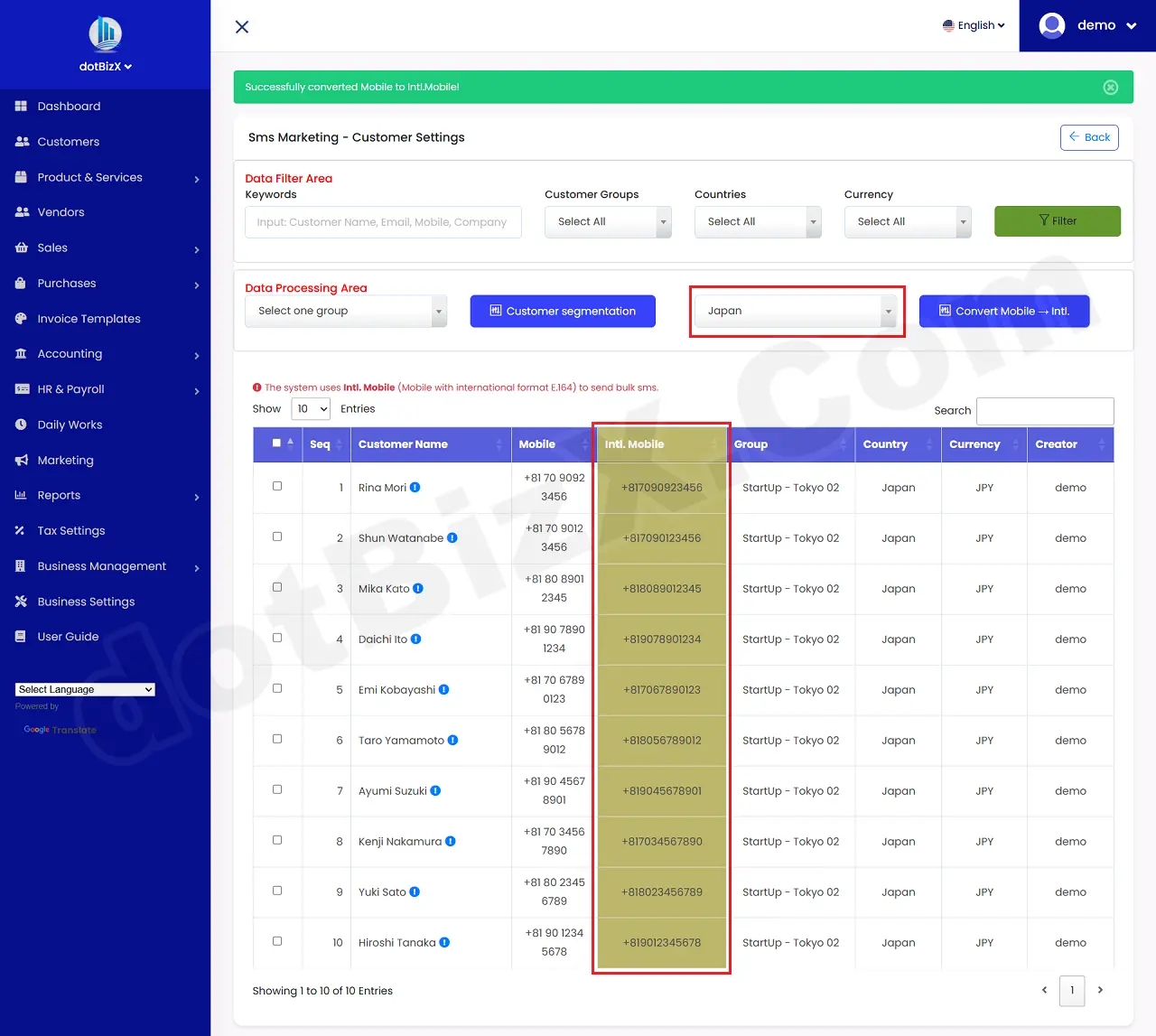
Illustration 06: Result of Convert Mobile to Intl. Mobile For Customers
* Notes:
+ The system uses Intl. Mobile (Mobile with international format E.164) to send bulk sms.
+ To get results like the Intl. Mobile column in Illustration 06 above, the customer's phone number must comply with the regulations of the mobile network operators in the country you select in the Select One Country (12) box.
5. How can I standardize vendor information for SMS marketing sub-module?
In the Sms Marketing Settings Dashboard like Illustration 02 above, you click on Vendor Settings (SMSD3) button => Then you can see Sms Marketing - Vendor Settings Form like Illustration 07 bellows.
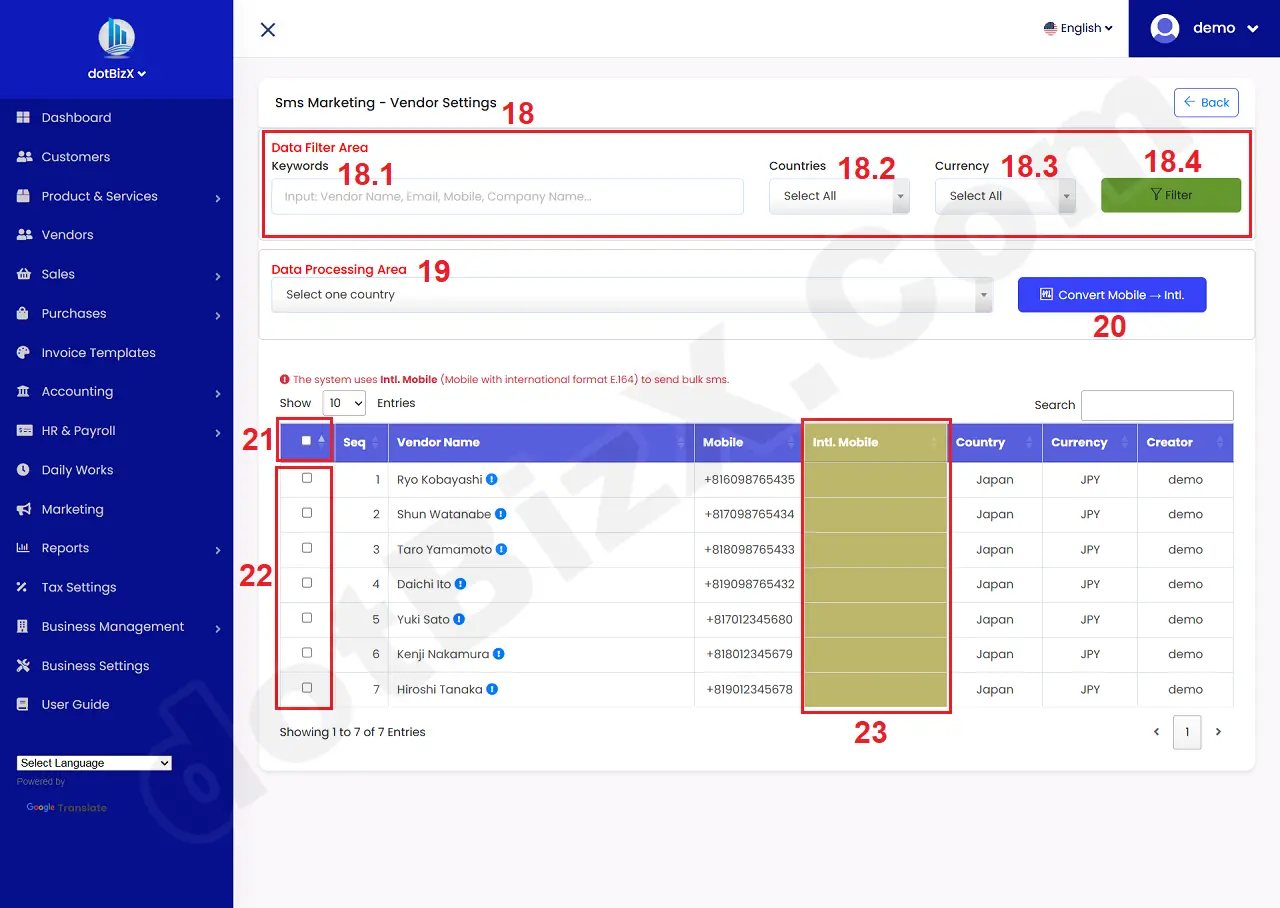
Illustration 07: Sms Marketing - Vendor Settings Form
Next, In Sms Marketing - Vendor Settings Form like Illustration 07, you need click on 21th check box to check all vendors that you want to convert their mobile to Intl. Mobile or you also use check boxs in 22th red area to choose the suitable vendors => next you click on Select One Country (19) box to choose the suitable country with your customers => Final, you click on Convert Mobile -> Intl. Mobile (21) button to finish.
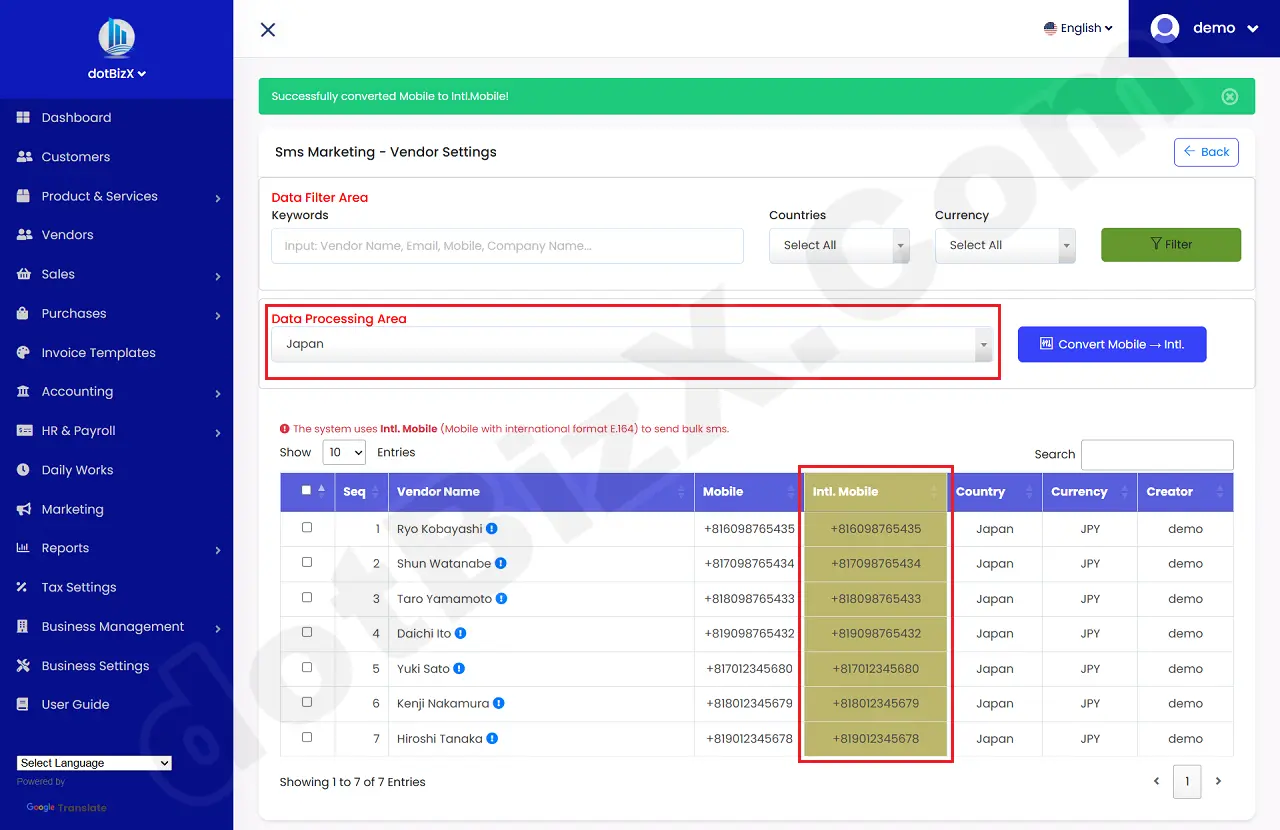
Illustration 08: Result of Convert Mobile to Intl. Mobile For Vendors
6. How can I standardize staff information for SMS marketing sub-module?
In the Sms Marketing Settings Dashboard like Illustration 02 above, you click on Staff Settings (SMSD4) button => Then you can see Sms Marketing - Staff Settings Form like Illustration 09 bellows.
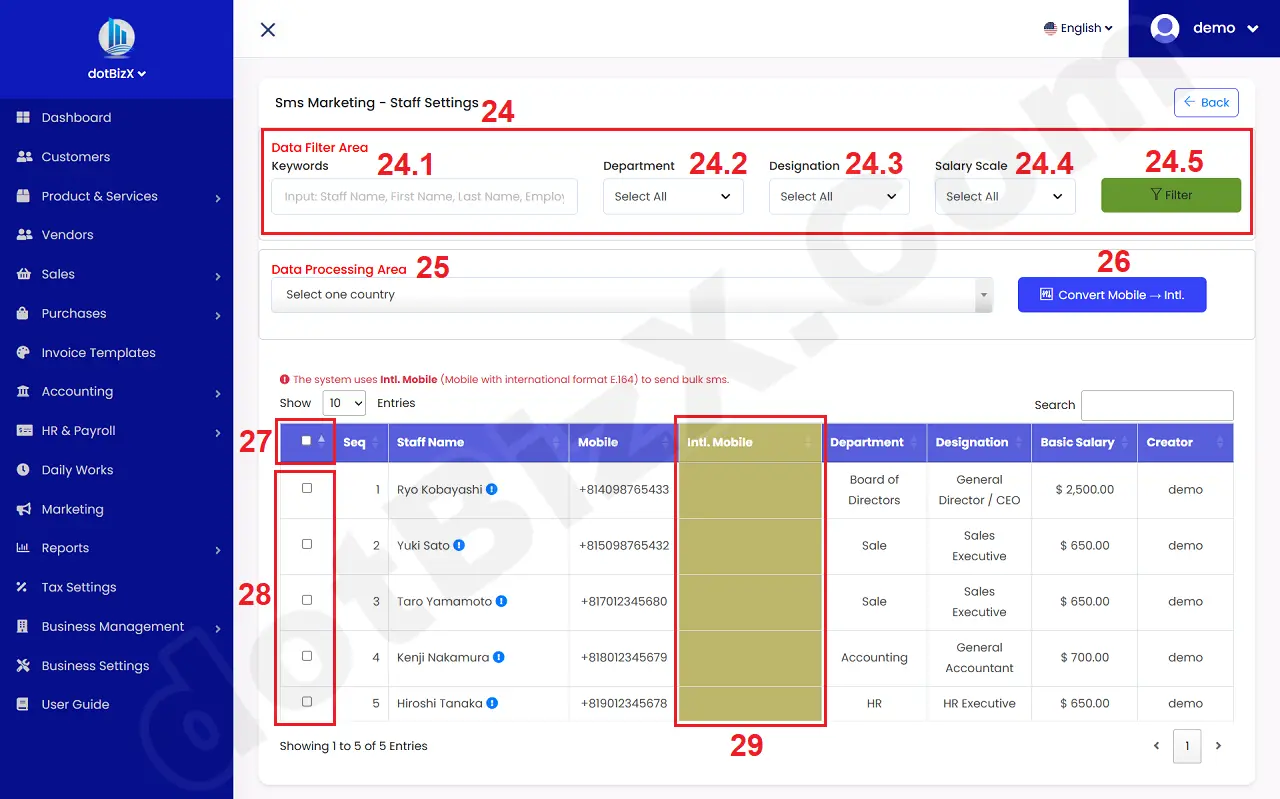
Illustration 09: Sms Marketing - Staff Settings Form
Next, In Sms Marketing - Staff Settings Form like Illustration 09, you need click on 27th check box to check all staffs that you want to convert their mobile to Intl. Mobile or you also use check boxs in 28th red area to choose the suitable staffs => next you click on Select One Country (25) box to choose the suitable country with your staffs => Final, you click on Convert Mobile -> Intl. Mobile (26) button to finish.
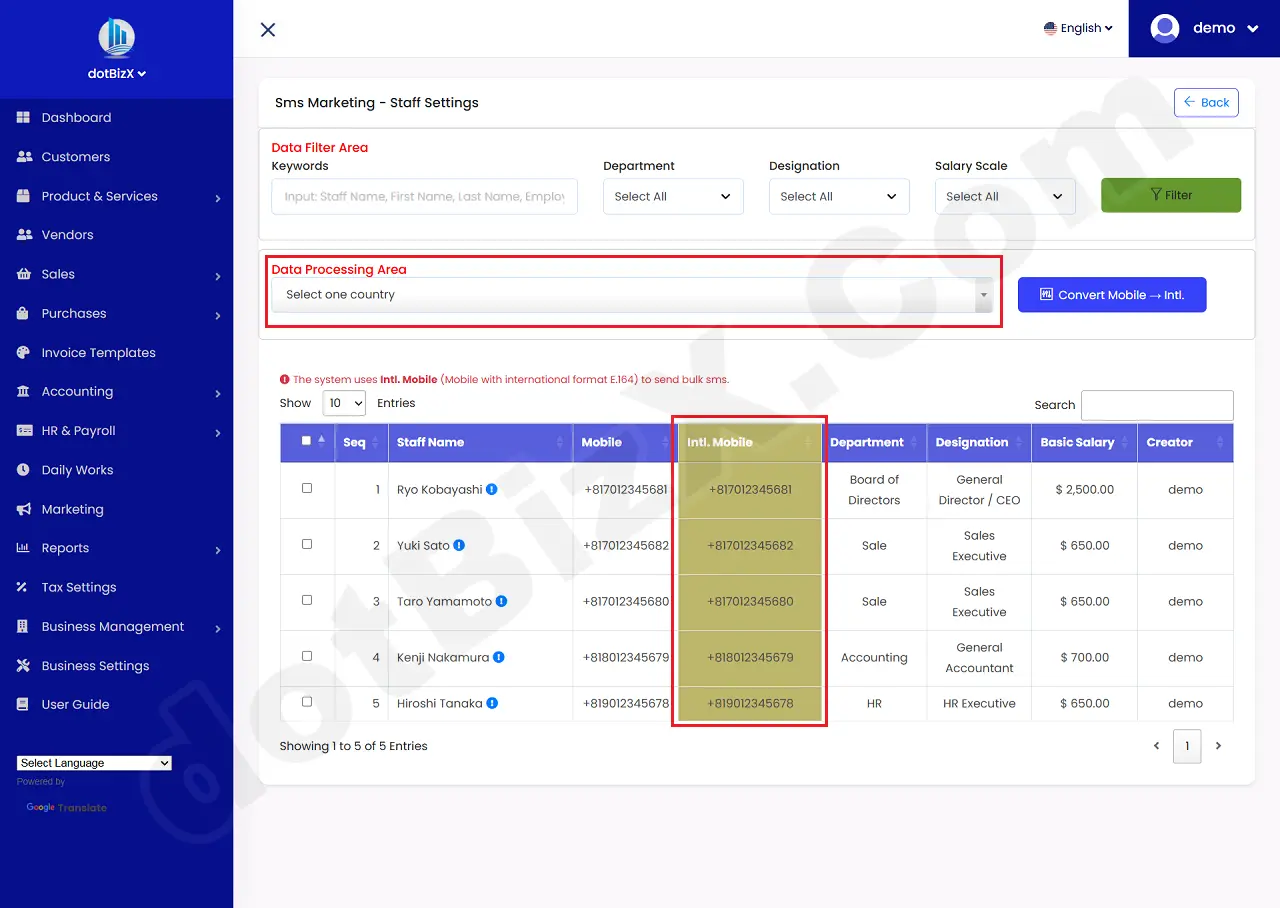
Illustration 10: Result of Convert Mobile to Intl. Mobile For Staffs
7. How do I convert a list of phone numbers into an Intl.Mobile list?
Convert any phone number list into the Intl.Mobile format to allow you to send bulk SMS messages to that list.
In the Sms Marketing Settings Dashboard like Illustration 02 above, you click on Convert Mobiles (SMSD7) button => Then you can see Convert Mobile → Intl.Mobile Form like Illustration 11 bellows.
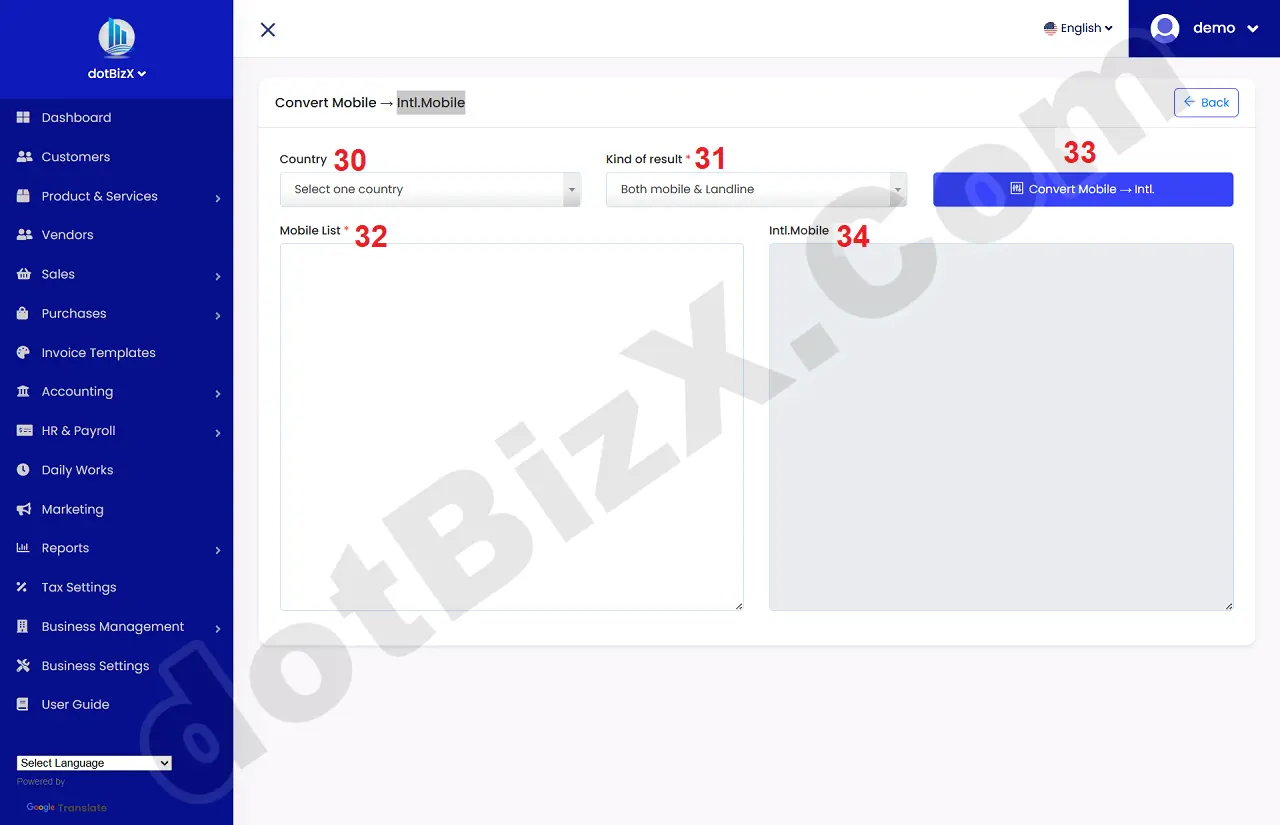
Illustration 11: Convert Mobile → Intl.Mobile Form
Next you copy and paste your list of mobiles into Mobile List (32) box => Next you need choose the suitable value from Country (30) box and Kind of result (31) box => Final you click on Convert Mobile → Intl. (33) button to finish.
=> The conversion result will appear in the Intl.Mobile (34) box.
=> Now you can copy data from Intl.Mobile (34) box to send bulk sms to them.