
1. How to show list of categories via sub modules in dotBizX.Com?
1.1. Step 1: Open The Interface of Daily Works module
Click on Daily Works (1) menu => Then you can see the dashboard of Daily Works like Illustration 01 bellows.
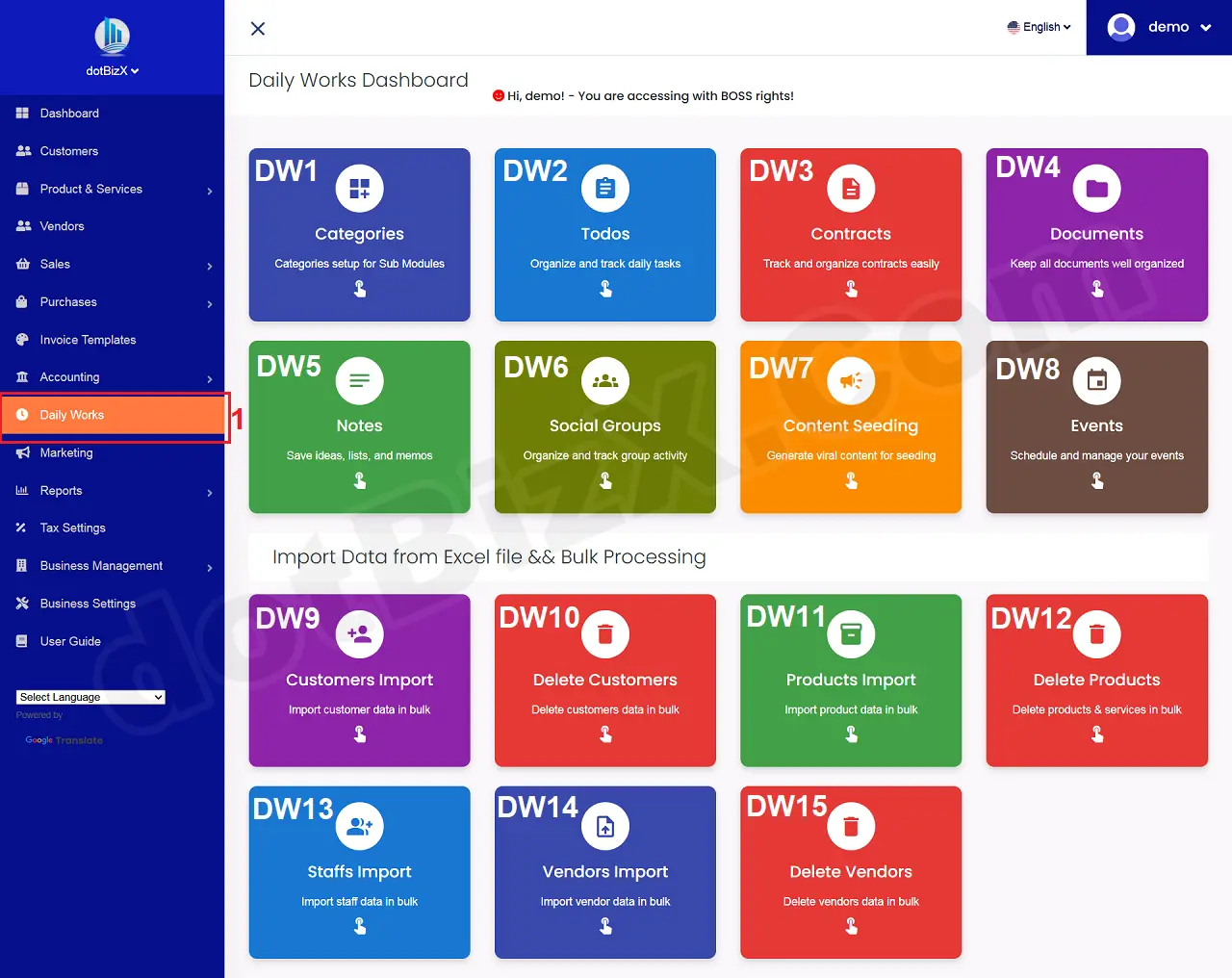
Illustration 01: The Interface of Daily Works Dashboard
1.2. Step 2: Open list of categories of sub modules
In Daily Works Dashboard like Illustration 01 above, you click on Categories [DW1] button => Then you can see list of categories of sub modules like Illustration 02 bellows.
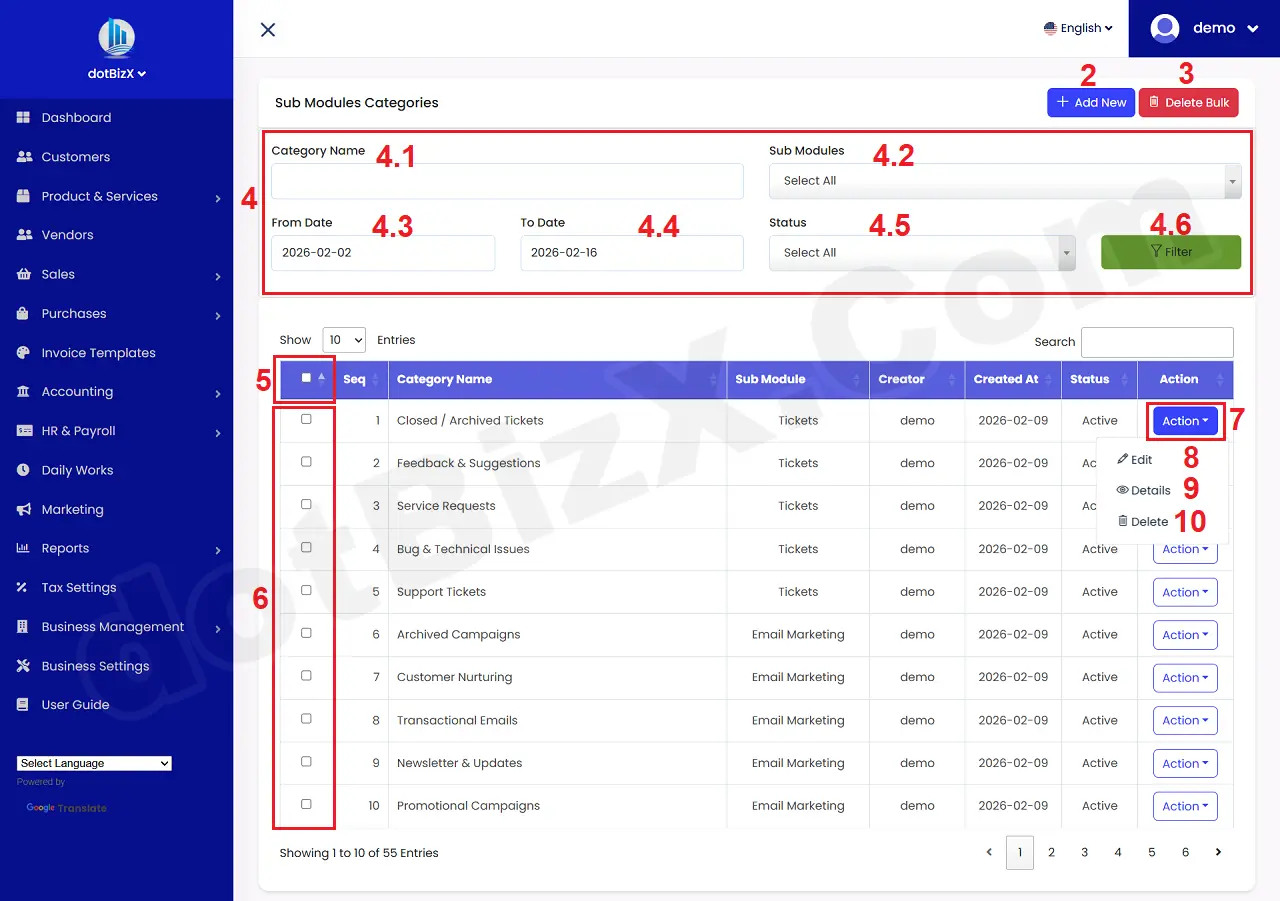
Illustration 02: List of Categories of Sub Modules
* Notes:
+ Add New (2) button: It's used to create a new Category for sub modules.
+ Delete Bulk (3) button: It's used to delete categories in bulk.
+ 4th red area (4): It's used to filter data for table bellows.
+ 5th red (5) box: It's used to choose all categories that in the table bellows.
+ 6th red (6) box: It's used to choose the category that you want to delete in bulk.
+ Action (7) button: When you click on this button so you can see 8th - 10th options.
+ Edit (8) option: It's used to modify an existing Category.
+ Details (9) option: It's used to show an existing Category.
+ Delete (10) option: It's used to delete an existing Category.
2. How to create a new category of sub modules?
In list of categories like Illustration 02 above, you click on Add New (2) button => In Add New Category Form like Illustration 03 bellows, you need input all things for it => Final, you click on Save Changes (18) button to finish.
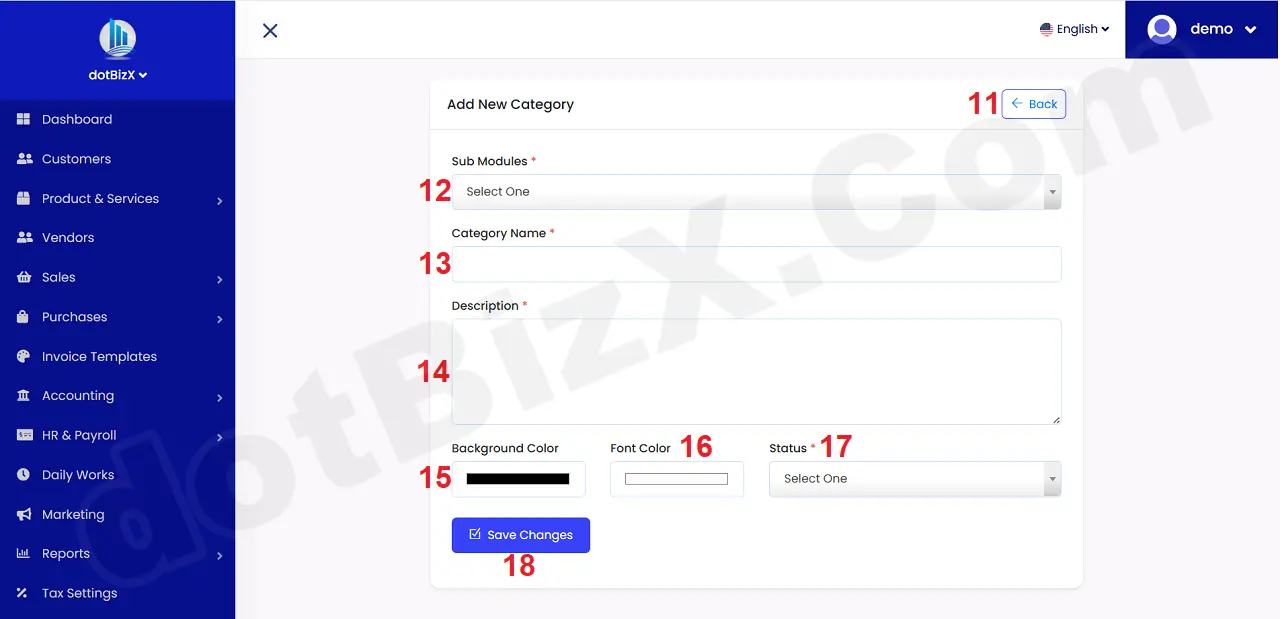
Illustration 03: Add New Category Form
* Notes:
+ Cells marked with a red asterisk (*) are mandatory.
+ Sub Modules (12) box: If you choose the value that's Sms & WhatsApp Marketing then The Category Name (13) box should be named after the Customer Group Name. For example: StartUp - Tokyo 01 or StartUp - Tokyo 02 or CEO - Osaka 01 or CEO - Osaka 02...
=> These categories are also applied to the Quick Send Email sub-module.
+ Status (17) box: It has two values:
- Active: It can show in your suitable sub module.
- Disabled: It hidden in your suitable sub module.
3. How can I delete more categories in bulk?
To do it, First step: In list of categories like Illustration 02 above, you need choose all categories that you want to delete in bulk.
+ You can use 5th check box to select or deselect all categories in the table of categories.
+ You can also use check boxs in 6th red area to select or deselect the category that you want to delete.
=> Final, you click on Delete Bulk (3) button to delete them.