
1. How to show the list of transactions in dotBizX.Com?
To do it, you click on Accounting (1) menu => next you click on Transactions (2) option => Then you can see list of transactions like Illustration 01 bellows.
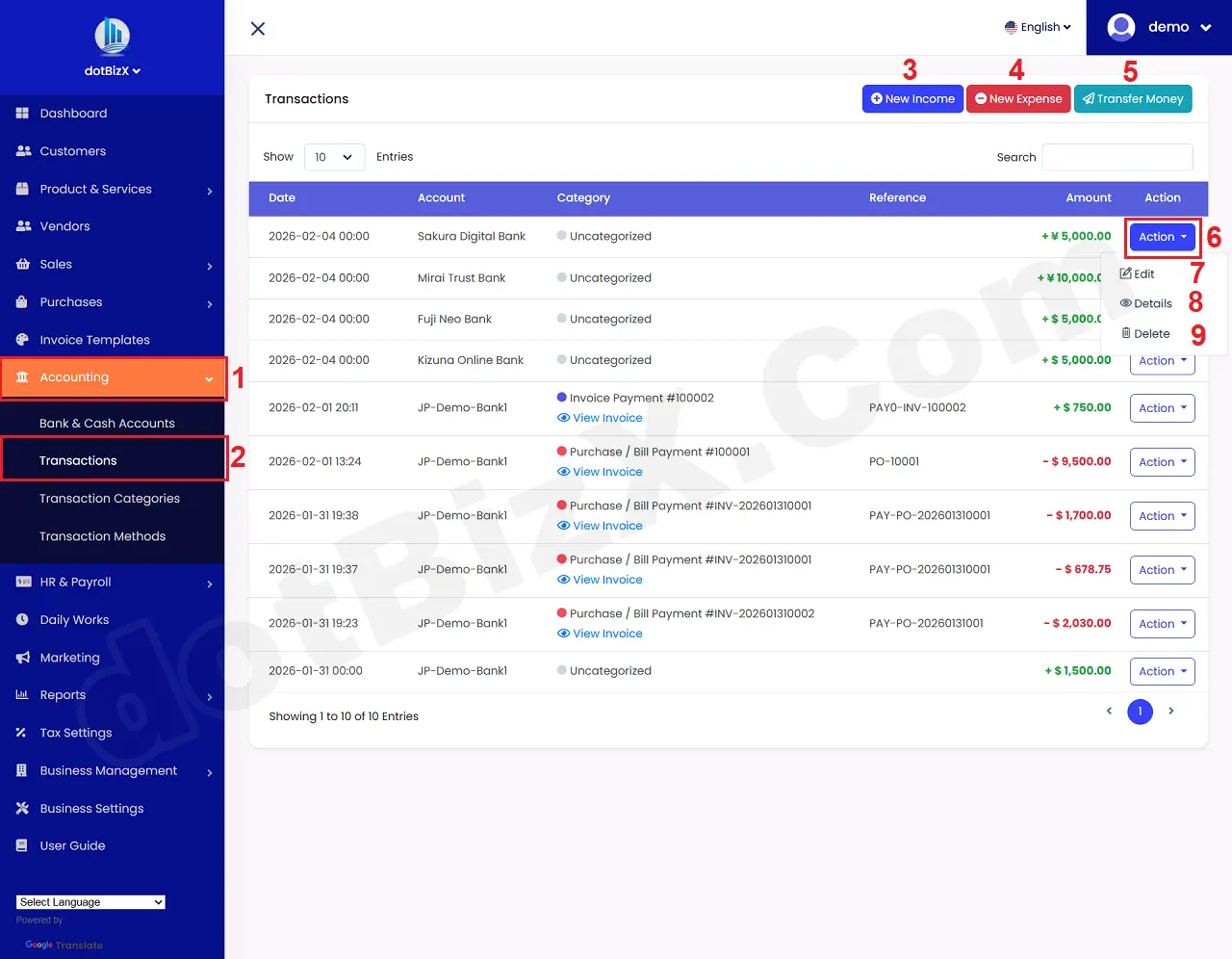
Illustration 01: List of Transactions
* Notes:
+ New Income (3) button: It's used to add new income.
+ New Expense (4) button: It's used to add new expense.
+ Transfer money (5) button: It's used to add new transfer money.
+ Action (6) button: When you click on this button so you can see 7th - 9th options.
+ Edit (7) option: It's used to modify an existing transaction.
+ Details (8) option: It's used to show an existing transaction.
+ Delete (9) option: It's used to delete an existing transaction.
2. How can I create a new income in dotBizX.Com?
In list of bank & cash accounts like Illustration 01 above, you click on New Income (3) button => In New Income form like Illustration 02 bellows, you need input all things for it => Final, you click on Submit (18) button to finish.
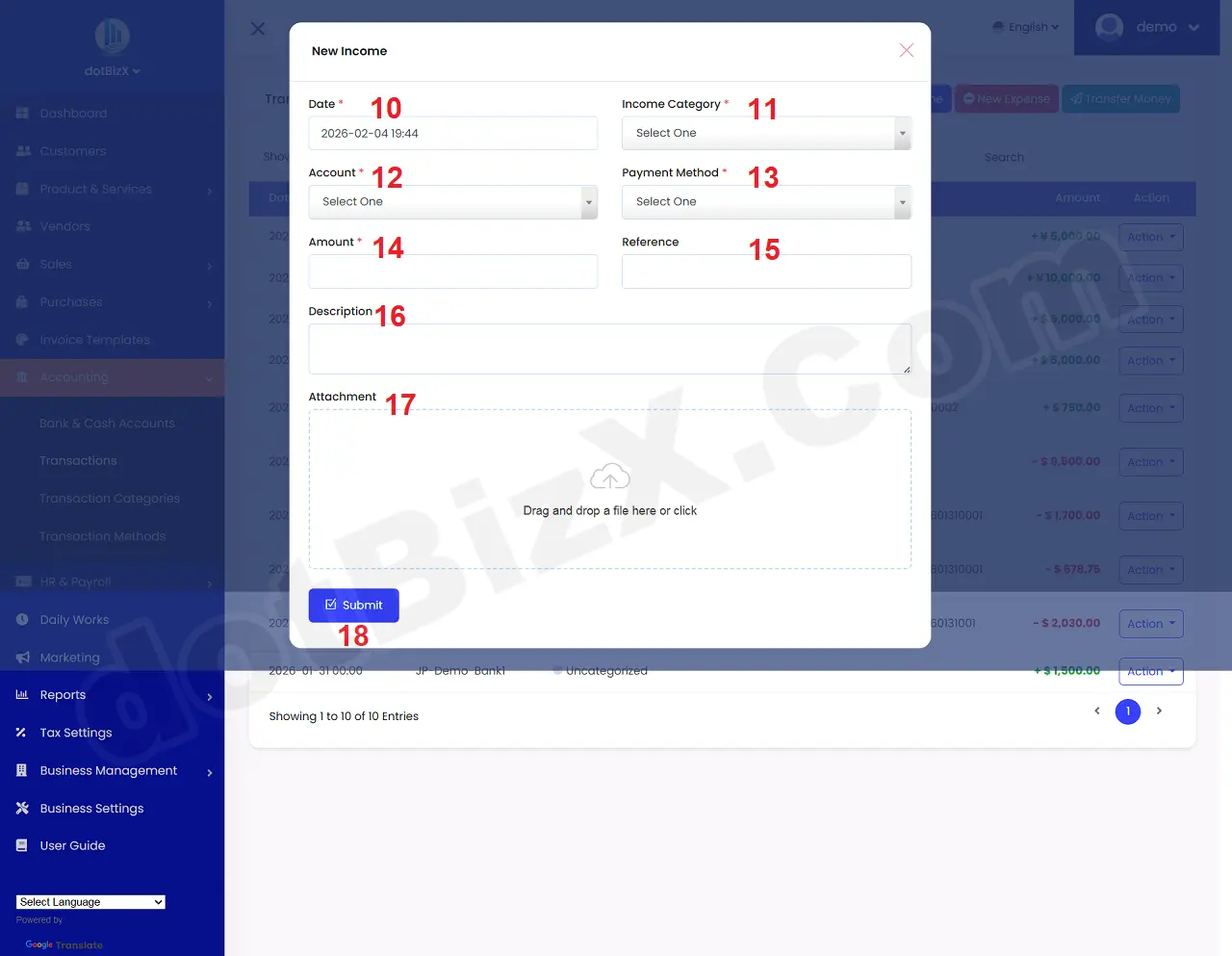
Illustration 02: New Income Form
* Notes:
+ Income Category (11) box: you choose a suitable value for this income. If there're not any values so you need click on Add New option of this box to create a new Income Category. You can create more Income Categories follows 7.3. Transactions Categories Management of the user guide of dotBizX.Com.
+ Account (12) box: you choose a suitable value for this income. If there're not any values so you need click on Add New option of this box to create a new Account. You can create more Accounts follows 7.1. Bank & Cash Accounts Management of the user guide of dotBizX.Com.
+ Payment Method (13) box: you choose a suitable value for this income. If there're not any values so you need click on Add New option of this box to create a new Payment Method. You can create more Payment Methods follows 7.4. Transaction Methods Management of the user guide of dotBizX.Com.
+ Amount (14) box: You need to enter the amount received from the transaction here.
+ Reference (15) box: You need input Its Reference. This is the reference code/referencing number for that transaction. It could be:
🧾 Invoice number: INV-2026-0021
🏦 Bank transaction code: FT260204123456
📱 Transfer/e-wallet code
📑 Internal receipt number: PT-00045
🤝 Contract/order code: HD-ABC-01
+ Attachment (17) box: You need to upload the supporting documents for this transaction (depending on the source of your funds).
3. How can I create a new expense in dotBizX.Com?
In list of bank & cash accounts like Illustration 01 above, you click on New Expense (4) button => In New Expense form like Illustration 03 bellows, you need input all things for it => Final, you click on Submit (27) button to finish.
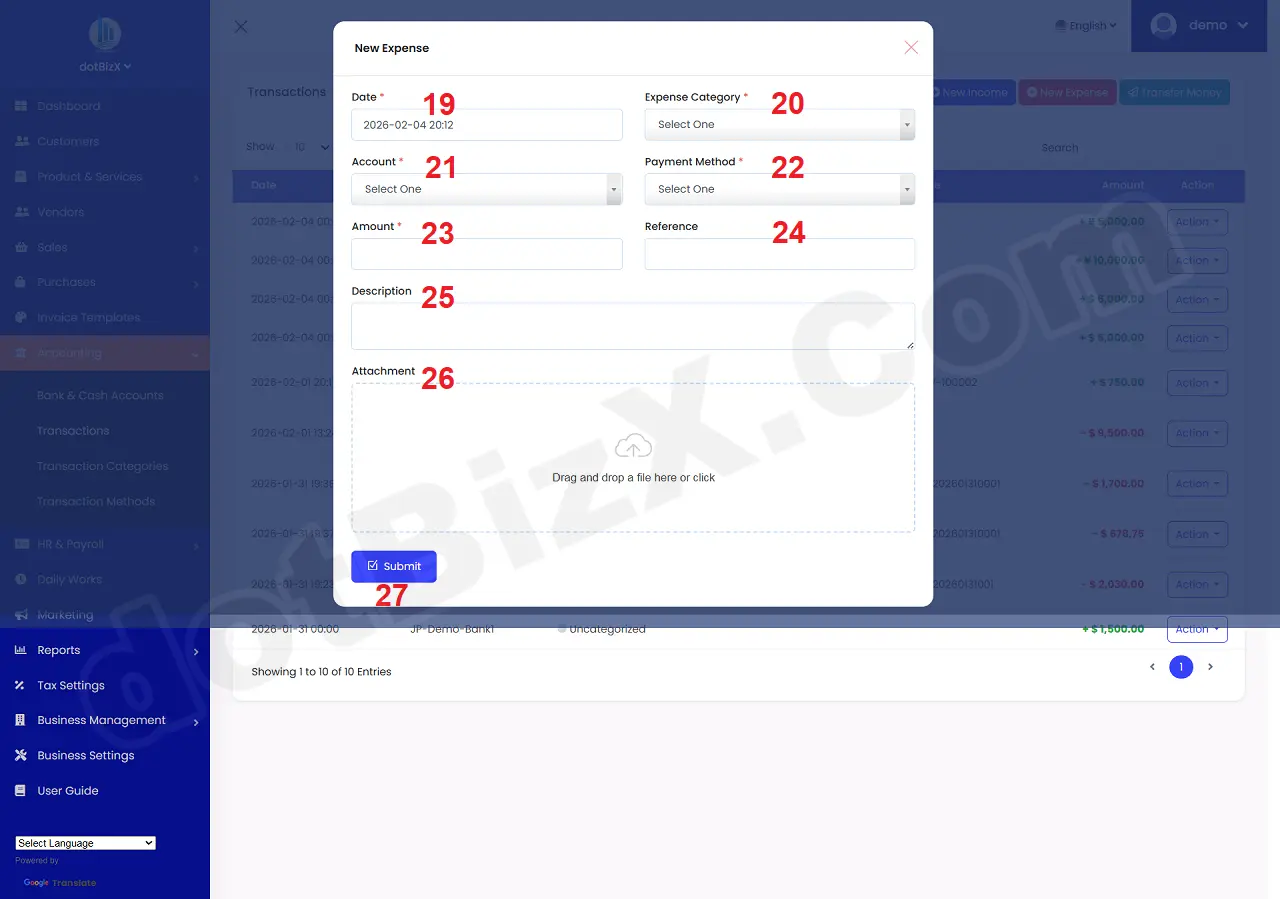
Illustration 03: New Expense Form
* Notes:
+ Expense Category (20) box: you choose a suitable value for this expense. If there're not any values so you need click on Add New option of this box to create a new Expense Category. You can create more Expense Categories follows 7.3. Transactions Categories Management of the user guide of dotBizX.Com.
+ Account (21) box: you choose a suitable value for this expense. If there're not any values so you need click on Add New option of this box to create a new Account. You can create more Accounts follows 7.1. Bank & Cash Accounts Management of the user guide of dotBizX.Com.
+ Payment Method (22) box: you choose a suitable value for this expense. If there're not any values so you need click on Add New option of this box to create a new Payment Method. You can create more Payment Methods follows 7.4. Transaction Methods Management of the user guide of dotBizX.Com.
+ Amount (24) box: You need to enter the amount received from the transaction here.
+ Reference (24) box: You need input Its Reference. This is the reference code/referencing number for that transaction. It could be:
🧾 Purchase Invoice Number: HD-CC-02451
🏦 Bank Transfer Transaction Code: VCB-FT2602047788
💳 Card Transaction Code: POS-984512
📄 Internal Payment Voucher Number: PC-00032
🤝 Contract/Order Code: PO-2026-015
+ Attachment (26) box: You need to upload the supporting documents for this transaction (depending on the source of your funds).
4. How can I create Transfer Money in dotBizX.Com?
In list of bank & cash accounts like Illustration 01 above, you click on Transfer Money (5) button => In Transfer Between Accounts form like Illustration 04 bellows, you need input all things for it => Final, you click on Submit (35) button to finish.
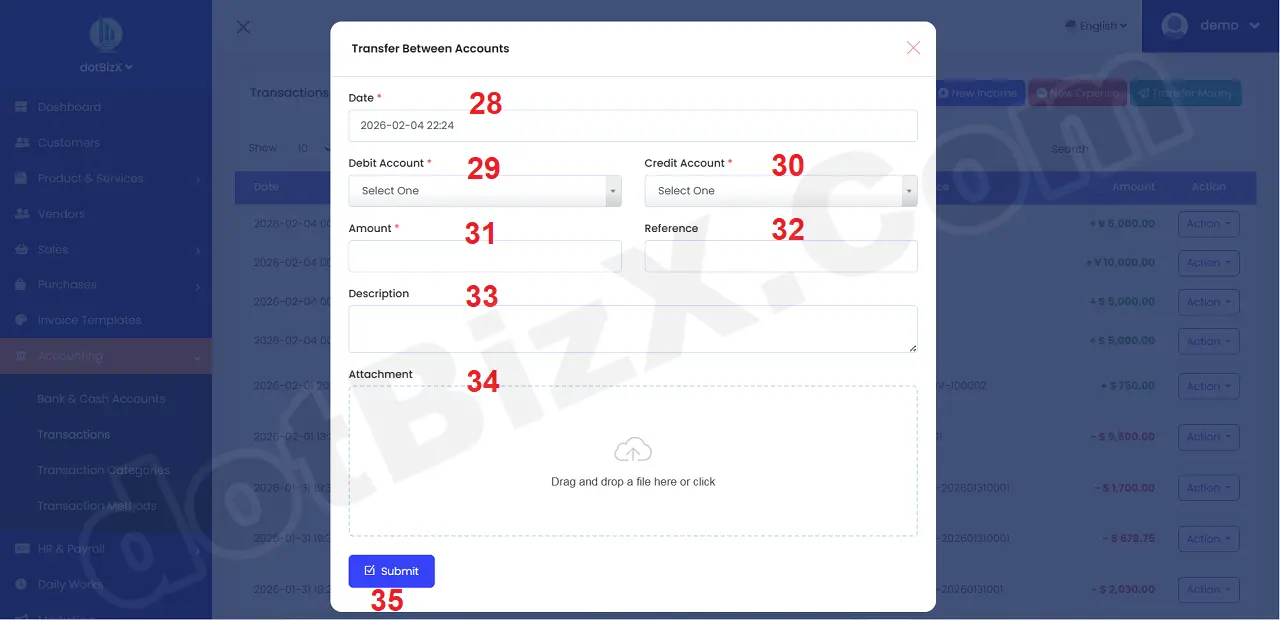
Illustration 04: Transfer Between Accounts Form
* Notes:
+ Debit Account (29) box: you choose a suitable value for this transfer. If there're not any values so you need click on Add New option of this box to create a new debit account. You can create more debit accounts follows 7.1. Bank & Cash Accounts Management of the user guide of dotBizX.Com.
+ Credit Account (30) box: you choose a suitable value for this transfer. If there're not any values so you need click on Add New option of this box to create a new credit account. You can create more credit accounts follows 7.1. Bank & Cash Accounts Management of the user guide of dotBizX.Com.
+ Amount (31) box: You need to enter the amount received from the transaction here.
+ Reference (32) box: You need input Its Reference. This is a transaction identification code for internal money transfers between two accounts. It is used for reconciliation and reverse tracking and is not related to revenue or expenses.
What is the purpose of a reference in a transfer transaction?
Compare two parallel transactions:
- One transaction reduces the Debit Account.
- One transaction increases the Credit Account.
- Review bank statements.
- Trace balance discrepancies.
In short:
Reference = "link code" to indicate that both parties are involved in the same transfer
+ Attachment (34) box: You need to upload the supporting documents for this transaction (depending on the source of your funds).