
1. How to show List of social network groups in dotBizX.Com?
1.1. Step 1: Open The Interface of Daily Works module
Click on Daily Works (1) menu => Then you can see the dashboard of Daily Works like Illustration 01 bellows.
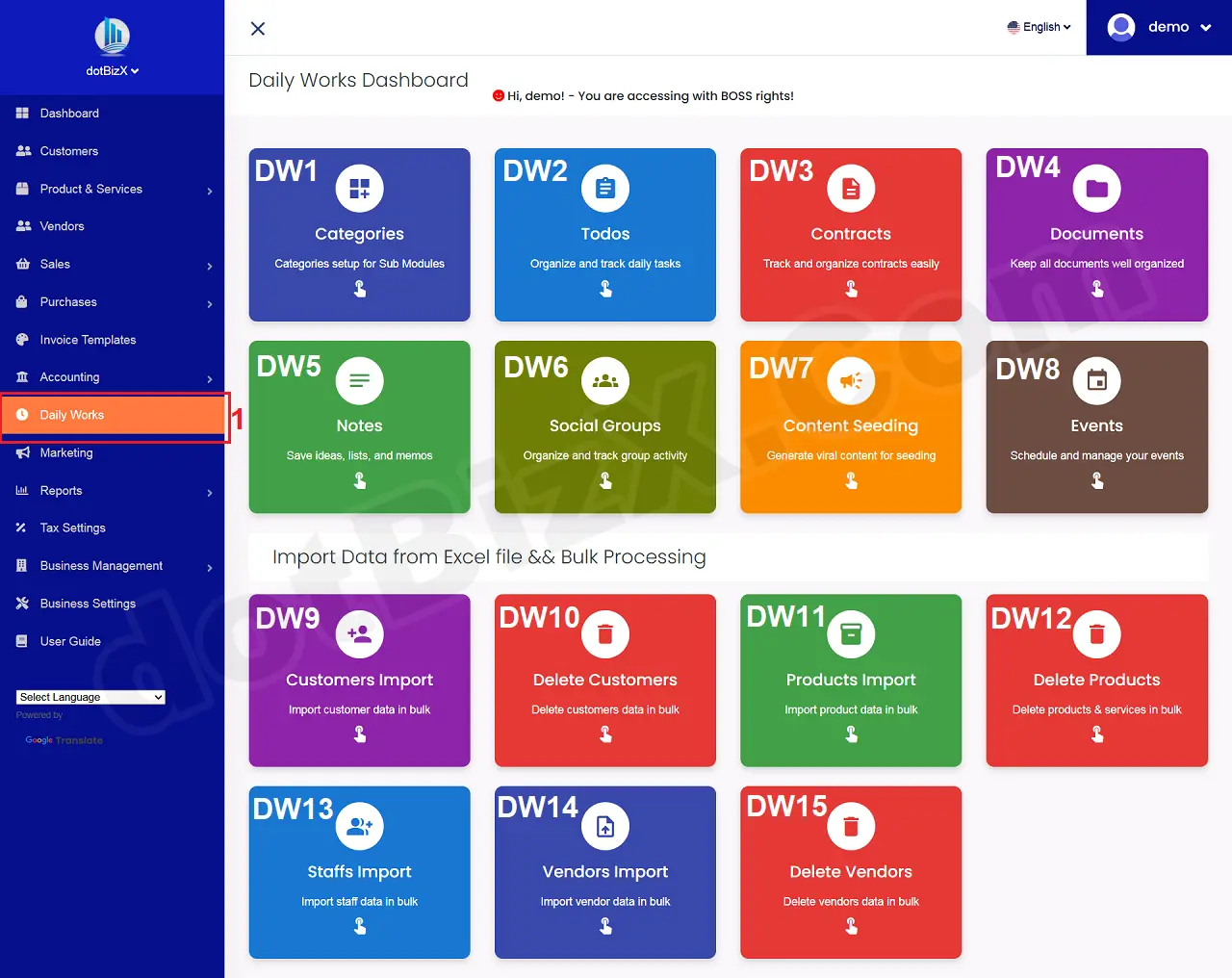
Illustration 01: The Interface of Daily Works Dashboard
1.2. Step 2: Open List of Social Network Groups
In Daily Works Dashboard like Illustration 01 above, you click on Social Network Groups [DW6] button => Then you can see List of Social Network Groups like Illustration 02 bellows.
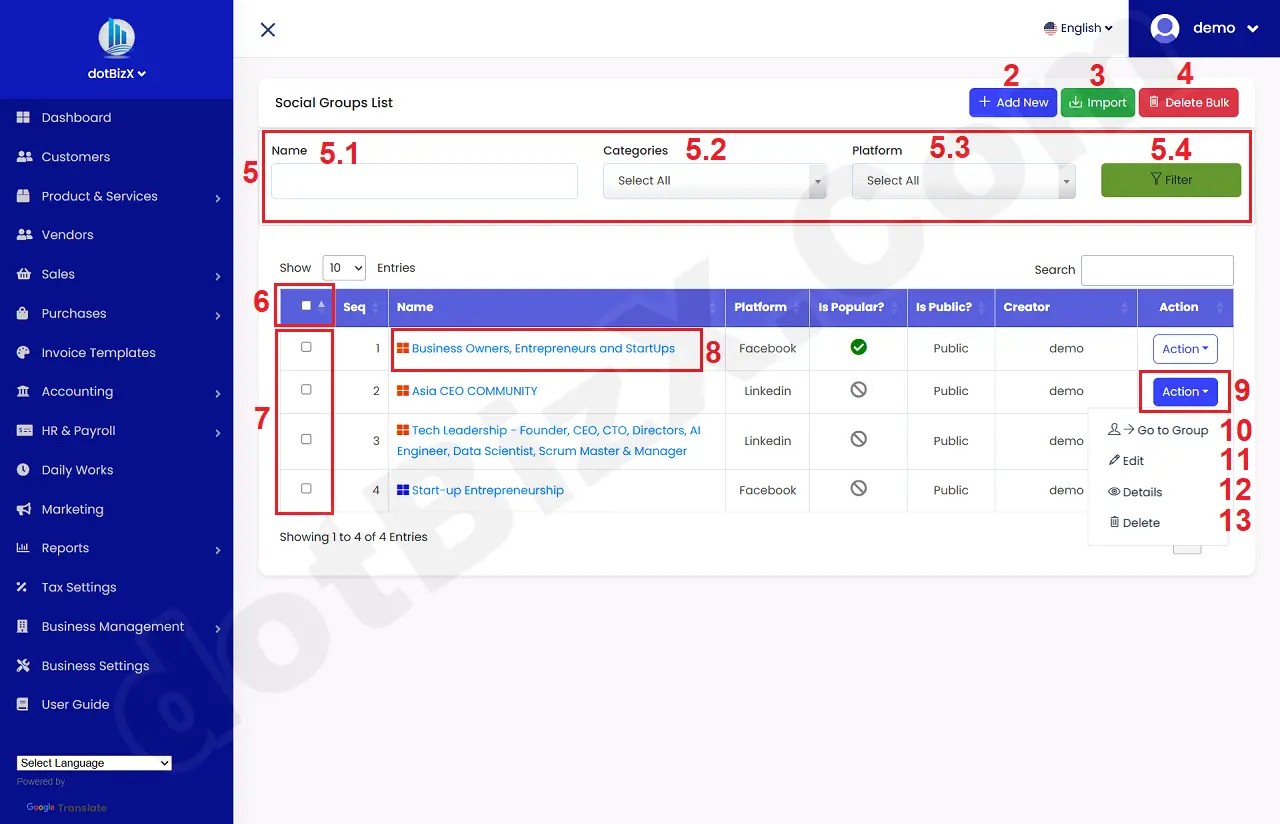
Illustration 02: List of Social Network Groups
* Notes:
+ Add New (2) button: It's used to create a new social network group.
+ Import (3) button: It's used to import social network groups in bulk from Excel File.
+ Delete Bulk (4) button: It's used to delete social network groups in bulk.
+ 5th red area (5): It's used to filter data for table bellows.
+ 6th red (6) box: It's used to choose all social network groups that in the table bellows.
+ 7th red (7) box: It's used to choose the social network group that you want to delete in bulk.
+ Action (9) button: When you click on this button so you can see 10th - 13th options.
+ -> Go to Group (10) option: It's used to go to an existing social network group. You can click on its link like 8th red box.
+ Edit (11) option: It's used to modify an existing social network group.
+ Details (12) option: It's used to show an existing social network group.
+ Delete (13) option: It's used to delete an existing social network group.
2. How to create a new social network group?
In list of contracts like Illustration 02 above, you click on Add New (2) button => In Add New Social Network Group Form like Illustration 03 bellows, you need input all things for it => Final, you click on Save Changes (23) button to finish.
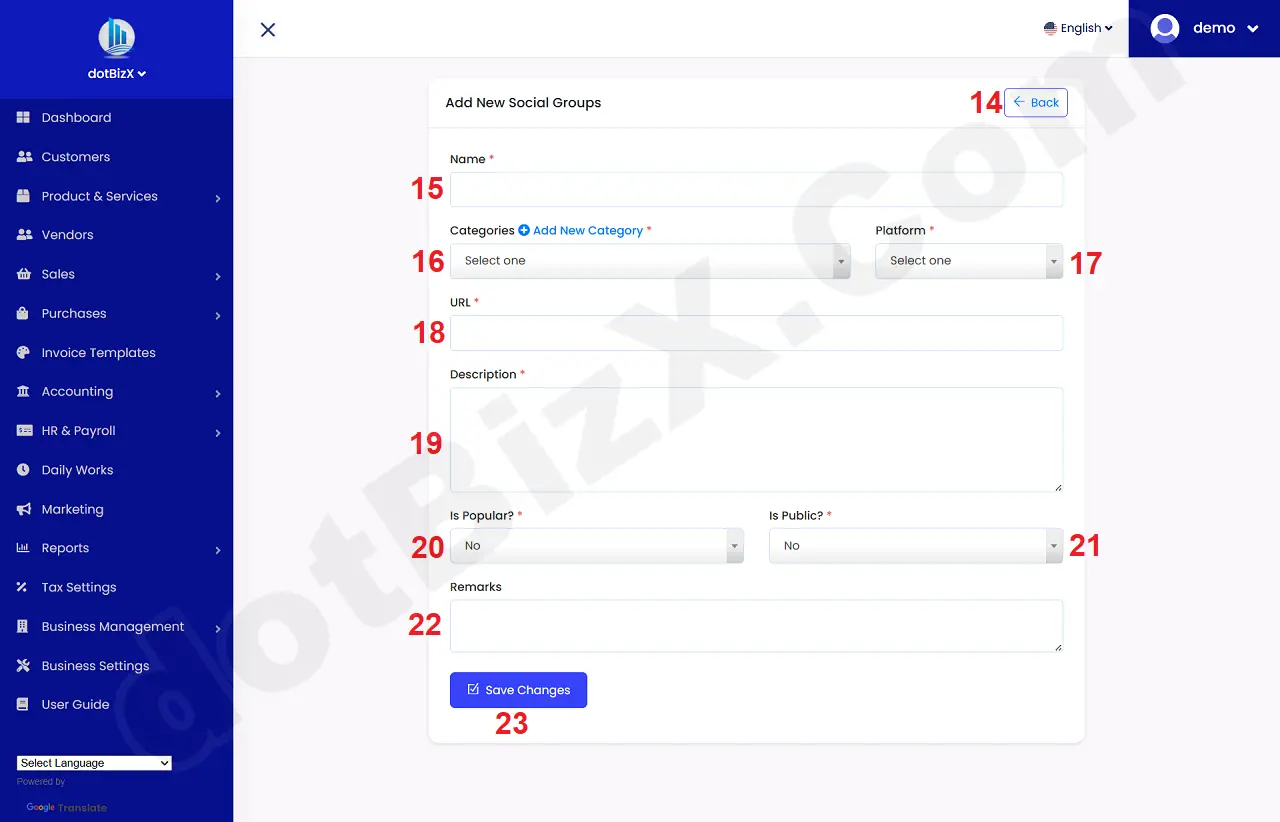
Illustration 03: Add New Social Network Group Form
* Notes:
+ Cells marked with a red asterisk (*) are mandatory.
+ Categories (16) box: You need choose a suitble value. It hasn't any values so you can create it by click on Add New Category option near this box. Or you can do it via 9.1. Categories Management of the user guide of dotBizX.Com.
+ Is Popular (20) box: It has two values:
- Yes: This Social Network Group will be prioritized and displayed first in the List of Social Network Groups table like Illustration 02 above.
- No: It will not be prioritized to appear at the top of the list.
+ Is Public (21) box: It has two values:
- Private: Only the person who created the social network group can access it.
- Public: Anyone can access this social network group.
3. How to import social network groups in bulk from Excel file?
In list of contracts like Illustration 02 above, you click on Import (3) button => Then you can see Import Social Groups Form like Illustration 04 bellows.
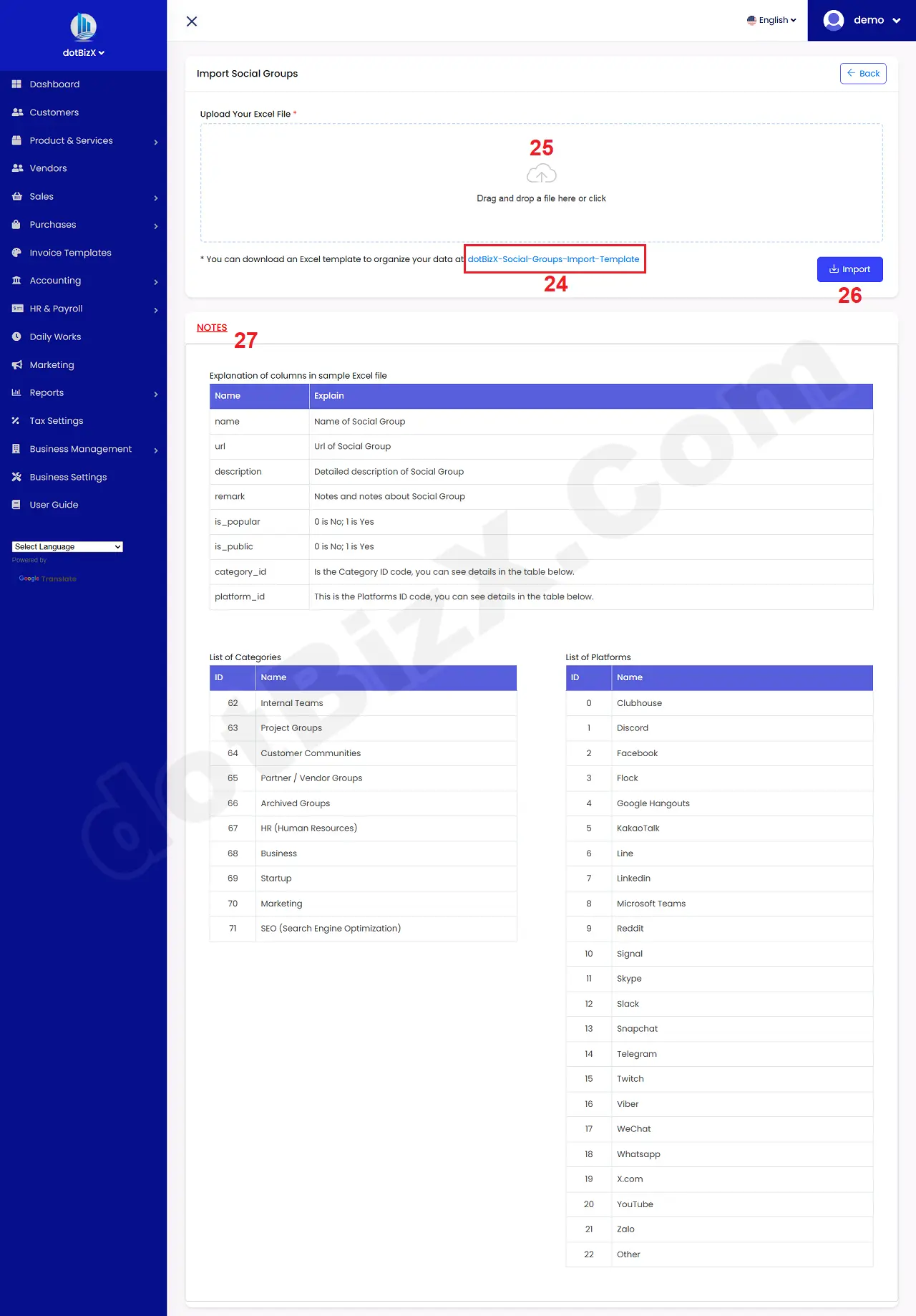
Illustration 04: Import Social Groups Form
In Import Social Groups Form like Illustration 04 above, You click on 24th box to download the Excel template file to your computer => next you delete all demo data from that Excel file => Then you input all information about your social network groups into that Excel File.
When you finish with that Excel file so you click on Upload Your Excel File (25) button like Illustration 04 above to upload your Excel file => Final, you click on IMPORT (26) button to finish.
* Notes:
+ The columns in the sample Excel file will be explained in detail in NOTES (27) area as shown in illustration 04 above.
+ Cells marked with a red asterisk (*) are mandatory.