
1. How to show list of products and services?
You click on Products & Services (1) menu => next you click on Products & Services (2) option => Now you can see list of Products & Services like Illustration 01 bellows.
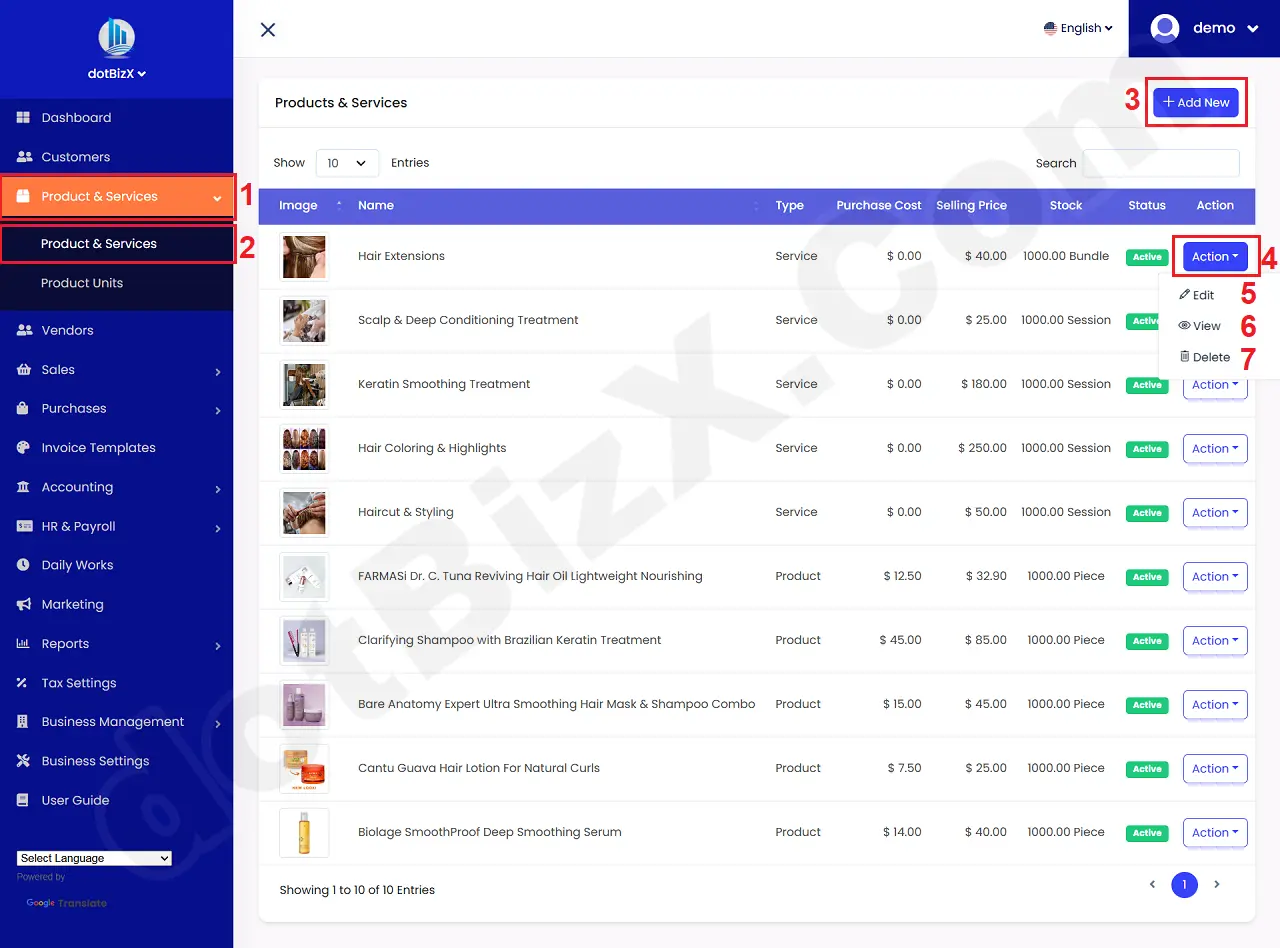
Illustration 01: List of Products and Services
* Notes:
+ Add New (3) button: It's used to create a new product or service.
+ Action (4) button: Click on this button to show list options from 5th to 7th.
+ Edit (5) option: It's used to modify an existing product or service.
+ View (6) option: It's used to show an existing product or service.
+ Delete (7) option: It's used to delete an existing product or service.
2. How can I add a new product or service?
In list of products and services like Illustration 01 above, you click on Add New (3) button to create a new products (or service) => In Add New Product Form like Illustration 02 bellows, you need input all things for product (or service) => Final, you click on Save Changes (18) button to finish.
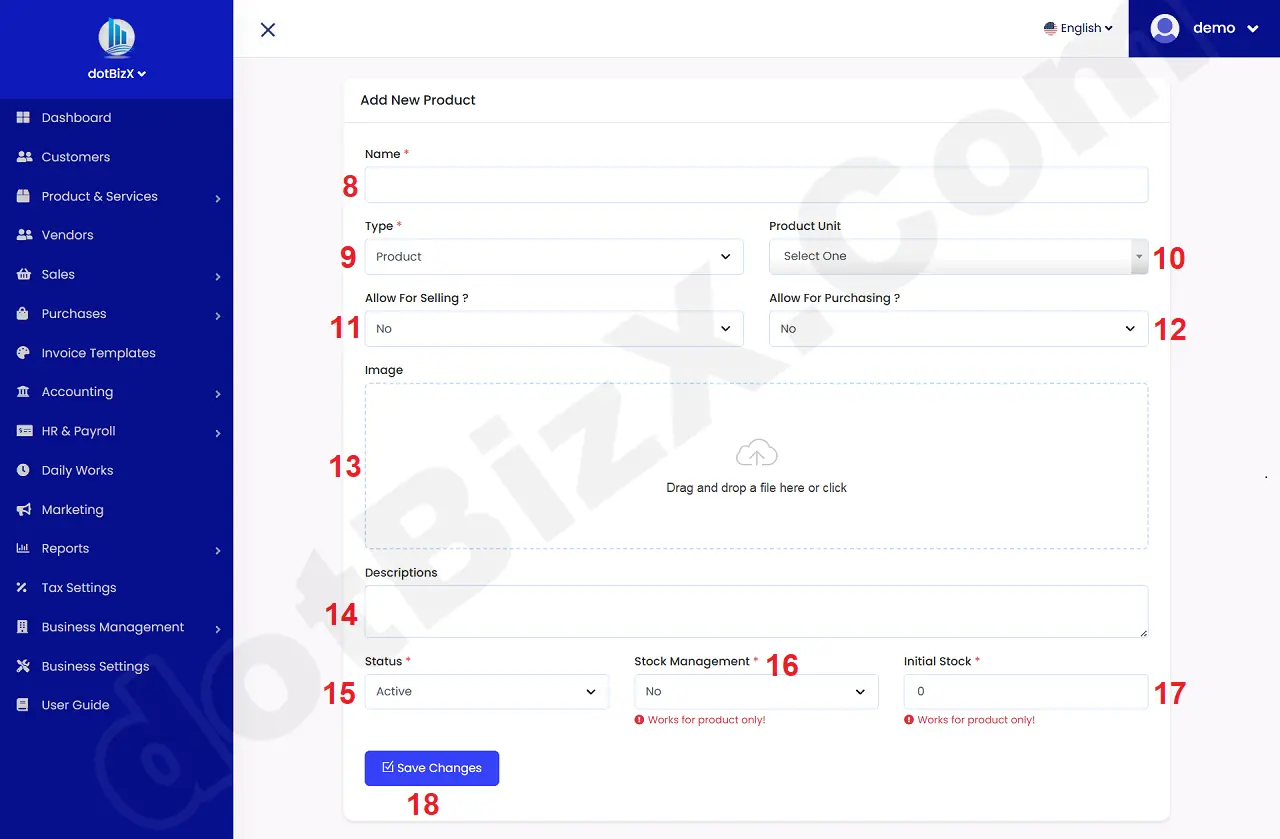
Illustration 02: Create a new Product (or service)
* Notes:
+ All cells marked with a red * are mandatory.
+ Type (9) box: You need choose Product value if you want to create a new product. Conversely, if you want to create a new service, you select the Service value.
+ Product Unit (10) box: You need choose one value that's suitable with your product. If it doesn't have any values, so you click on + Add New option from this box to create a new product unit or you can follows 3.1. Management Product Unit of dotBizX.com's User Guide to do it.
+ Image (13): You need insert your product with a size no larger than 300kb.
+ Stock Management (16) box: You have to choose No value for it if it's service. If it's product so you need choose YES value.
+ Available Stock (17) box: You need input one value for it.
=> When you create your product finish so you need Edit it to add more information for it. Do it like section 3 or 4 bellows.
3. How can I edit an existing service?
In list of products and services like Illustration 01 above, you click on Action (3) button => click on Edit (5) option to modify your service (that type column is Service) => In Update Product Form like Illustration 03 bellows, you need change all things for your service => Final, you click on Save Changes (32) button to finish.
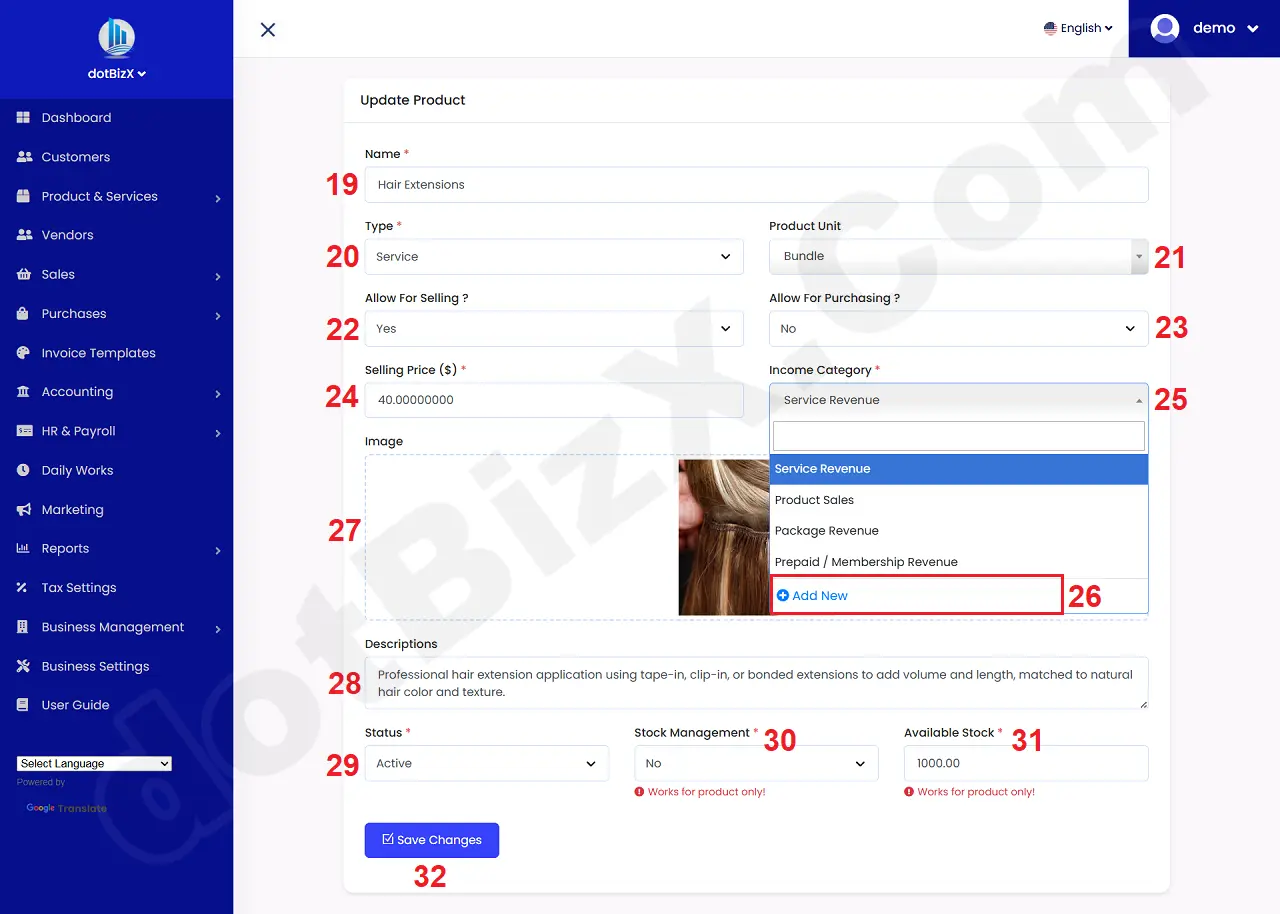
Illustration 03: Edit an existing service
* Notes:
+ All cells marked with a red * are mandatory.
+ Type (20) box: It's value has to be Service.
+ Income Category (25) box: You choose a suitable value for your service. If it doesn't have any values, so you click on + Add New (26) option from this box to create a new Income Category or you can follows 7.3. Manage Transaction Categories of dotBizX.com's User Guide to do it.
+ Allow For Selling? (22) box: You need choose Yes value. Then you have to input value for Selling Price ($) [24] box.
+ Allow For Purchasing? (23) box: You need choose No value.
+ Status (29) box: If its value is active then it can be showed in Quotos, Invoice, Transactions...
+ Stock Management (30) box: You have to choose No value for it.
+ Available Stock (31) box: You need input one value for it.
4. How can I edit an existing product?
In list of products and services like Illustration 01 above, you click on Action (3) button => click on Edit (5) option to modify your product (that type column is Product) => In Update Product Form like Illustration 04 bellows, you need change all things for your product => Final, you click on Save Changes (47) button to finish.
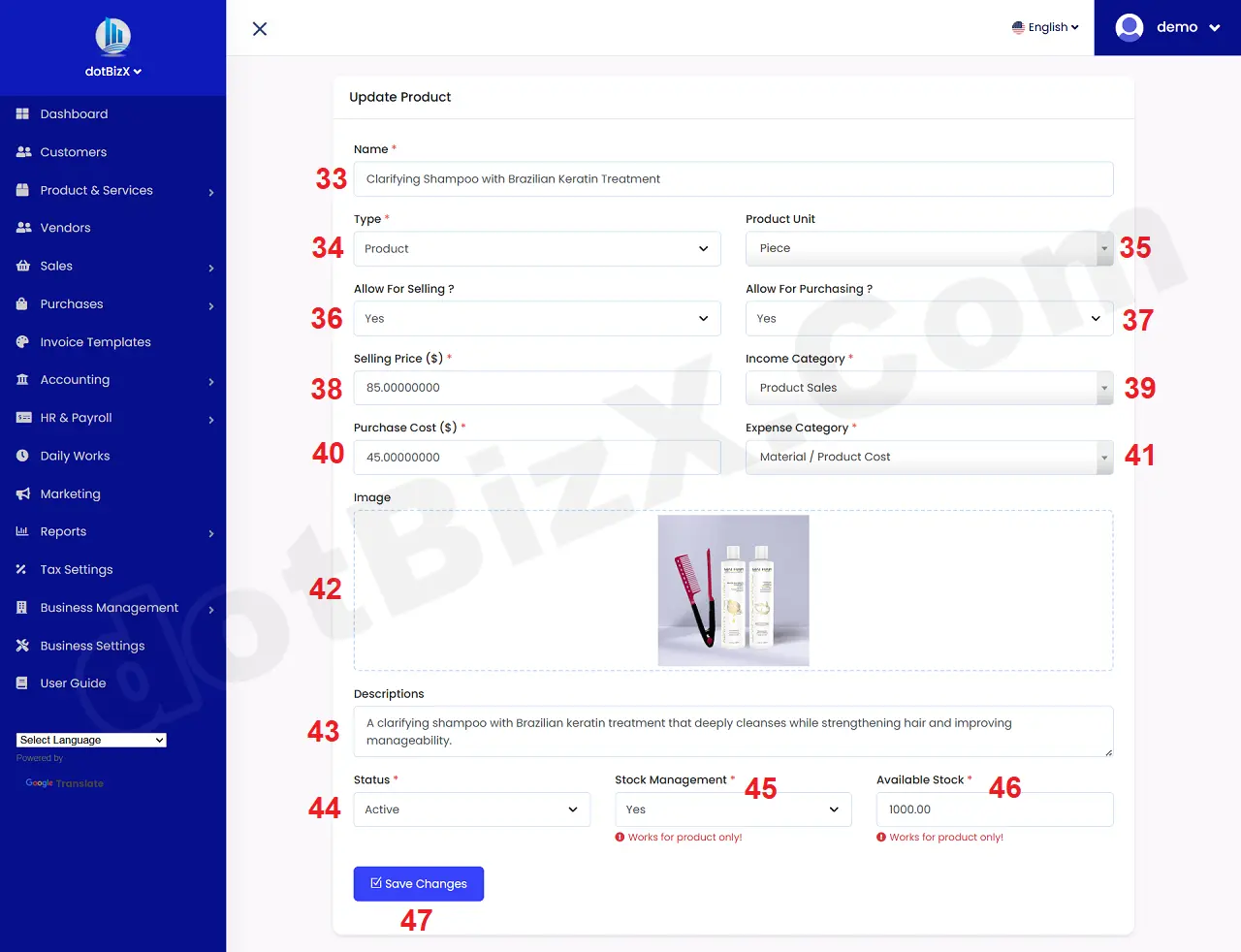
Illustration 04: Edit an existing product
* Notes:
+ All cells marked with a red * are mandatory.
+ Type (34) box: It's value has to be Product.
+ Allow For Selling? (36) box: You need choose Yes value. Then you have to input value for Selling Price ($) [38] box.
+ Allow For Purchasing? (37) box: You need choose No value if you don't have to buy it. Opposite you need choose Yes Value => Then you have to input value for Purchase Cost($) [40] box.
+ Income Category (39) box: You choose a suitable value for your product. If it doesn't have any values, so you click on + Add New option from this box to create a new Income Category or you can follows 7.3. Manage Transaction Categories of dotBizX.com's User Guide to do it.
+ Expense Category (41) box: You choose a suitable value for your product. If it doesn't have any values, so you click on + Add New option from this box to create a new Expense Category or you can follows 7.3. Manage Transaction Categories of dotBizX.com's User Guide to do it.
+ Status (44) box: If its value is active then it can be showed in Quotos, Invoice, Transactions...
+ Stock Management (45) box: You have to choose Yes value for it.
+ Available Stock (46) box: You need input one value for it.