
Steps to create a new purchase order in dotBizX.Com
1. Step 1: Open the purchase order form
To do it, you click on Purchases (1) menu => click on New Purchase (2) option so you can see the purchase order form like Illustration 01 bellows.
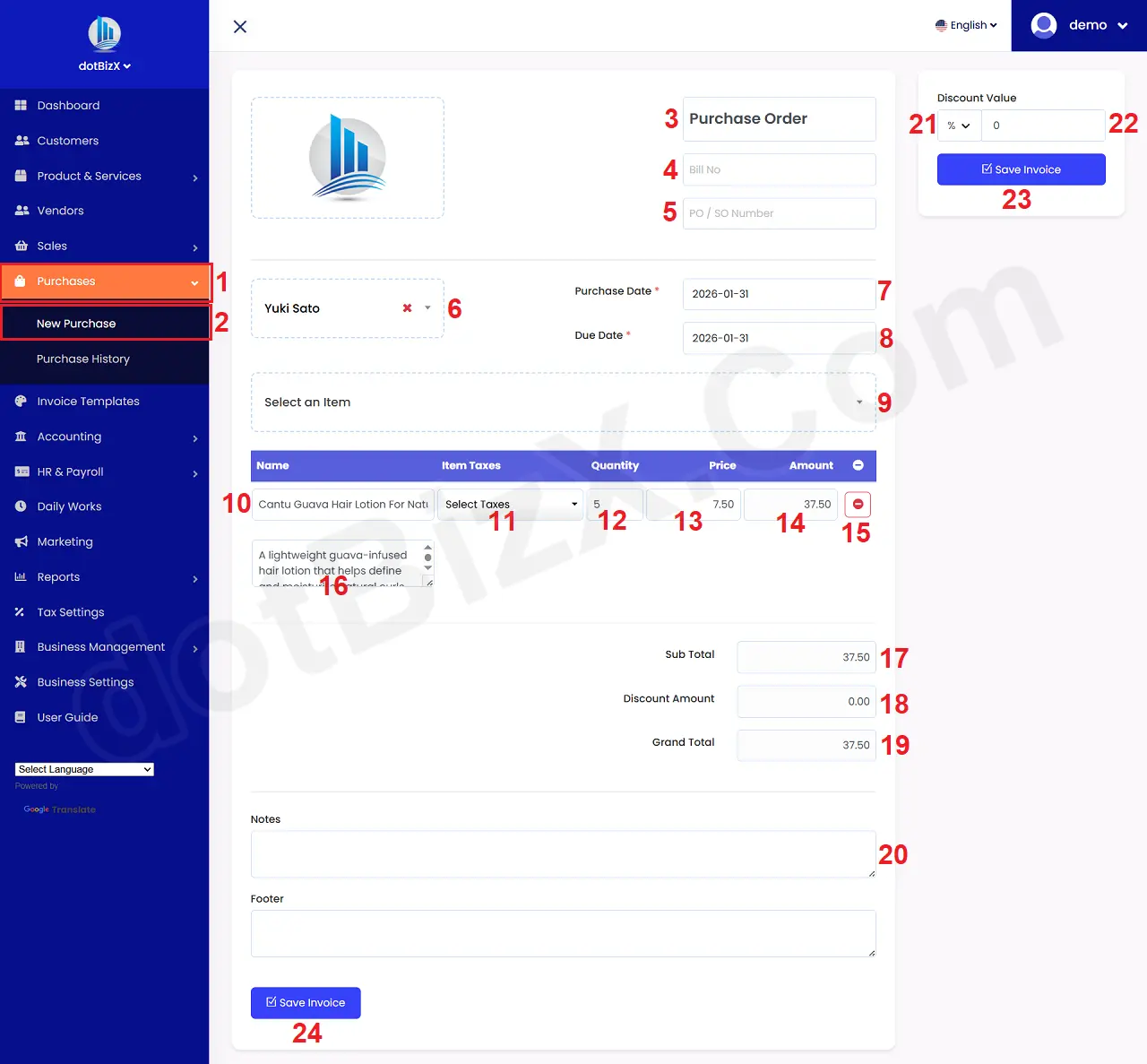
Illustration 01: Purchase Order Form
2. Step 2: Input data for purchase order form
In purchase order form like Illustration 01 above, you input all things for your purchase order => Final, you click on Save Invoice (23 or 24) button to finish.
*Notes:
+ Cells marked with a red asterisk (*) are mandatory.
+ 3rd box: You can change the name of your purchase order.
+ Bill No (4) box: You input the Bill No that's sent by your vendor. For example: INV-202601300015. If you have set it in the Invoice Settings tab, the value in this field will be automatically filled and incremented. See instructions in section 1.3. Install and Update Business Information of the user guide of dotBizX.Com for details (Section 3.3. Invoice Settings of this document).
+ PO/SO Number (5) box: You input your Purchase Number there. For example: PO-20260131001. If you have set it in the Invoice Settings tab, the value in this field will be automatically filled and incremented. See instructions in section 1.3. Install and Update Business Information of the user guide of dotBizX.Com for details (Section 3.3. Invoice Settings of this document).
+ 6th box: You click on this box to choose one vendor who sale his products for you.
+ 9th box: You click on this box to choose one product that you want to by. One you finish, so that product's showing in table bellows it.
+ 11th box: You click on this box to choose one tax for that product.
+ 12th box: You input the quality product that you want to buy.
+ 13th box: You can change the product's price in this box.
+ 14th box: You can change the product's amount in this box.
+ 15th icon: You click on this icon to delete the suitable product.
After you finish create your purchase order so you can see your purchase order detail like Illustration 02 bellows.
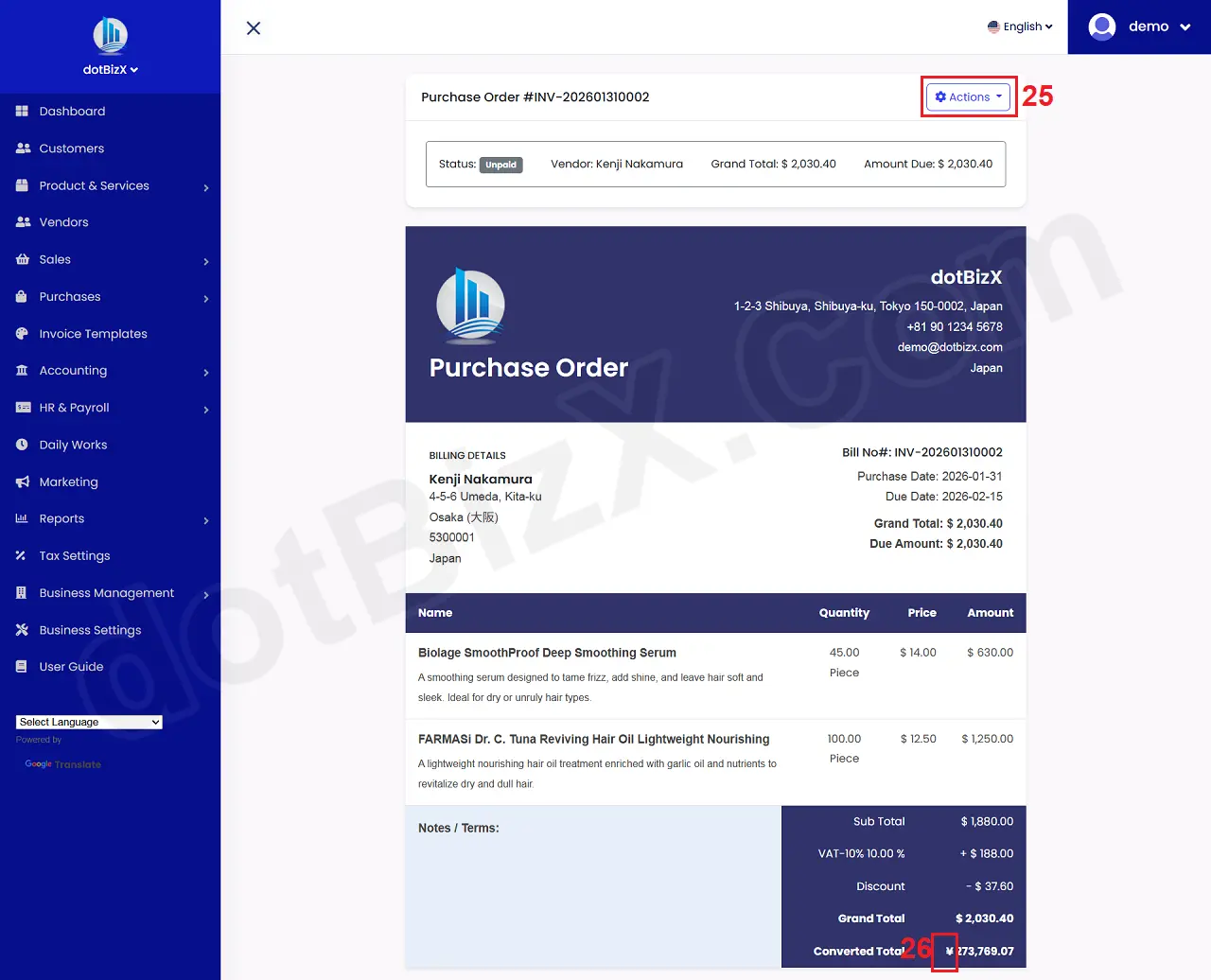
Illustration 02: View Purchase Order Form
*Notes:
+ Action (25) box: You click on this button to process some functions like: Add Payment, Duplicate this purchase order, Print Purchase Order, Edit or Delete this purchase.
+ Currency (26) icon: That's suitable with your vendor. Your vendor use that currency then in your purchase order, it can be converted to your vendor's currency.