
1. How to show List of contracts in dotBizX.Com?
1.1. Step 1: Open The Interface of Daily Works module
Click on Daily Works (1) menu => Then you can see the dashboard of Daily Works like Illustration 01 bellows.
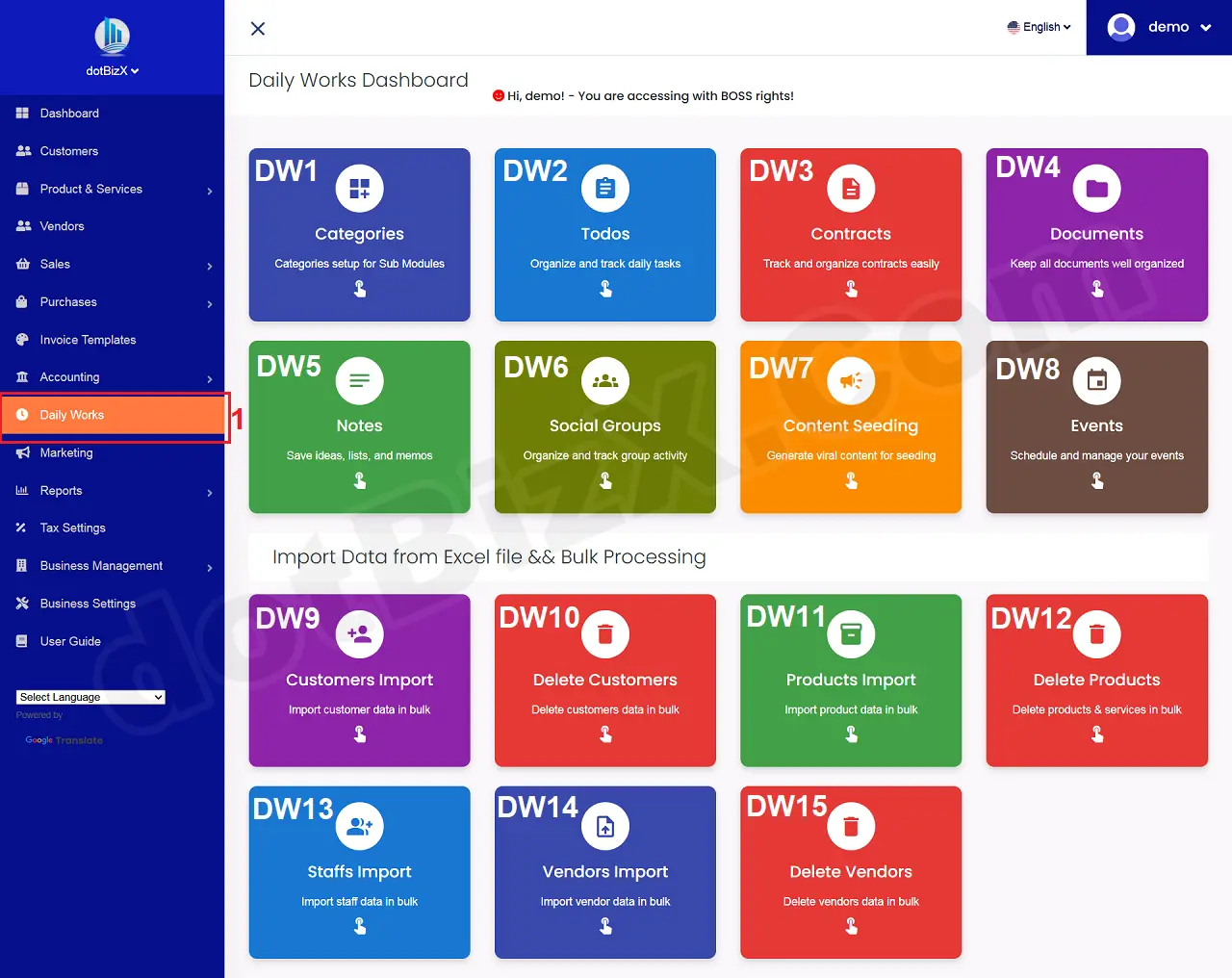
Illustration 01: The Interface of Daily Works Dashboard
1.2. Step 2: Open List of Contracts
In Daily Works Dashboard like Illustration 01 above, you click on Contracts [DW3] button => Then you can see List of Contracts like Illustration 02 bellows.
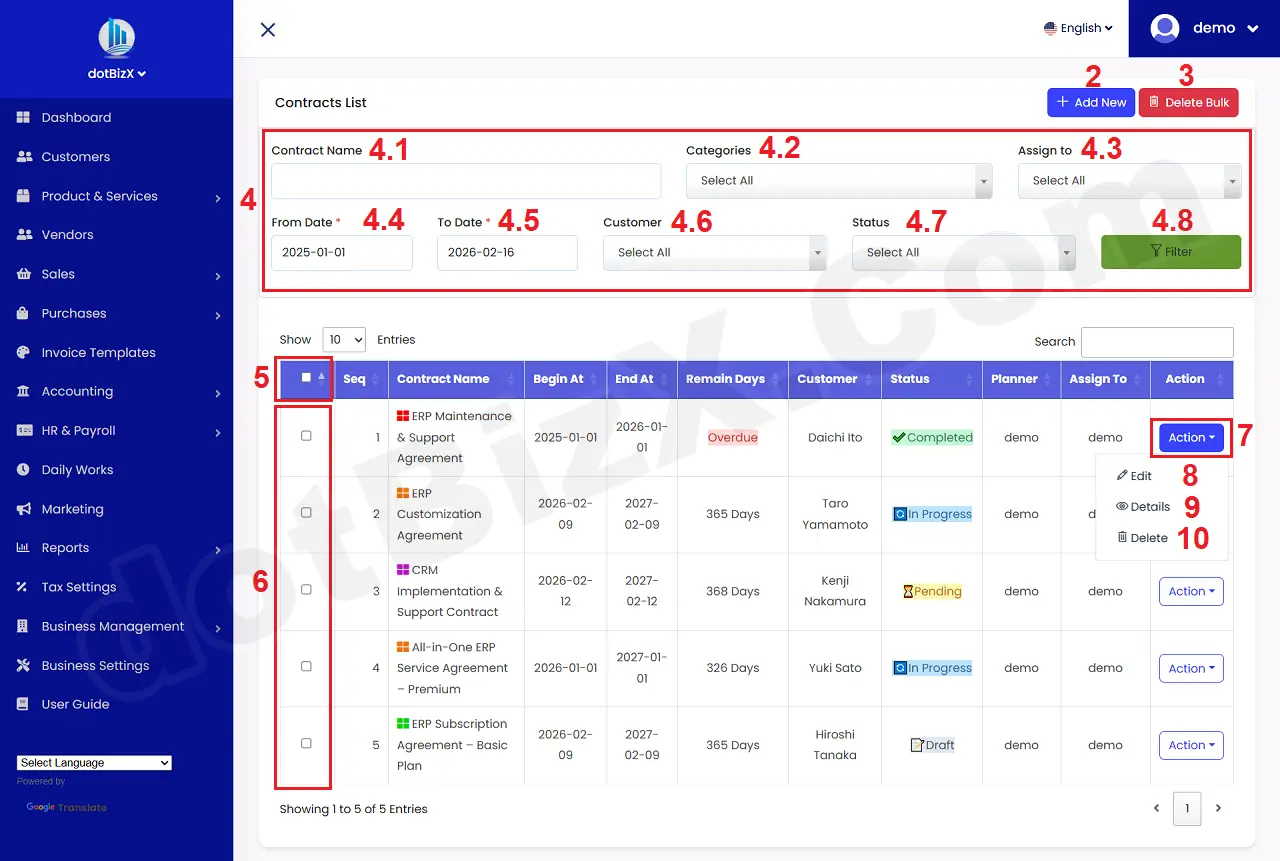
Illustration 02: List of Contracts
* Notes:
+ Add New (2) button: It's used to create a new contract.
+ Delete Bulk (3) button: It's used to delete contracts in bulk.
+ 4th red area (4): It's used to filter data for table bellows.
+ 5th red (5) box: It's used to choose all contracts that in the table bellows.
+ 6th red (6) box: It's used to choose the contract that you want to delete in bulk.
+ Action (7) button: When you click on this button so you can see 8th - 10th options.
+ Edit (8) option: It's used to modify an existing contract.
+ Details (9) option: It's used to show an existing contract.
+ Delete (10) option: It's used to delete an existing contract.
2. How to create a new contract?
In list of contracts like Illustration 02 above, you click on Add New (2) button => In Add New contract Form like Illustration 03 bellows, you need input all things for it => Final, you click on Save Changes (22) button to finish.
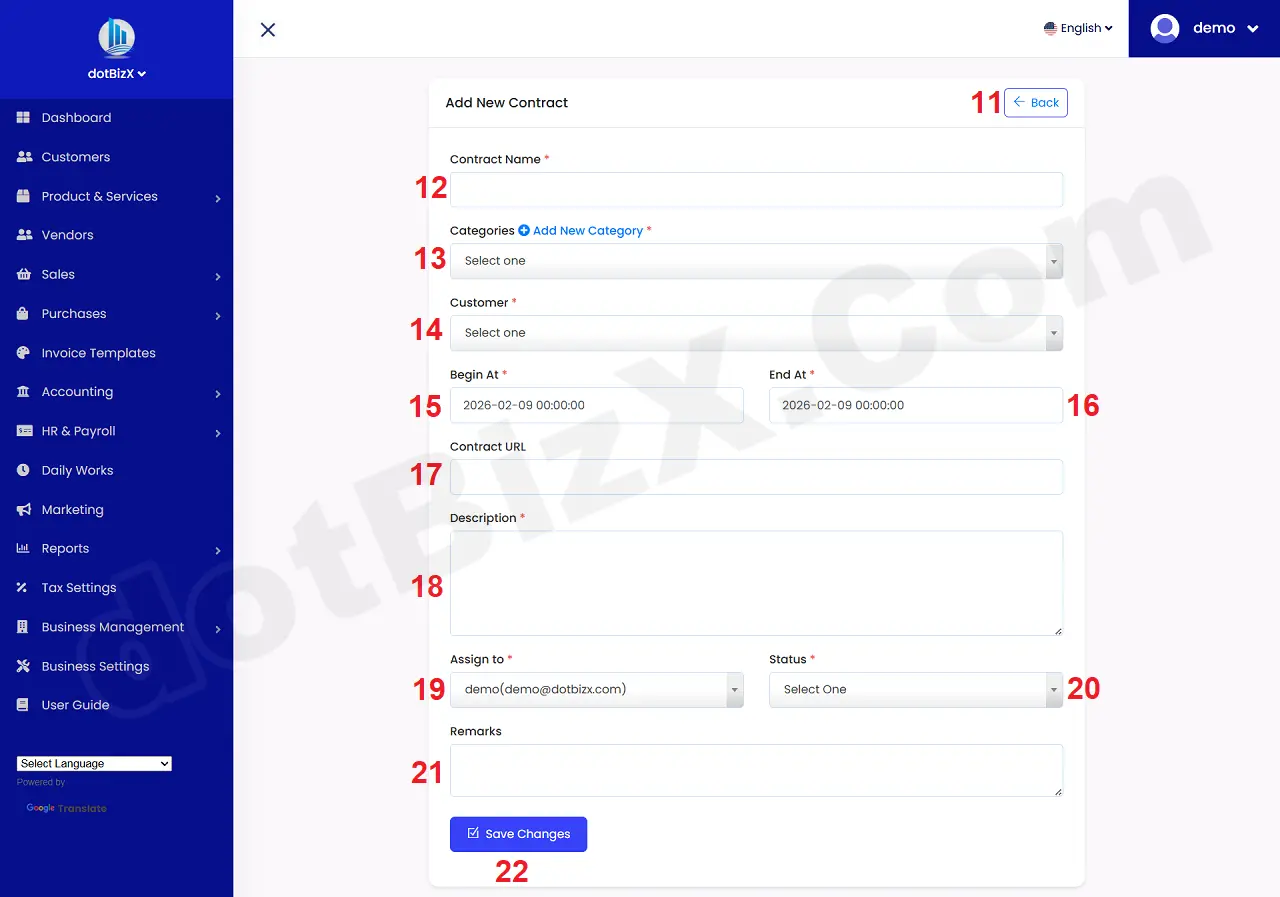
Illustration 03: Add New Contract Form
* Notes:
+ Cells marked with a red asterisk (*) are mandatory.
+ Categories (13) box: You need choose a suitble value. It hasn't any values so you can create it by click on Add New Category option near this box. Or you can do it via 9.1. Categories Management of the user guide of dotBizX.Com.
+ Contract URL (17) box: If you have url of your contract so you need input it here.
+ Assign to (19) box: You select the employee to whom you want to assign that contract. If you want to perform this contract yourself, you keep the default value.