
1. How to show list of quotes in dotBizX.com?
To do it, you click on Sales (1) menu => then you click on Quotations (2) option => Now you can see list of quotes like Illustration 01 bellows.
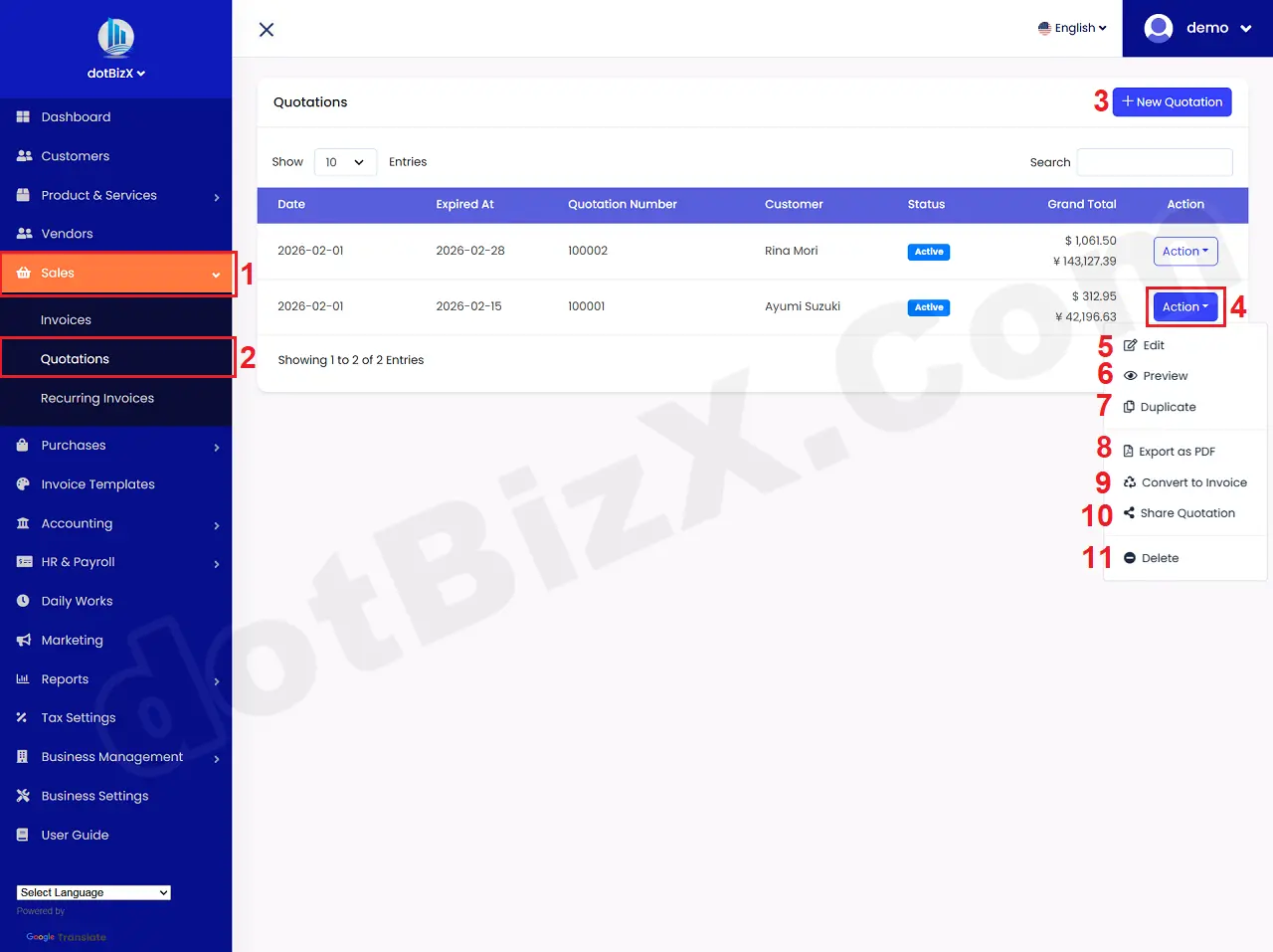
Illustration 01: List of Quotations
* Notes:
+ Action (4) button: Click on this button to show 5th - 11th options.
+ Edit (5) option: It's used to modify an existing quote.
+ Preview (6) option: It's used to show an existing quote.
+ Duplicate (7) option: It's used to duplicate an existing quote.
+ Export to PDF (8) option: It's used to export an existing quote to PDF file.
+ Convert to Invoice (9) option: It's used to convert an existing quote to Invoice.
+ Share Quotation (10) option: It's used to generate a link of an existing quote. Then you can shere the link of quotation for you customers.
+ Delete (11) option: It's used to delete an existing quote.
2. How to create a new Quote?
In list of quotations like Illustration 01 above, you click on New Quotation (3) button => in Add New Quotation Form like Illustration 02 bellows, you input all things for your quotation => Final, you click on Save Quotation (18 or 34) button to finish.
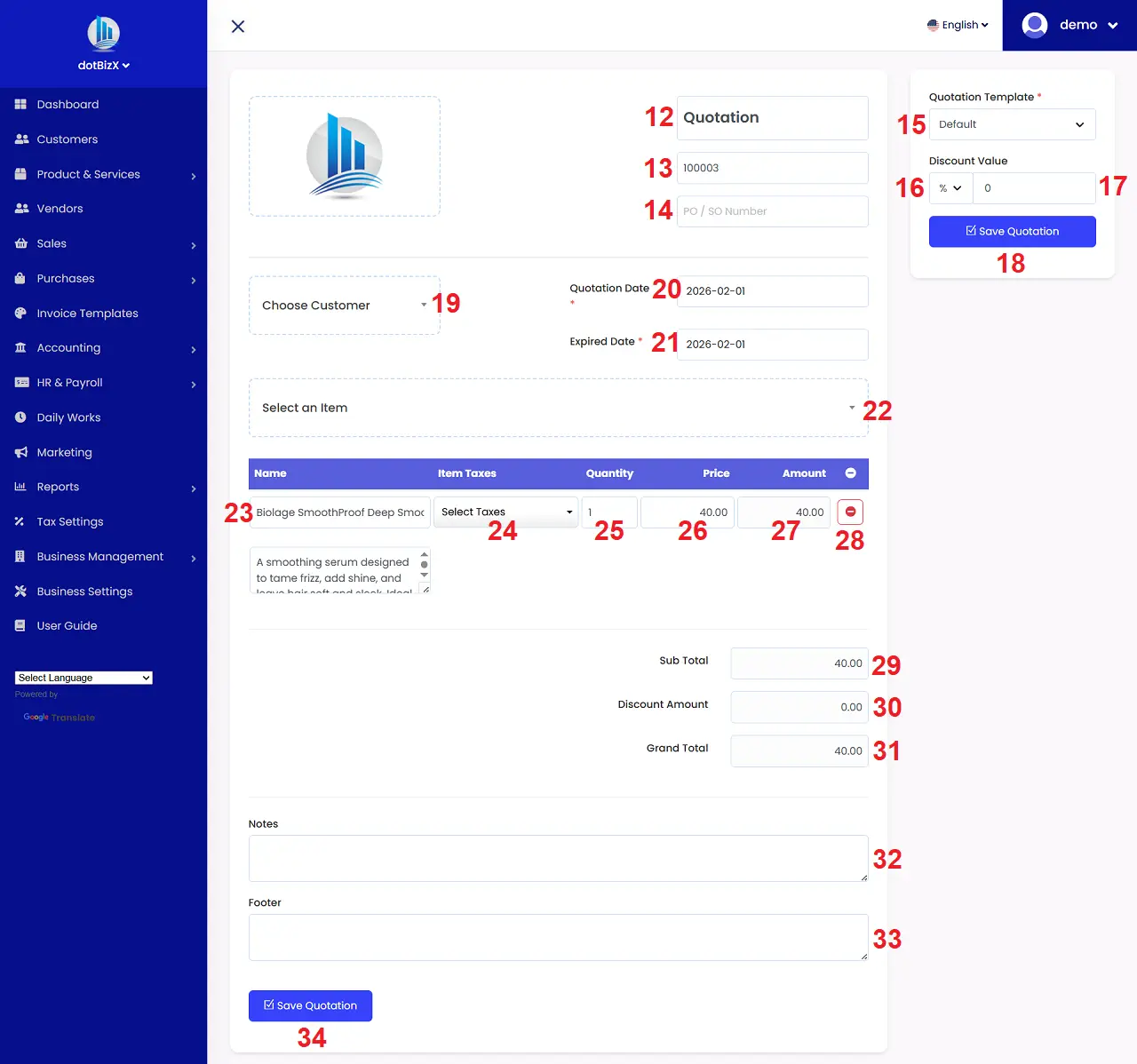
Illustration 02: Add New Quotations Form
* Notes:
+ Quatation Title (12) box: You can change it for your Quote.
+ Quatation Number (13) box: You can change it for your Quote. Or you can use It's default value that's generated by dotBizX.Com.
+ PO / SO Number (14) box: You can leave this field blank if creating a new quote.
- If the buyer submitted a purchase request before creating the quote, enter the purchase order (PO) here.
- If the quote was created based on a previous sales order (SO), enter the SO here.
+ Choose Customer (19) box: You click on this box to choose the customer for your Quote.
+ Select an Item (22) box: You click on this box to choose the Item for your Quote. After that that item's show in Table bellows.
+ Item Taxes (24) Column: You choose the tax that's suitable with that item.
+ Quanlity (25) column: You can change the quanlity of items for your quote.
+ Price (26) column: You can change the price for your quote.
+ Amount (27) column: You can change the amount for your quote.
+ 28th Icon: Click it to delete Item.
3. How to show an existing Quotation?
In list of quotations like Illustration 01 above, you click on Action (4) button that's suitable with your quotation which you want to do => then you click on Preview (6) option => after that you can see the quotation detail form like Illustration 03 bellows.
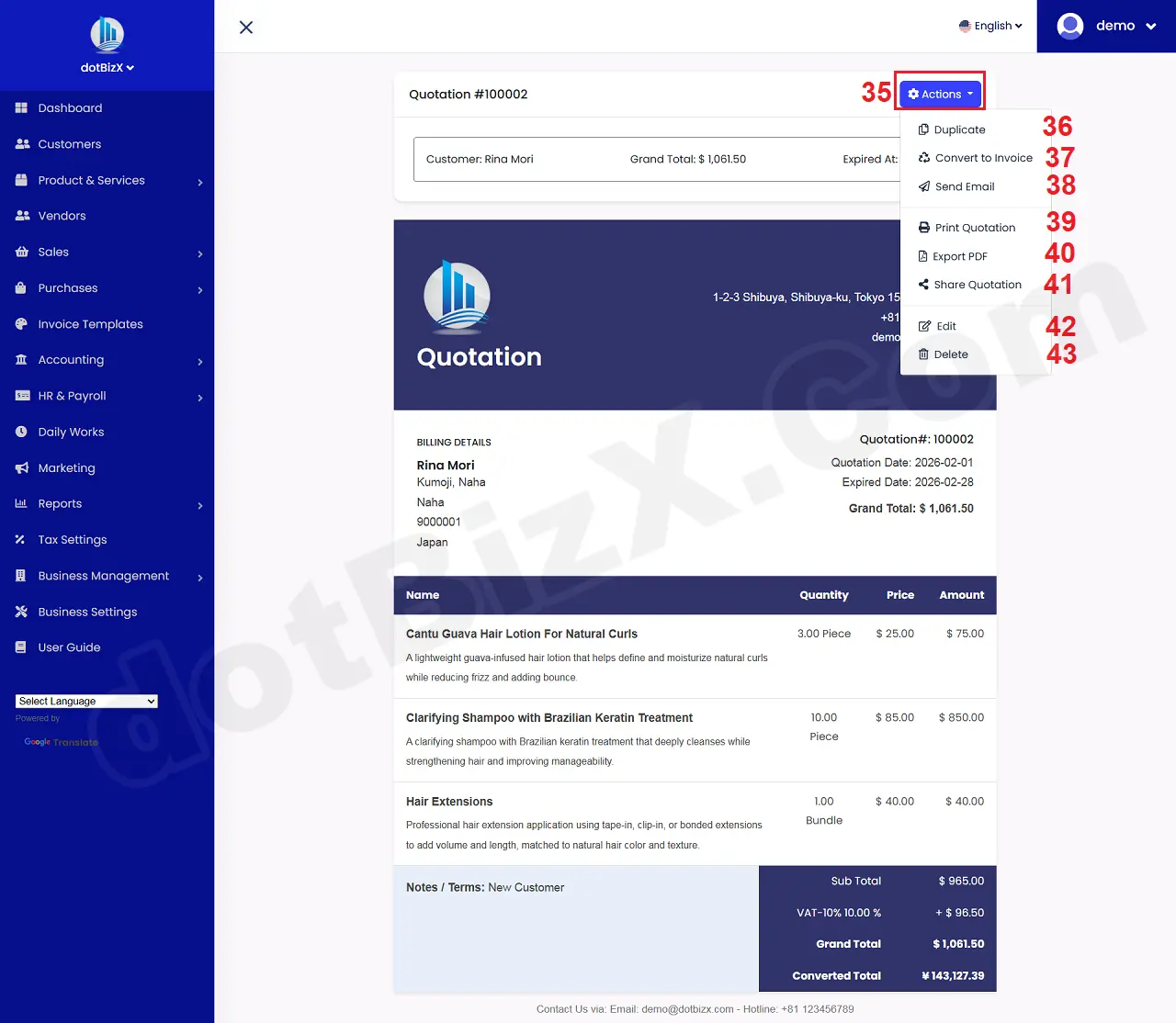
Illustration 03: Quotation Detail Form
* Notes:
+ Send Email (38) option: It's used to send quotation for your customer via email.
+ Print Quotation (39) option: It's used to print quotation.
+ Export PDF (40) option: It's used to Export quotation to PDF File.
+ Share Quotation (41) option: It's used to generate link for quotation. Then you can use that link to share for your customers.
4. How to convert an existing Quotation to Invoice?
In list of quotations like Illustration 01 above, you click on Action (4) button that's suitable with your quotation which you want to do => then you click on Convert to Invoice (9) option => after that you can see the add new Invoice form like Illustration 04 bellows.
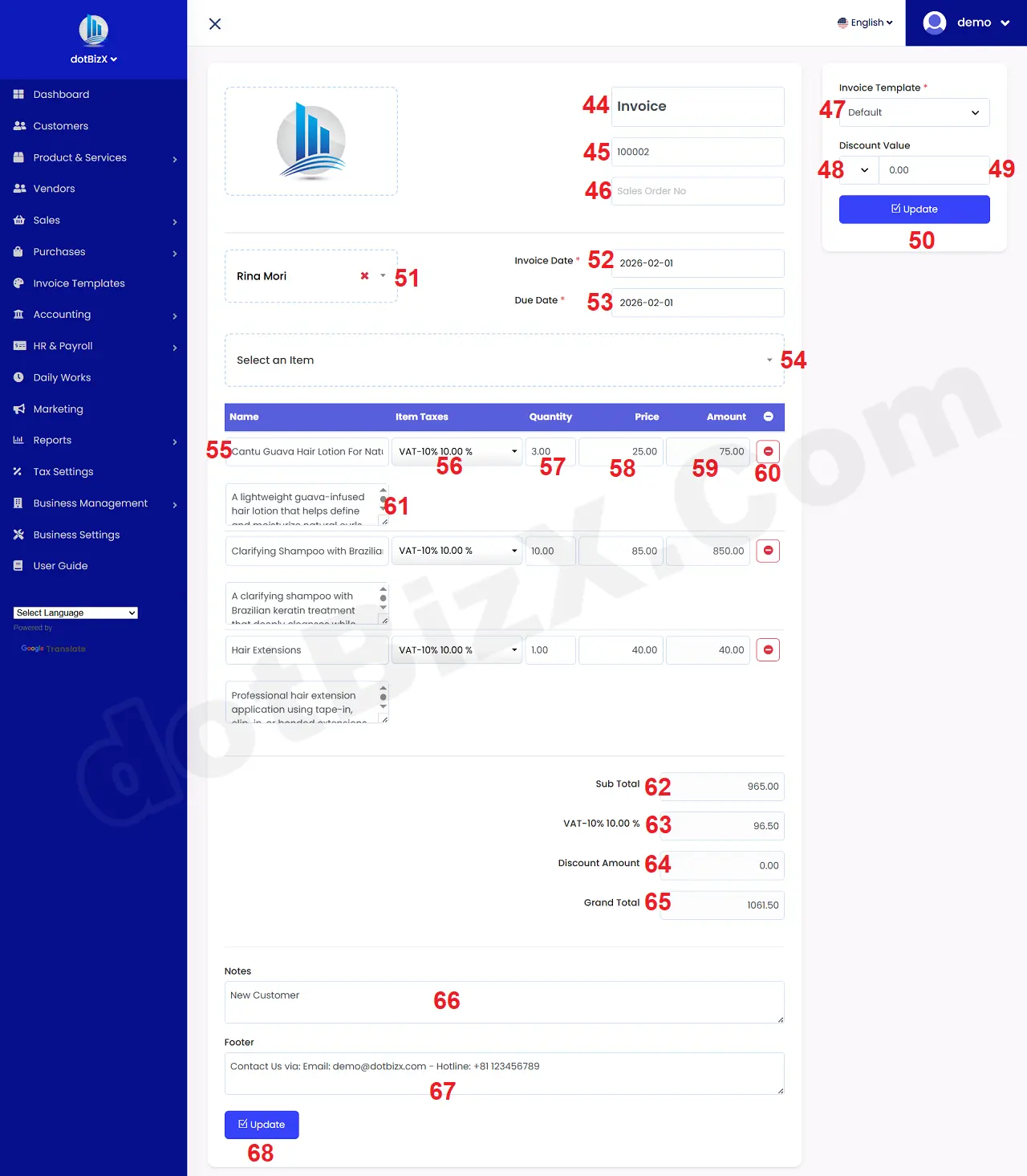
Illustration 04: Add New Invoice Form
In this form, you need change all things for your invoice => Final, you click on Update (50 or 68) button to finish => after that you can see Invoide Detail like Illustration 05 bellows.
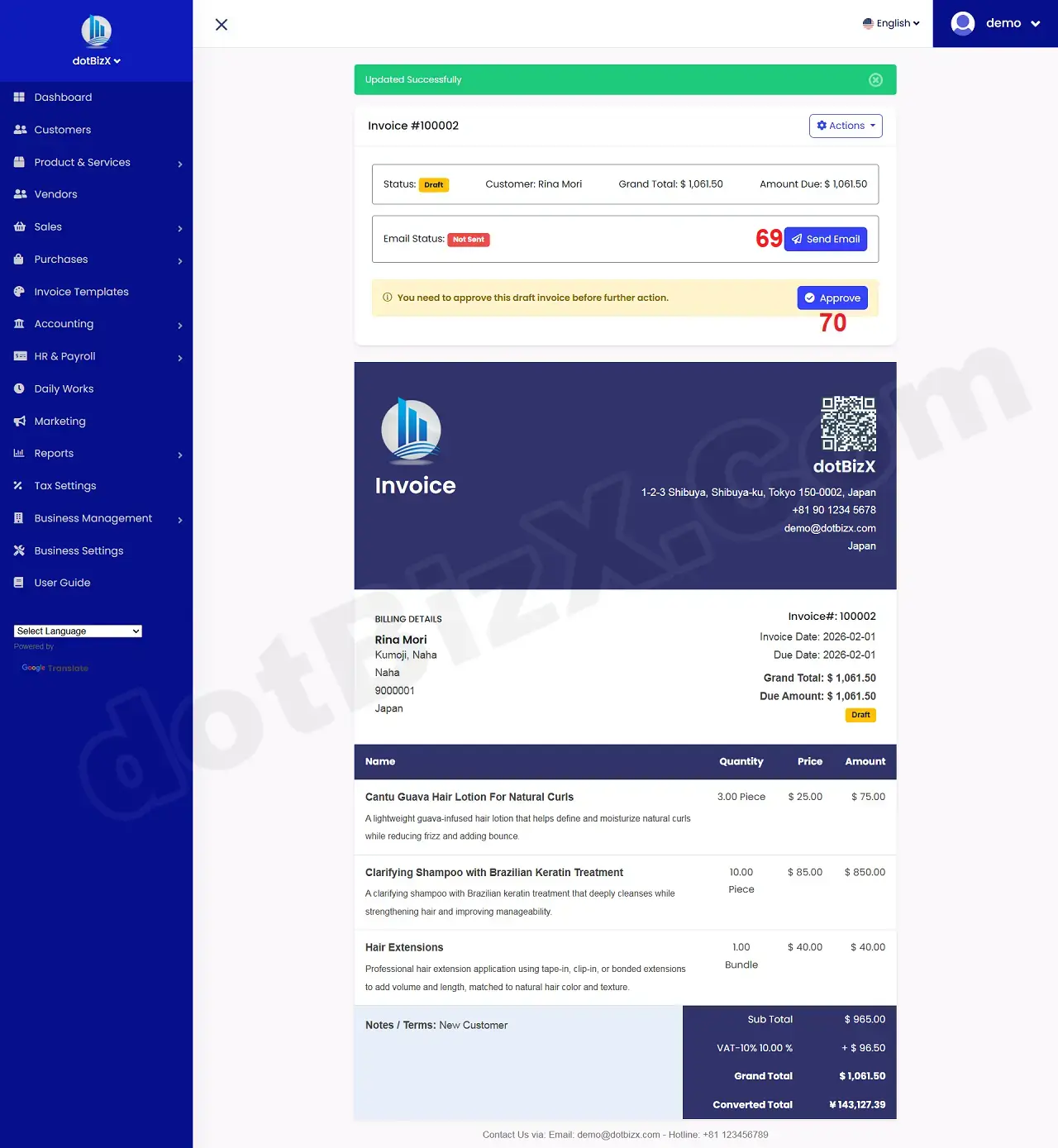
Illustration 05: Invoice Detail Form
In Invoice Detail Form like Illustration 05 above, you need click on Approve (70) button to be active your Invoice.
5. How to share an existing Quotation for my customers?
In list of quotations like Illustration 01 above, you click on Action (4) button that's suitable with your quotation which you want to do => then you click on Share Quotation (10) option => after that you can see the Get share link form like Illustration 06 bellows.
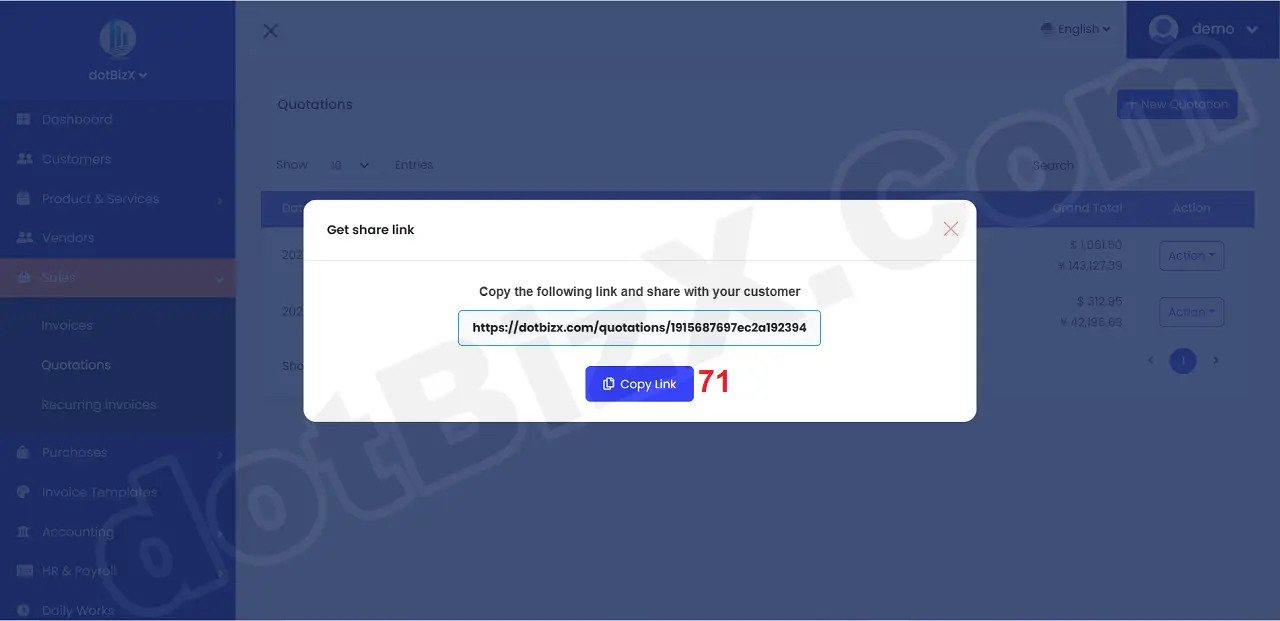
Illustration 06: Get share link
Now you can share this link for your customers via email, facebook messenger, linkedin, x.com...your customers can see their quotation without login into dotBizX.Com.
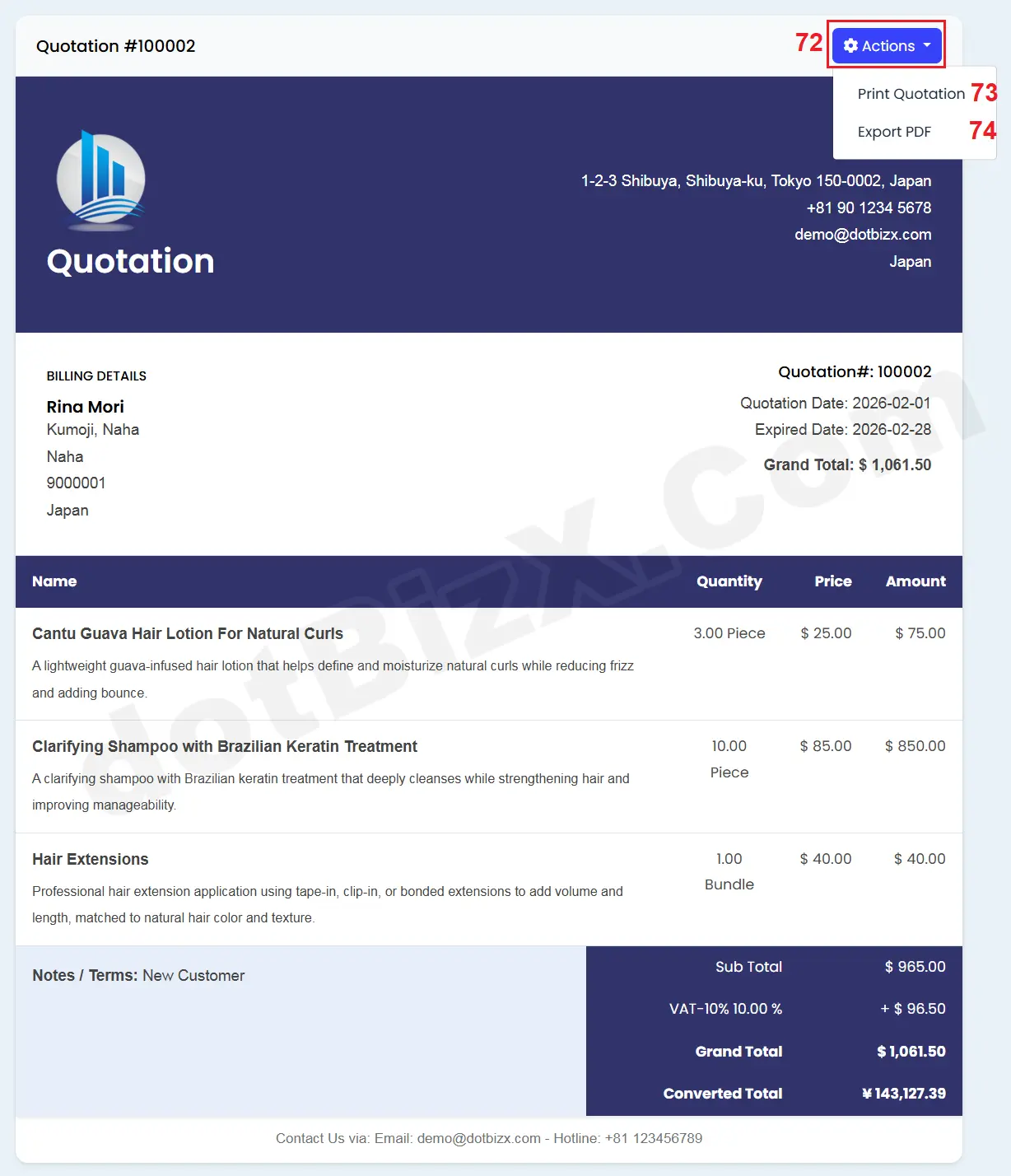
Illustration 07: Share Quotation for Customer
When your customers get that quotation, they can print quotation or export it to PDF file.