
1. How to show list of purchase orders in dotBizX.Com?
To do it, you click on Purchases (1) menu => next you click on Purchase History (2) option then you can see the list of purchase orders like Illustration 01 bellows.
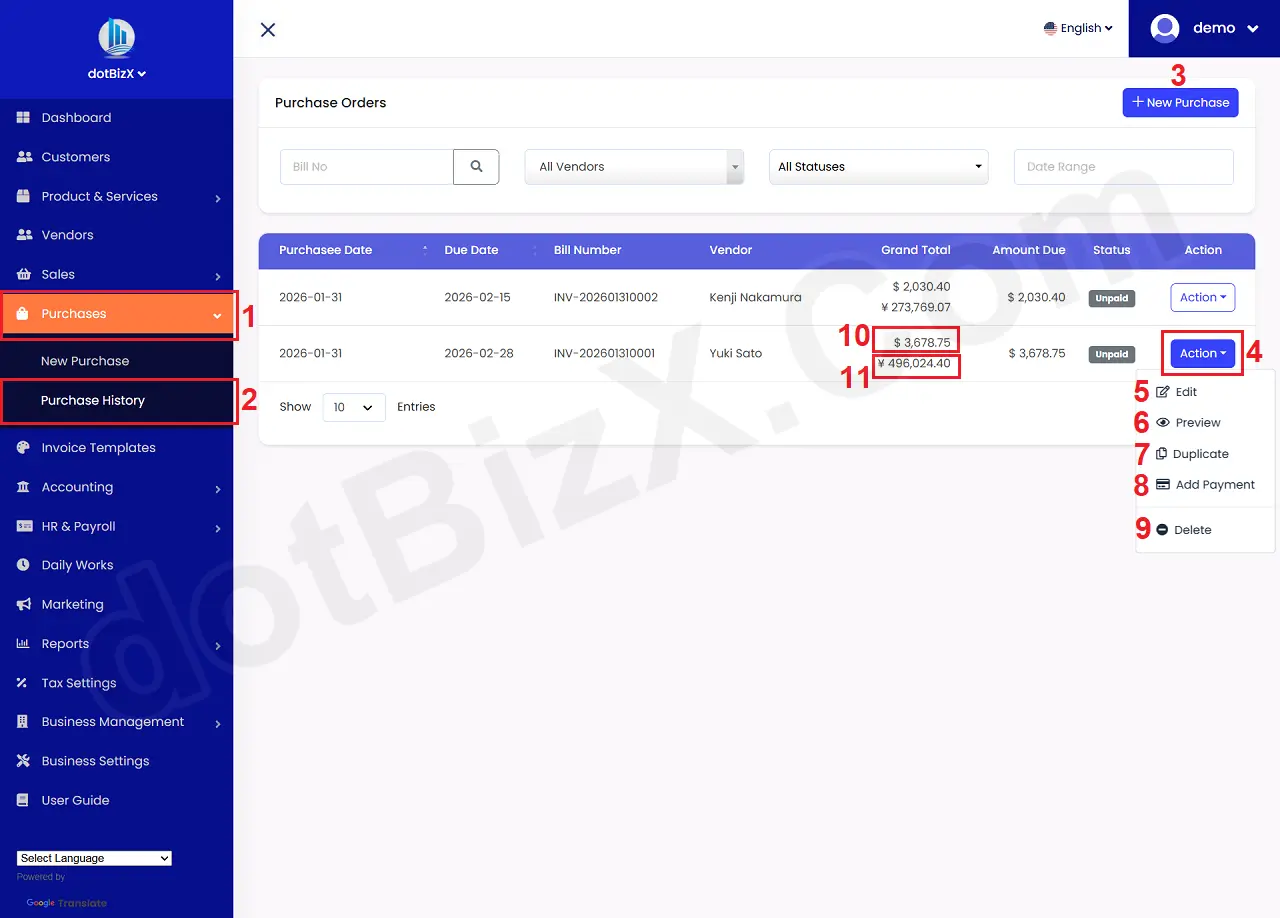
Illustration 01: List of Purchase Orders
* Notes:
+ New Purchase (3) button: It's used to create new purchase order.
+ Action (4) button: When you click on this button so you can see 5th to 9th options like Illustration 01 above.
+ Edit (5) option: It's used to modify an existing purchase order.
+ Preview (6) option: It's used to show an existing purchase order and you can make payment for purchase order or duplicate it or print it or edit, delete it.
+ Duplicate (7) option: It's used to duplicate an existing purchase order.
+ Add Payment (8) option: It's used to pay for an existing purchase order.
+ Delete (9) option: It's used to delete an existing purchase order.
+ 10th area: It's showed Grand Total of purchase order in your bussiness's currency.
+ 11th area: It's showed Grand Total of purchase order in your vendor's currency.
2. How to edit an existing purchase order?
In list of purchase orders like Illustration 01 above, you click on Action (4) button that's suitable with your purchase order which you want to edit => Then you click on Edit (5) option => In new window, you need change all things for your purchase order => Final, you click on Update button to finish.
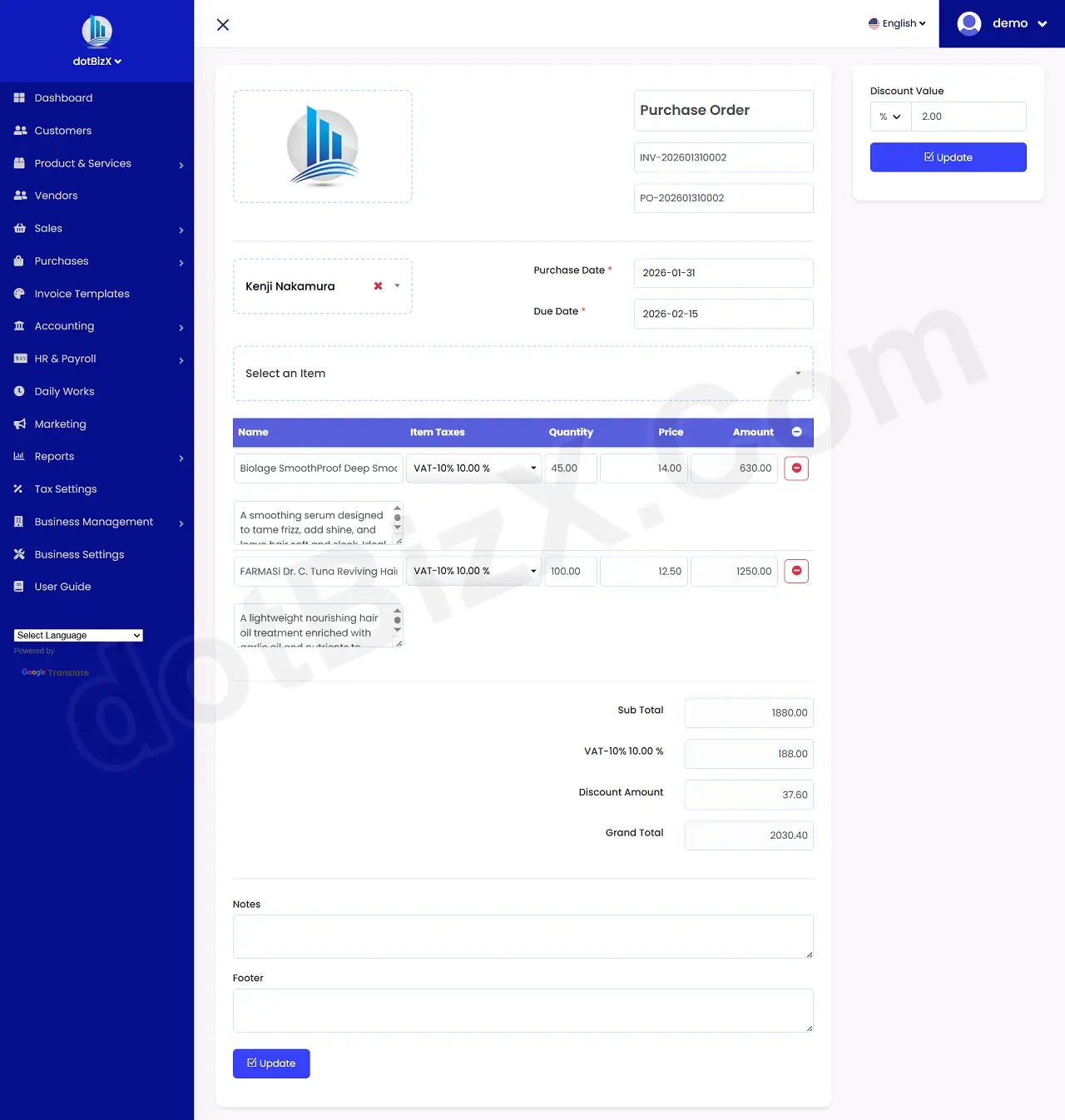
Illustration 02: Edit an existing purchase order
3. How can I duplicate an existing purchase order?
Duplicate function lets you quickly create a new purchase order from an existing one to save time, reduce errors, and keep purchasing consistent.
To do it, In list of purchase orders like Illustration 01 above, you click on Action (4) button that's suitable with your purchase order which you want to duplicate => Then you click on Duplicate (7) option => Then you need change some things for your new purchase order => Final, you click on Save Changes button to finish.
4. How do I show an existing purchase order?
To do it, In list of purchase orders like Illustration 01 above, you click on Action (4) button that's suitable with your purchase order which you want to show => then you click on Preview (6) option => so you can see the purchase order detail like Illustration 03 bellows.
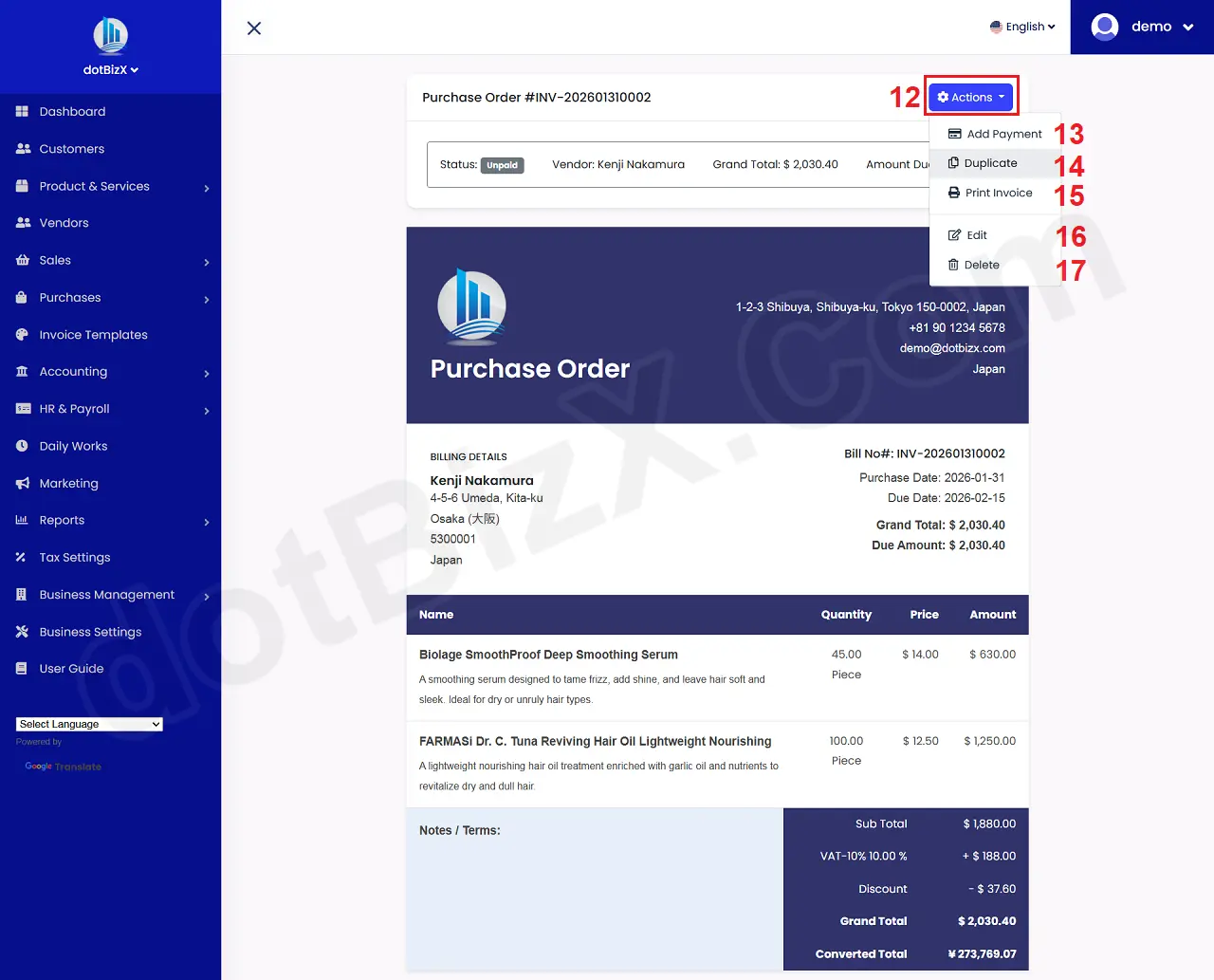
Illustration 03: Purchase Order Detail
* Notes:
+ Action (12) button: When you click on this button so you can see 13th to 17th options like Illustration 01 above.
+ Add Payment (13) option: It's used to pay for this purchase order.
+ Duplicate (14) option: It's used to duplicate this purchase order.
+ Print Invoice (15) option: It's used to print this purchase order.
+ Edit (16) option: It's used to modify this purchase order.
+ Delete (17) option: It's used to delete this purchase order.
5. How do I pay for an existing purchase order?
To do it, In list of purchase orders like Illustration 01 above, you click on Action (4) button that's suitable with your purchase order which you want to pay => then you click on Add Payment (8) option => so you can see the add payment form for that purchase order like Illustration 04 bellows.
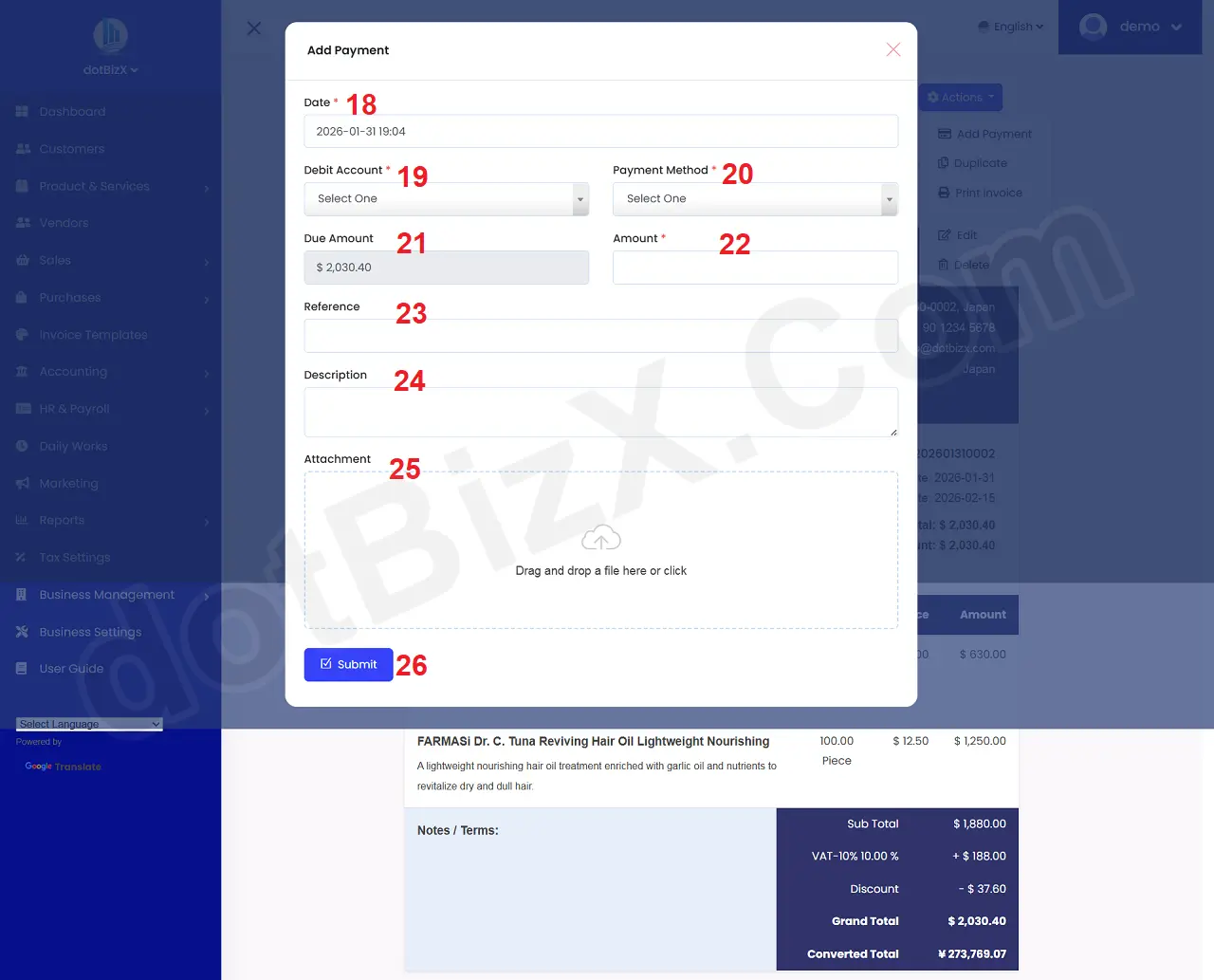
Illustration 04: Add Payment for an existing purchase order
Next you need input all things for your payment => Final, you click on SUBMIT (26) button to finish.
*Notes:
+ Cells marked with a red asterisk (*) are mandatory.
+ Debit Account (19) box: You need choose an debit account for this payment. If this box hasn't value so you need click on Add New option from this box to create a new debit account that's suitable for this payment (you can do it like 7.4. Manage Transaction Methods in the user guide of dotBizX.Com).
+ Payment Method (20) box: You need choose an payment method for this payment. If this box hasn't value so you need click on Add New option from this box to create a new payment method that's suitable for this payment (you can do it like 7.1. Manage Bank Accounts & Accounts in the user guide of dotBizX.Com).
+ Amount (22) box: You need input the value of Due Amount (21) box here to finish payment for that purchase order. If you enter a value less than the value in the Due Amount box (21), you have only paid a portion of that Purchase Order and thus, you will have to pay the remaining amount in the future.
+ Reference (23) box: You need to enter the "identifying trace" of the payment for this Purchase Order. For example: PAY-PO-1023.
+ Attachment (25) option: You need click on this option to upload your proof for your payment. It can be Bill or invoice...
6. How do I delete an existing purchase order?
To do it, In list of purchase orders like Illustration 01 above, you click on Action (4) button that's suitable with your purchase order which you want to delete => then you click on Delete (9) option to delete it.
7. How do I print an existing purchase order?
To do it, In purchase order detail form like Illustration 03 above, you click on Action (12) button that's suitable with your purchase order which you want to print => then you click on Print Invoice (15) option to do it.