
ARTICLE CONTENTS
+ How to create an account in dotBizX.com?
+ A brief introduction to the dotBizX.com user interface.
+ How do I change my account information?
+ How do I change the password for my account?
+ How do I register for or renew my service plan?
+ How do i logout from dotBizX.com?
DETAILED CONTENT
1. How to create an account in dotBizX.com?
1.1. First step: Open Register Window
You open your browse (chrome, coccoc, IE...) with URL: https://dotbizx.com (1) => next, you click on START FREE TRIAL (2) button (or you click on SIGN IN (3) button => then you click on SIGN UP(4) option like Illustration 02 bellow).
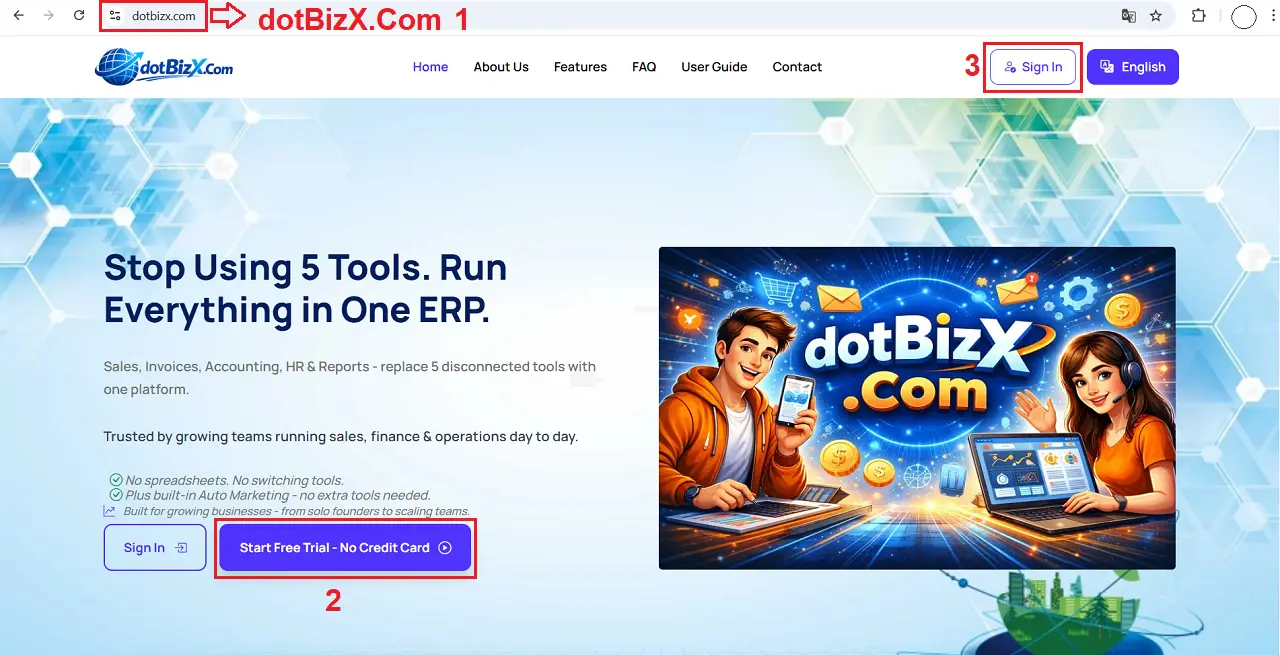
Illustration 01: Go to https://dotBizX.Com
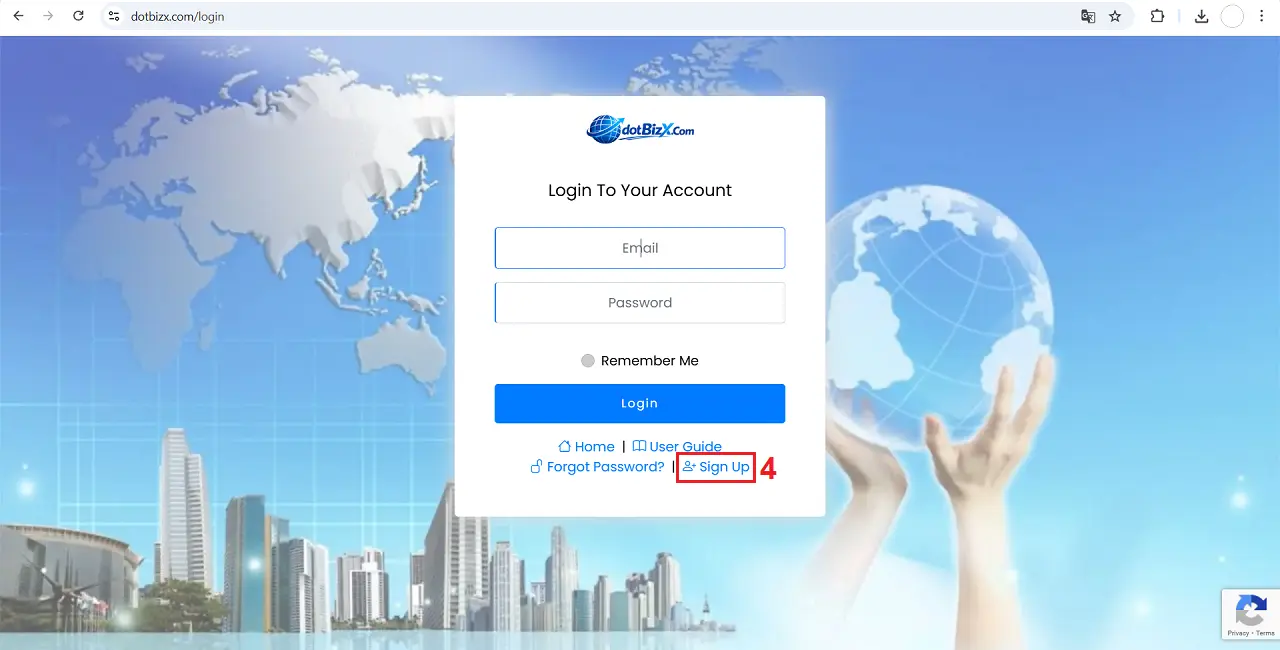
Illustration 02: Open Sign Up window
1.2. Second step: Register an Account
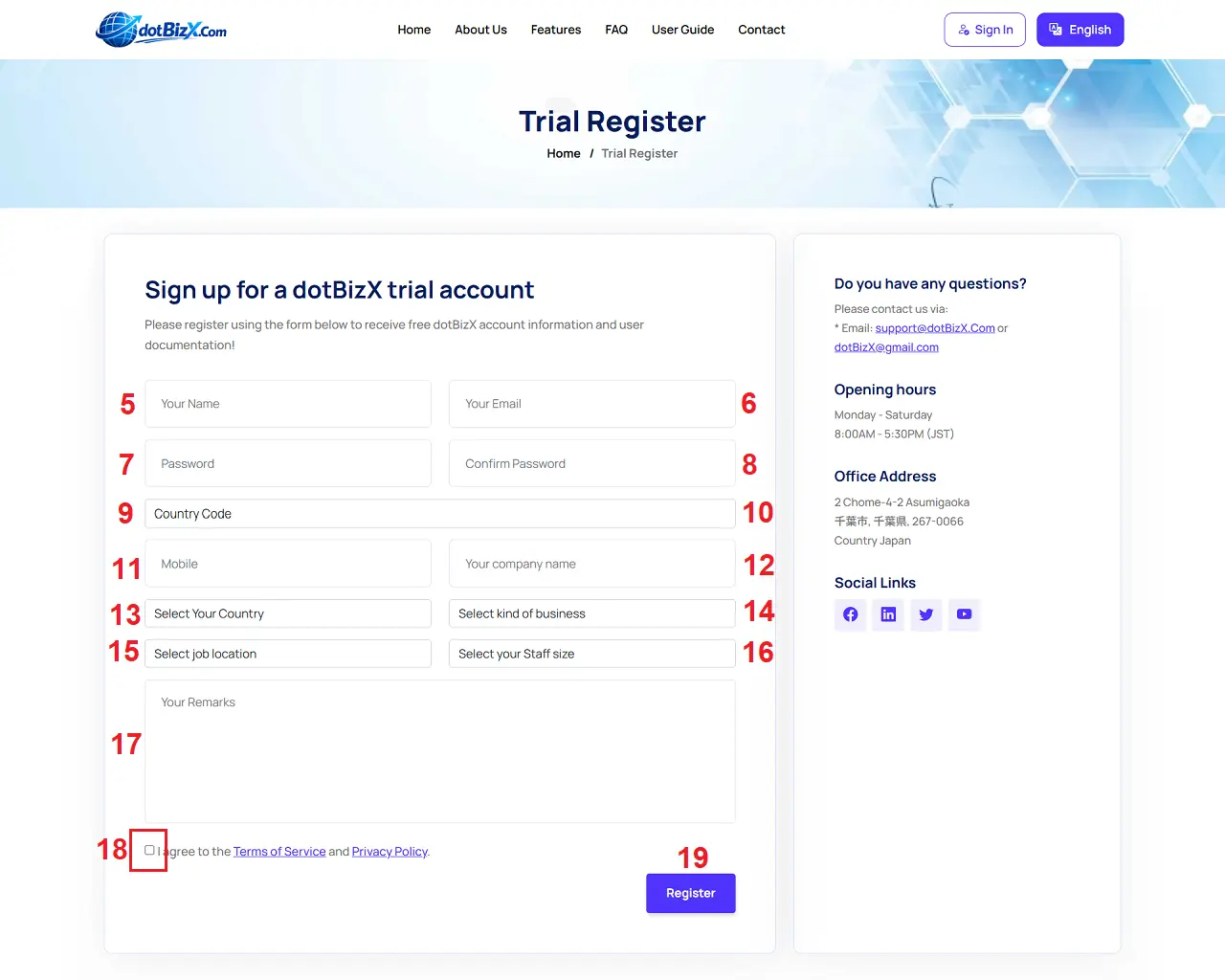
Illustration 03: Register an account from dotBizX.com
In this window, you need input all things via all controls in this form for your account.
* Note:
+ Your Email (6) box: You need input your right email here. It's used to get the verify email to help you to verify your account in dotBizX.com.
+ Password (7) box and Confirm Password (8) box: You need input your password there.
+ 18th box: You need tick this option.
=> Final, you click on REGISTER (19) button => After that your account's created by dotBizX.com.
1.3. Login into dotBizX.com
You click on SIGN IN (3) button => in Login window like Illustration 02 above, you input your Email and your Password => Final, you click on LOGIN button to login into dotBizX.Com.
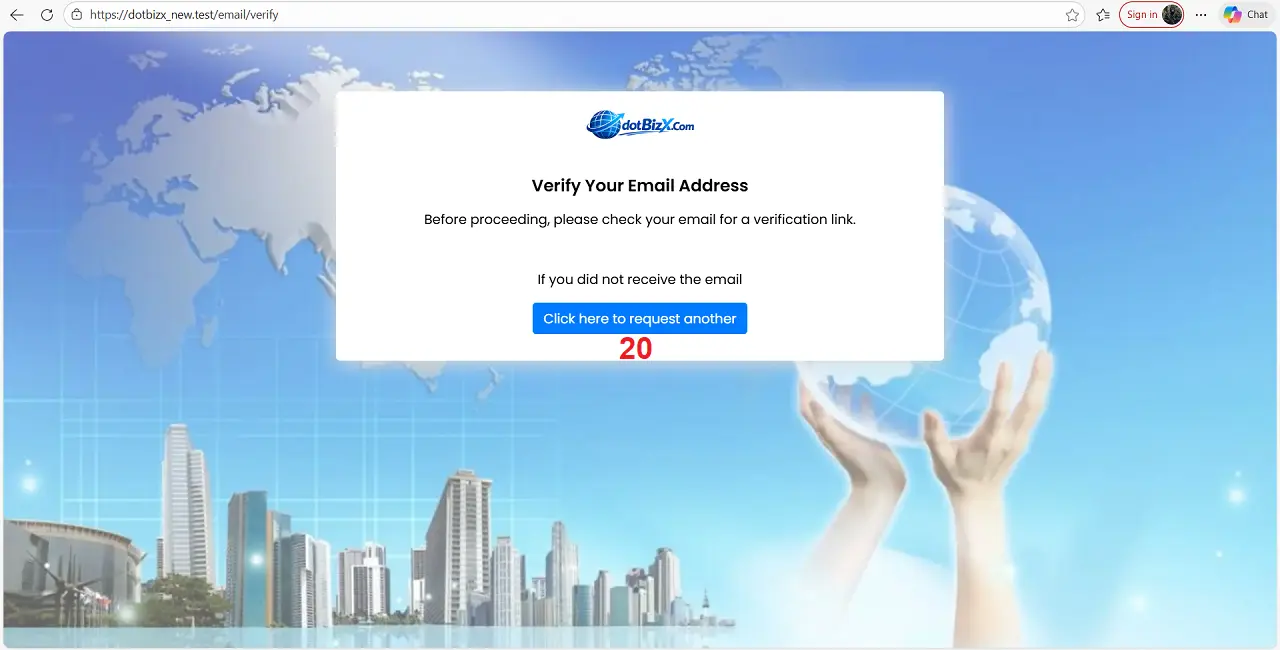
Illustration 04: Verify your email address
In Verify your email address window, you click on VERIFY YOUR EMAIL ADDRESS (20) button => After that, dotBizX.com's sending an email to your email address => You check your email and click on Verify Email Address (21) button to finish.
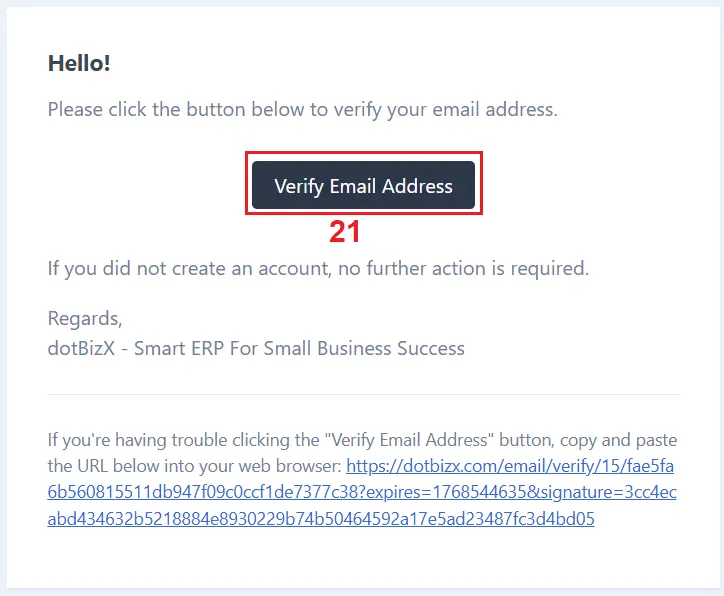
Illustration 05: Verify your email address (continues)
When you verify your email successfully, so You can login into dotBizX.com and you can use all functions of this ERP tool.
2. A brief introduction to the dotBizX.com user interface
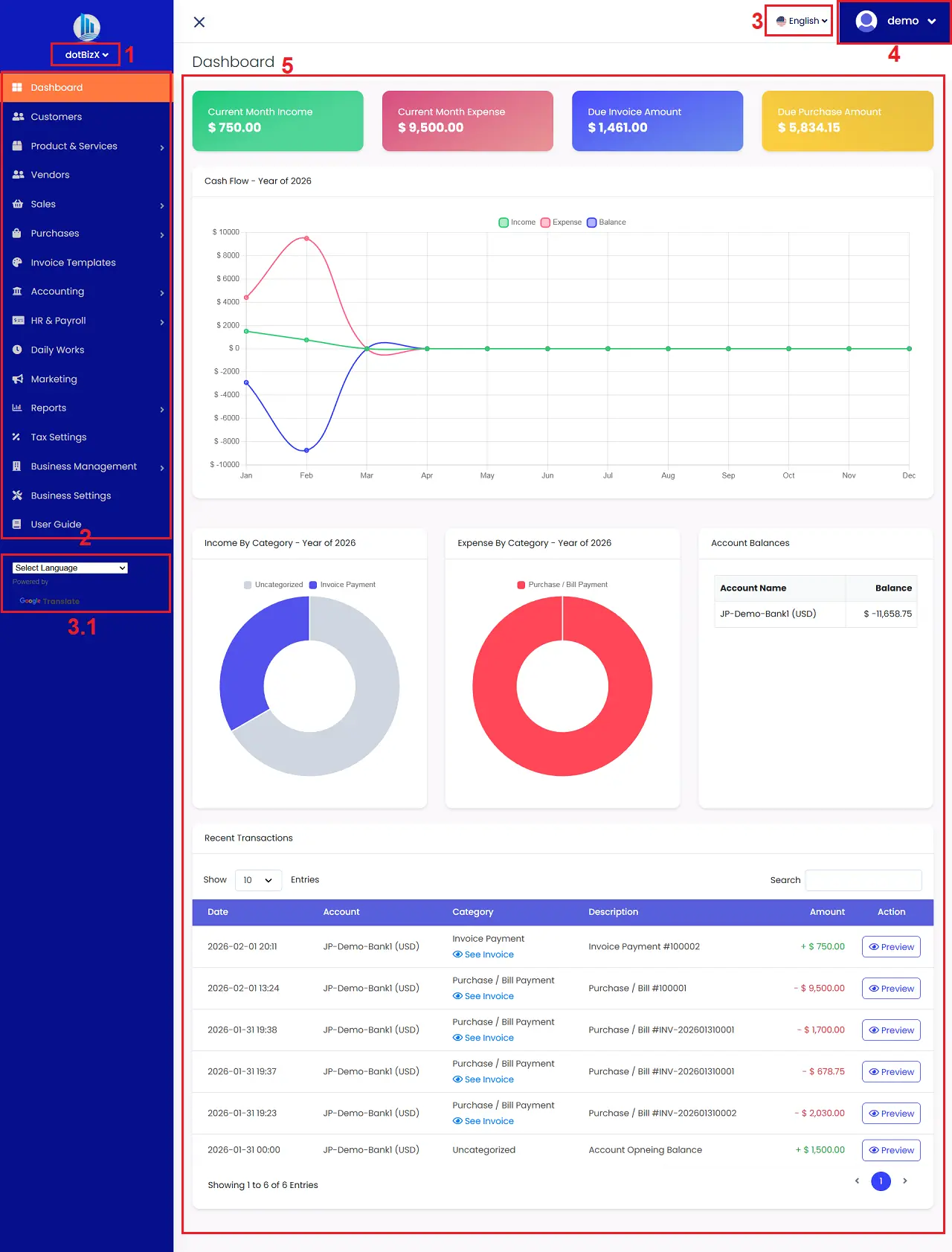
Illustration 06: The user interface of dotBizX.com
* Notes:
+ 1st box: You click on this option to choose your business that you want to work.
+ 2nd box: It includes all functions of this ERP tool.
+ 3rd box: You can click on this button to choose the language that you want.
+ 4th box: You click on this option to change your account informtion or change your password or change your package service or Logout of dotBizX.Com.
+ 5th area: It displays an overview of your ERP management performance.
3. How do I change my account information?
To change your account information, you click on your avatar like 4th option in Illustration 06 above => Then you click on Profile Settings option => next, you change all things for your account => final, you click on UPDATE PROFILE button to finish.
4. How do I change the password for my account?
To change the password for your account, you click on your avatar like 4th option in Illustration 06 above => Then you click on Change Password option => next, you change the password for your account => final, you click on UPDATE PASSWORD button to finish.
5. How do I register for or renew my service plan?
To do it, you click on your avatar like 4th option in Illustration 06 above => Then you click on My Subcriptions option => next, you click on Renew Membership button to renew your current package. If you want to upgrade your package, so you click on Change Package button.
Next, you process to payment for your package => After you complete the payment for your chosen service package, you can continue to use all the features of dotBizX.com according to the package you selected.
6. How do i logout from dotBizX.com?
Todo it, you click on your avatar like 4th option in Illustration 06 above => Then you click on Logout option.