
1. How to show list of Employee Expenses in dowBizX.Com?
To do it, you click on HR & Payroll (1) menu => Next you click on Employee Expenses (2) option => Then you can see list of Employee Expenses like Illustration 01 bellows.
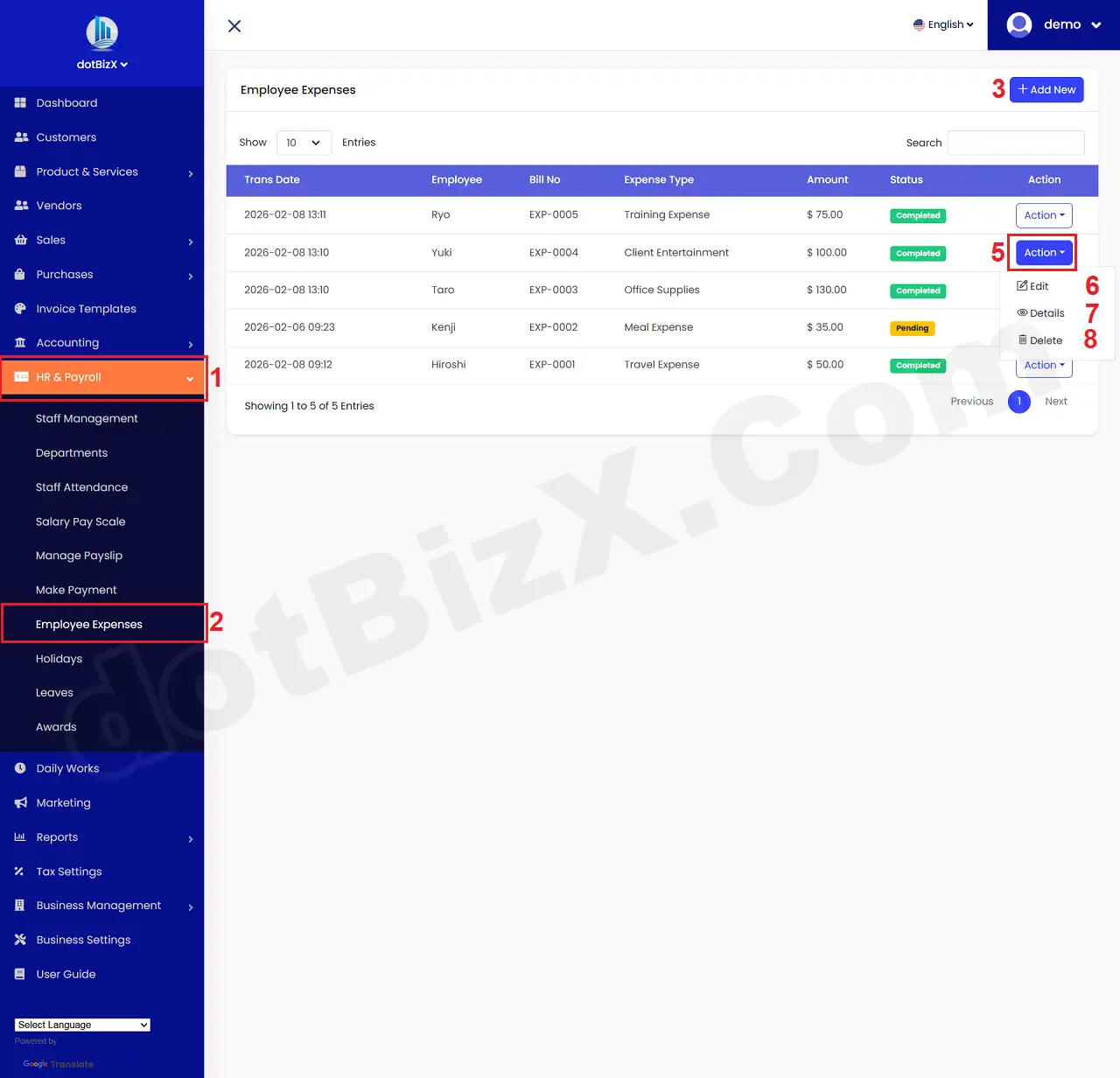
Illustration 01: List of Employee Expenses
* Notes:
+ Add New (3) button: It's used to create a new Employee Expense.
+ Action (5) button: When you click on this button so you can see 6th - 8th options.
+ Edit (6) option: It's used to modify an existing new Employee Expense.
+ Details (7) option: It's used to show an existing new Employee Expense.
+ Delete (8) option: It's used to delete an existing new Employee Expense.
2. How to add a new Employee Expense?
In list of Employee Expenses like Illustration 01 above, you click on Add New (3) button => In Add Expense Form, you need input all things for it => Final, you click on SUBMIT () button to finish.
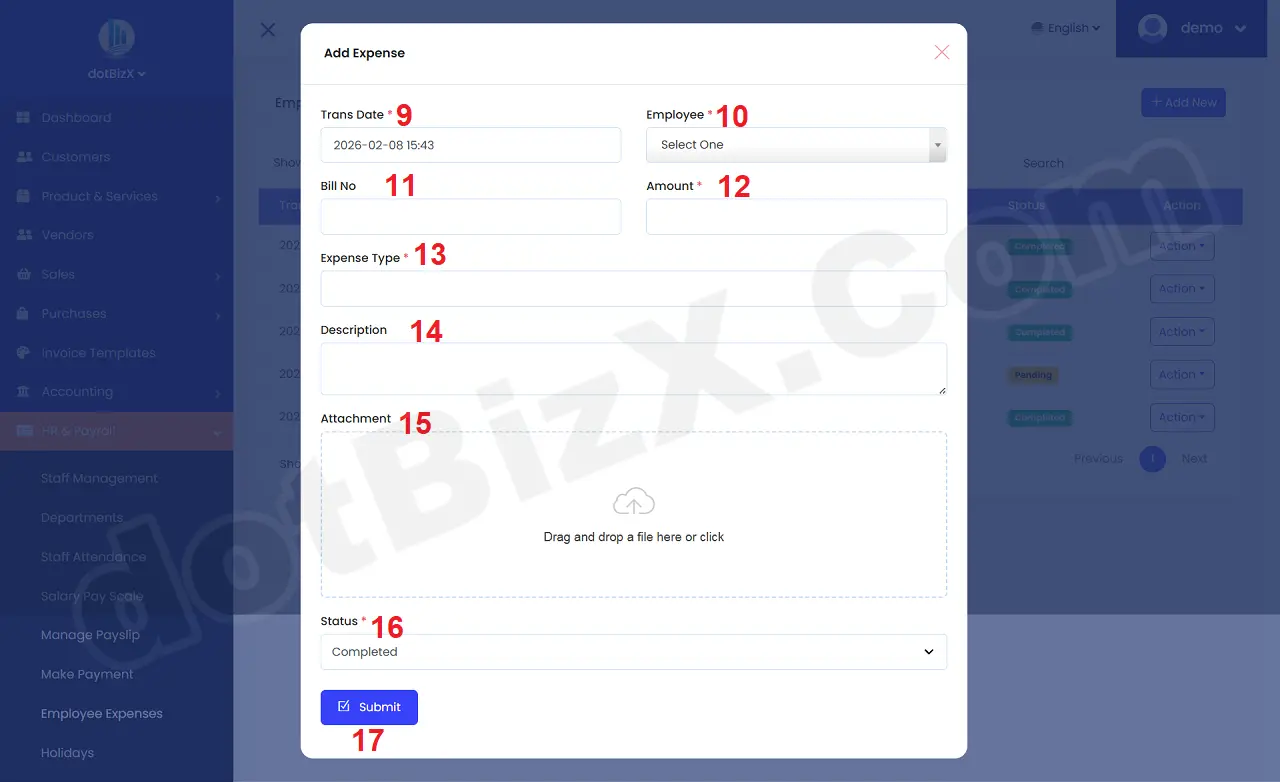
Illustration 02: Add Expense Form
* Notes:
+ Cells marked with a red asterisk (*) are mandatory.
+ Attachment (15) box: You need click in this box to upload your proof of expense.
+ Status (16) box: It has two values:
🔹 Pending
👉 Pending processing
+ Expense created
+ Not approved / not paid
+ May be:
- awaiting management approval
- awaiting accounting processing
- awaiting additional documentation
📌 Intimate status
🔹 Completed
👉 Completed
+ Expense has been:
- approved ✅
- paid or recorded
+ No further edits (usually)
📌 Final status