
1. How to show list of customers?
You click on Customers (1) menu => so you can see list of customers like Illustration 01 bellows.
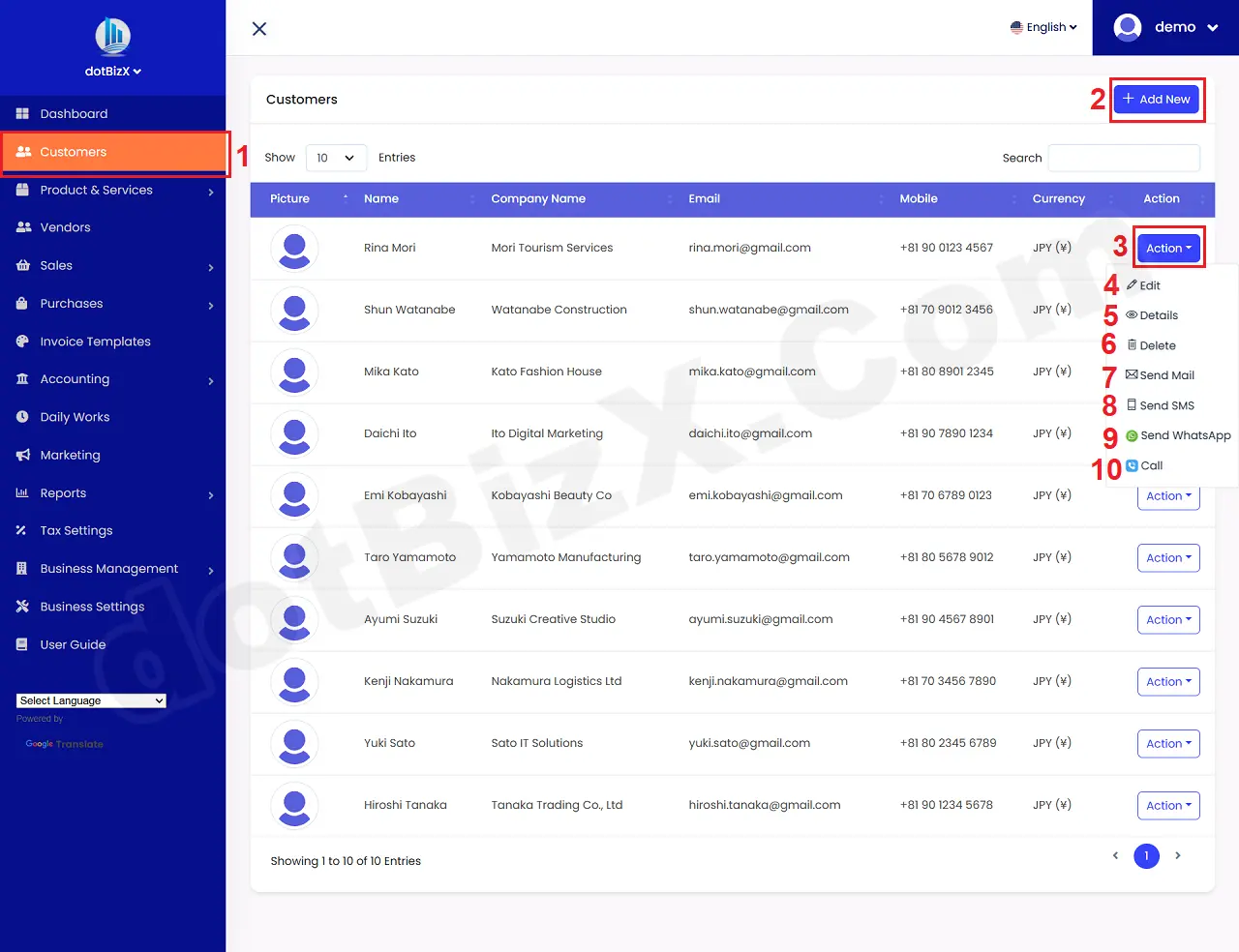
Illustration 01: List of customers
* Notes:
+ Add New (2) button: It's used to create a new customer.
+ Action (3) button: When you click on this button so you can see more options from 4th to 10th position like Illustration 01 above.
+ Edit (4) option: It's used to modify the information about customer.
+ Details (5) option: It's used to show all information about customer.
+ Delete (6) Option: It's used to delete a customer.
+ Send Mail (7) option: It's used to send mail for your customer.
+ Send Sms (8) option: It's used to send sms for your customer from your mobile when you work with dotBizX.com from your mobile.
+ Send WhatsApp (9) option: It's used to send WhatsApp Chat for your customer.
+ Call (10) option: It's used to call for your customer via the suitable app from your mobile when you work with dotBizX.com from your mobile.
2. How to create a new customer?
In list of customers like Illustration 01 above, you click on ADD NEW (2) button to create a new customer.
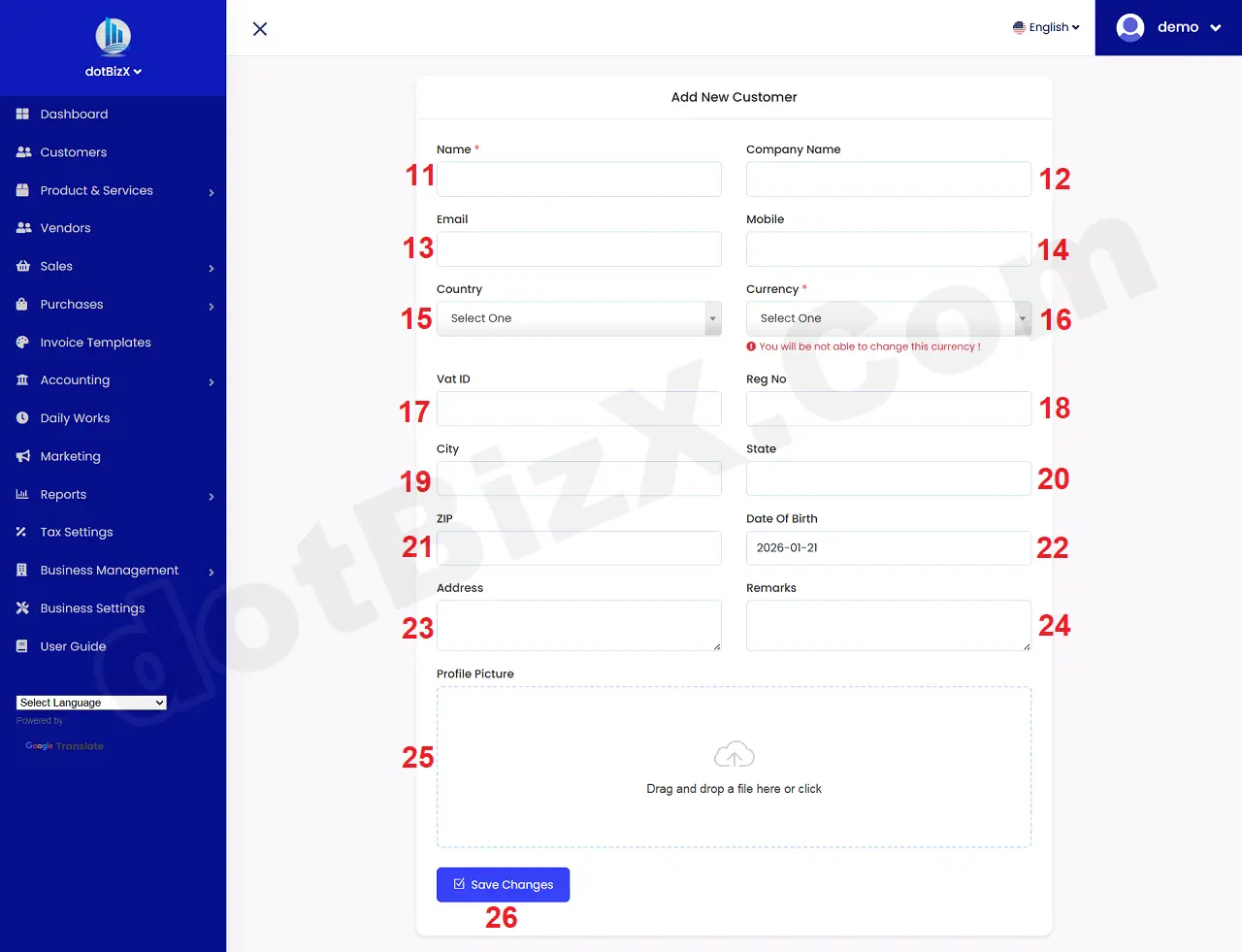
Illustration 02: Add a New Customer
Next, you need input all information for your customer => Final, you click on SAVE CHANGES (26) button to finish.
* Notes:
+ Cells marked with a red asterisk (*) are mandatory.
+ With the Currency field, once you've selected the currency for your Customer, you won't be able to change its value later.
+ The logo is an image with a maximum size of 300kb.
+ If you want to import customers in bulk from Excel File, so you can do it follow this article: 2.2. Import Customers In Bulk of the user guide of dotBizX.Com.
3. How to show an existing customer?
In list of customers like Illustration 01 above, you click on Action (3) button => then you click on Details (5) option => so you can see the customer details like Illustration 03 bellows.
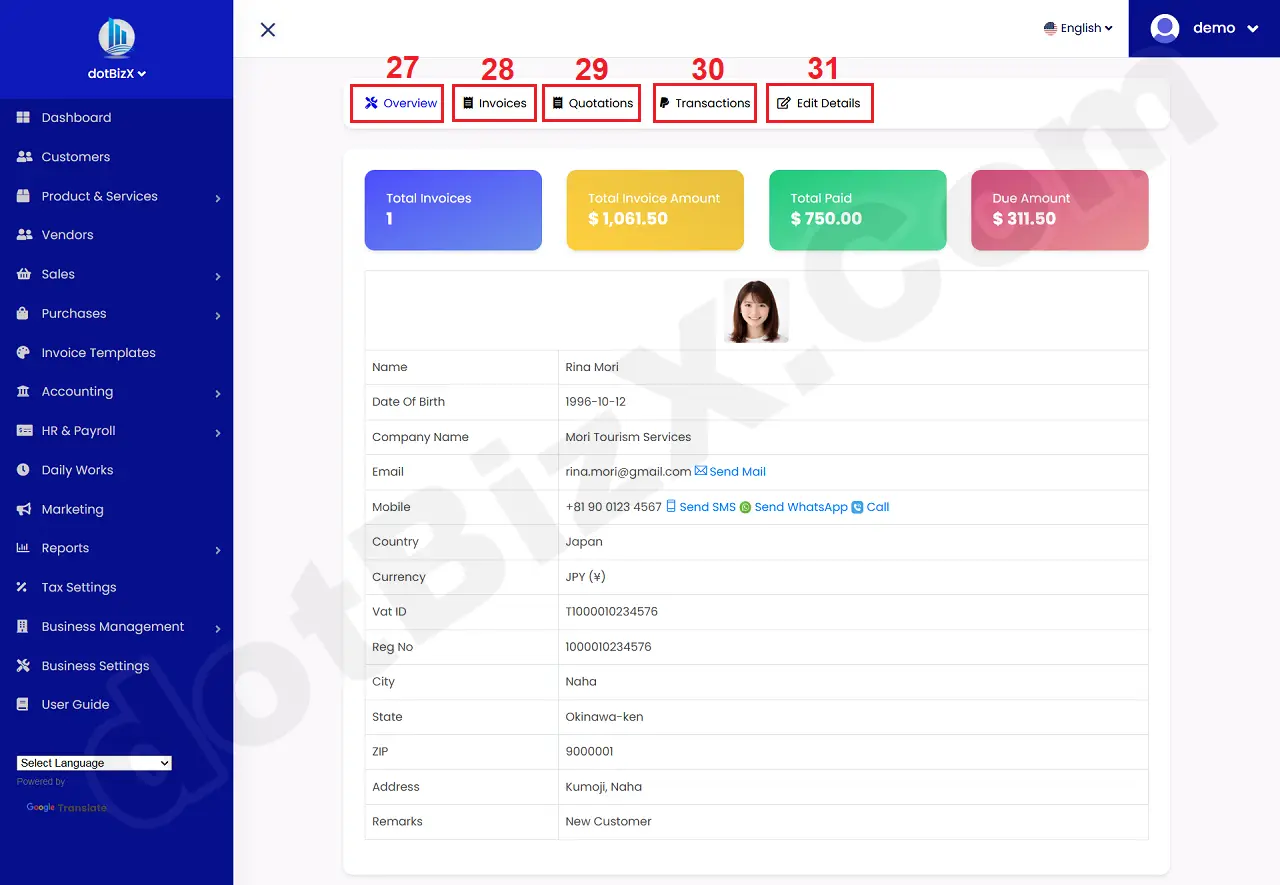
Illustration 03: Customer Details Form
* Notes:
+ Overview tab (27): It's used to show the Overview of customer like Illustration 03 above.
+ Invoices tab (28): It's used to show all invoices of this customer.
+ Quotations tab (29): It's used to show all quotations of this customer.
+ Transactions tab (30): It's used to show all Transactions of this customer.
+ Edit Details tab (31): It's used to modify all informations about this customer.